
Before you start
You also need the COD King app installed. If you have not done that yet, open the Shopify App Store, search for COD King and click Install. Approve the permissions so the app can read your catalog.1. Open Partial payments & COD
1
Open COD King
In the Shopify admin, click COD King under Apps in the left sidebar.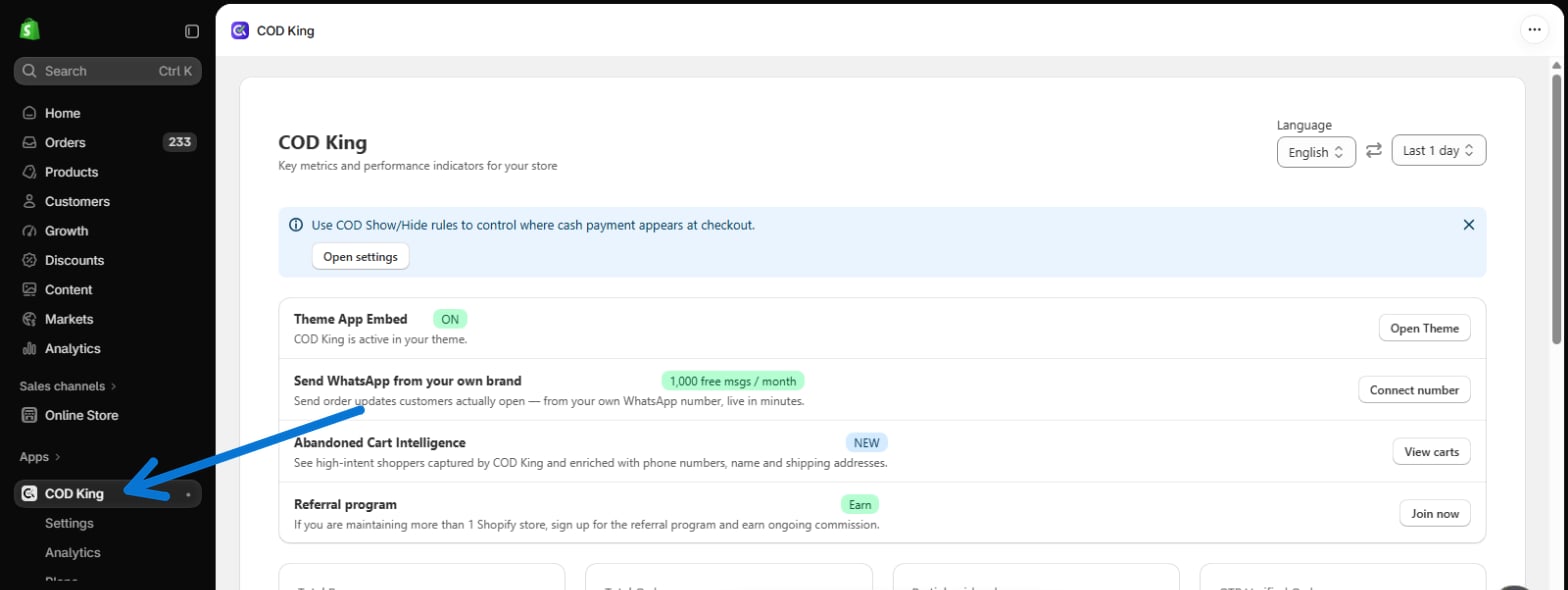
2
Go to Settings → Partial payments & COD
Under COD King, click Settings, then choose Partial payments & COD.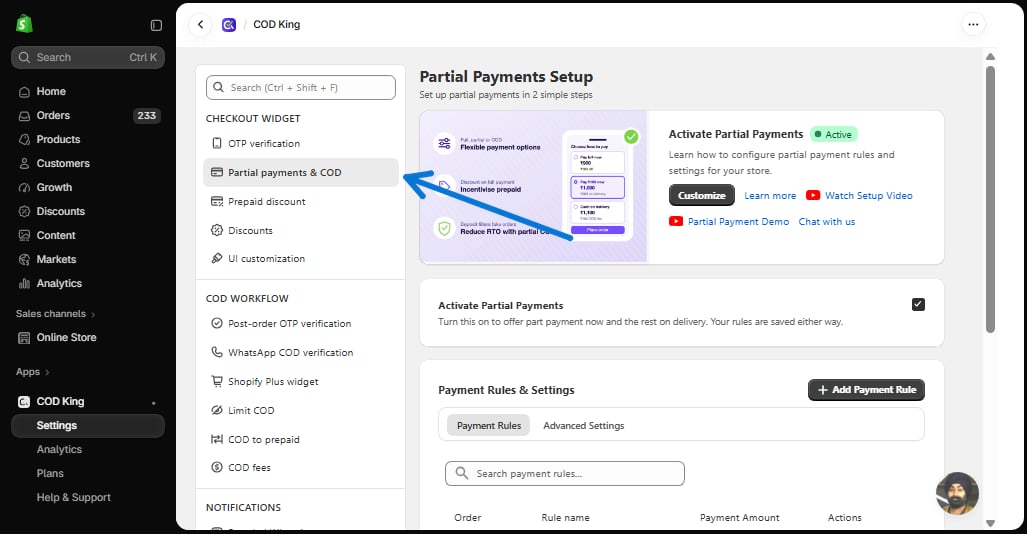
2. Turn on the COD King app embed
COD King shows its popup through a theme app embed. In the COD King dashboard, find the Theme App Embed row and click Open Theme. In the theme editor, switch on the COD Kings OTP block and save.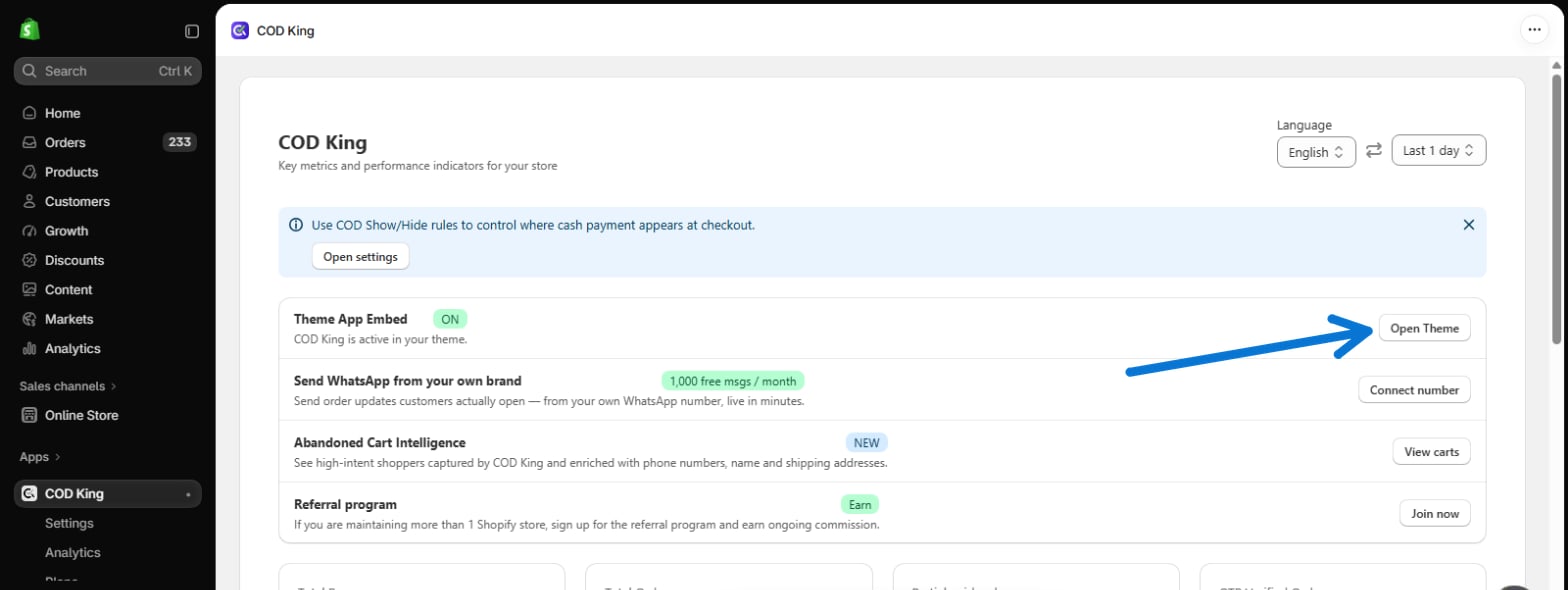
3. Create your payment rules
Partial Payment does nothing until at least one payment rule exists. Read Payment rules and create the options you want to offer. Your rules are saved even while the feature is switched off, so you can build them first and activate later.4. Activate
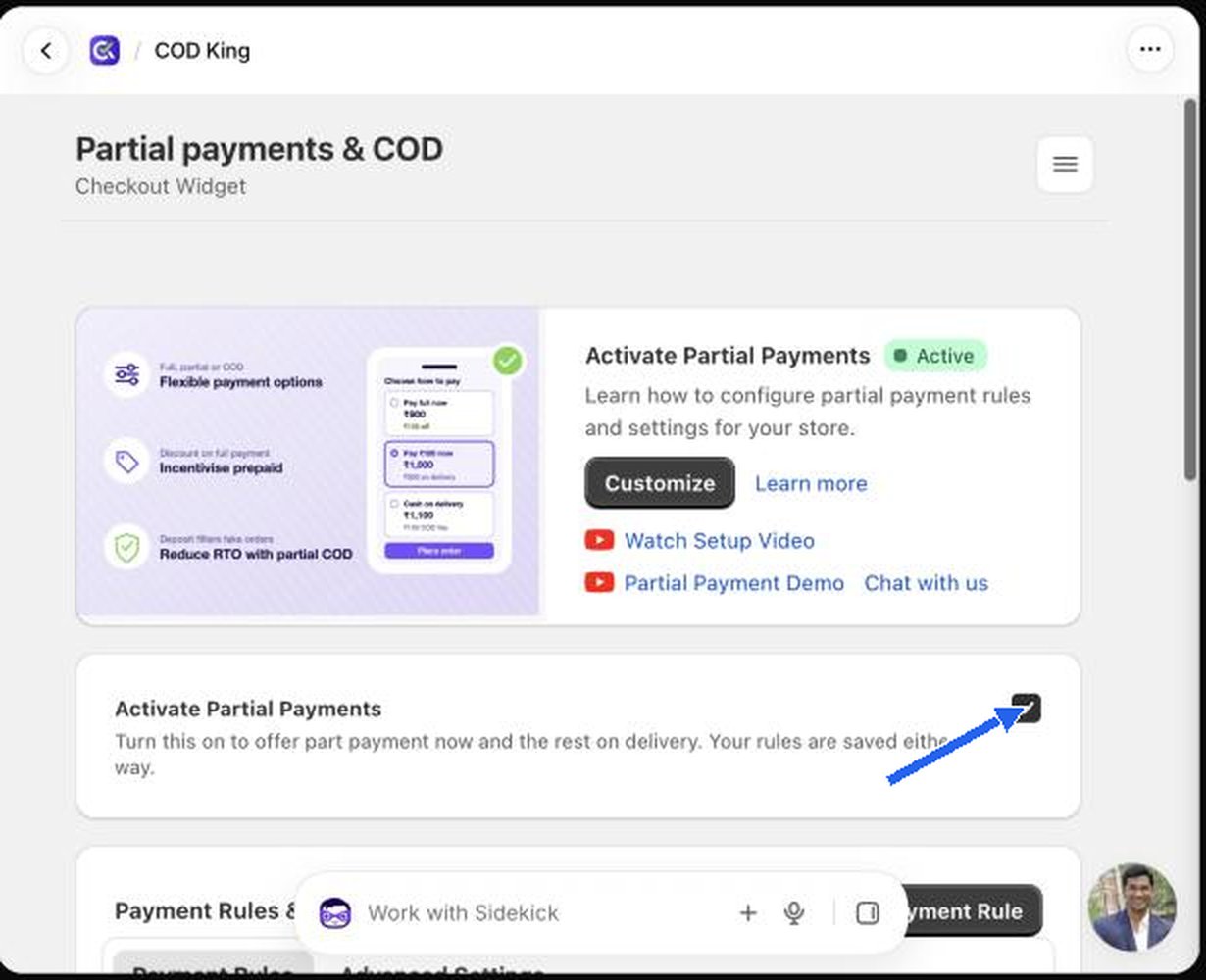
Tick Activate Partial Payments. The helper text under it says: Turn this on to offer part payment now and the rest on delivery. Your rules are saved either way. A black Save bar (“Unsaved changes”) appears at the top of the page. Click Save. The banner badge then shows Active.Nothing on this page is stored until you click Save in that bar. If you leave the page without saving, your changes are lost. Click Discard to throw changes away on purpose.