
Open Analytics
In the Shopify admin sidebar, click COD King, then Analytics. The page opens on the Overview tab of the Analytics Dashboard. Other tabs include Orders by feature, Message Logs, Usage Charges and Branded notifications.Overview: Orders secured by partial payment
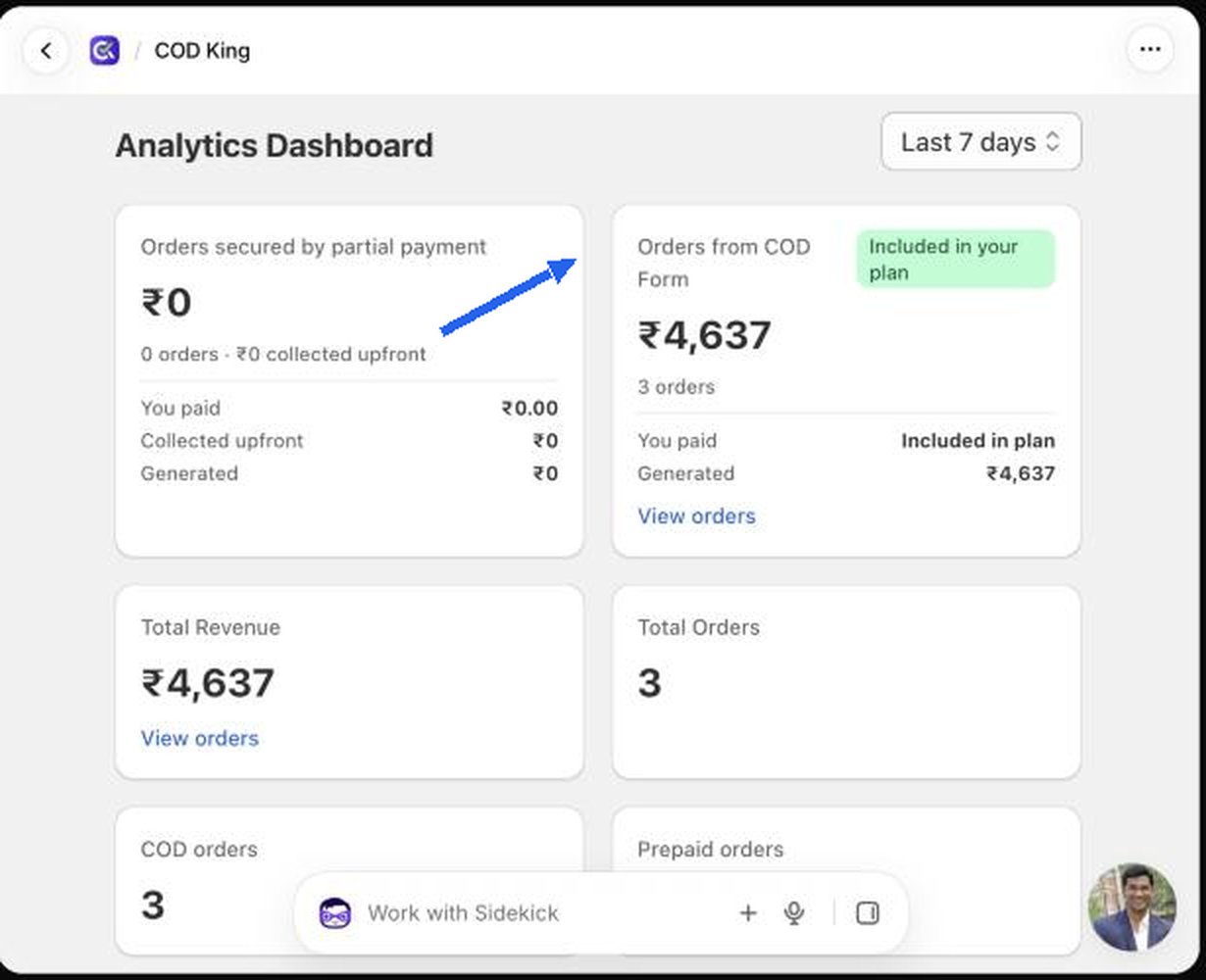
When the card has at least one order, a View orders link appears. It opens Orders by feature already filtered to partial payment, and a green badge such as 3x return shows how many times over the order value generated exceeds the fee you paid.
In the example above the test store has no partial payment orders in the last 7 days, so the card shows zero. Once shoppers choose a deposit option, the numbers appear here.
Orders by feature: see the individual orders
1
Open the Orders by feature tab
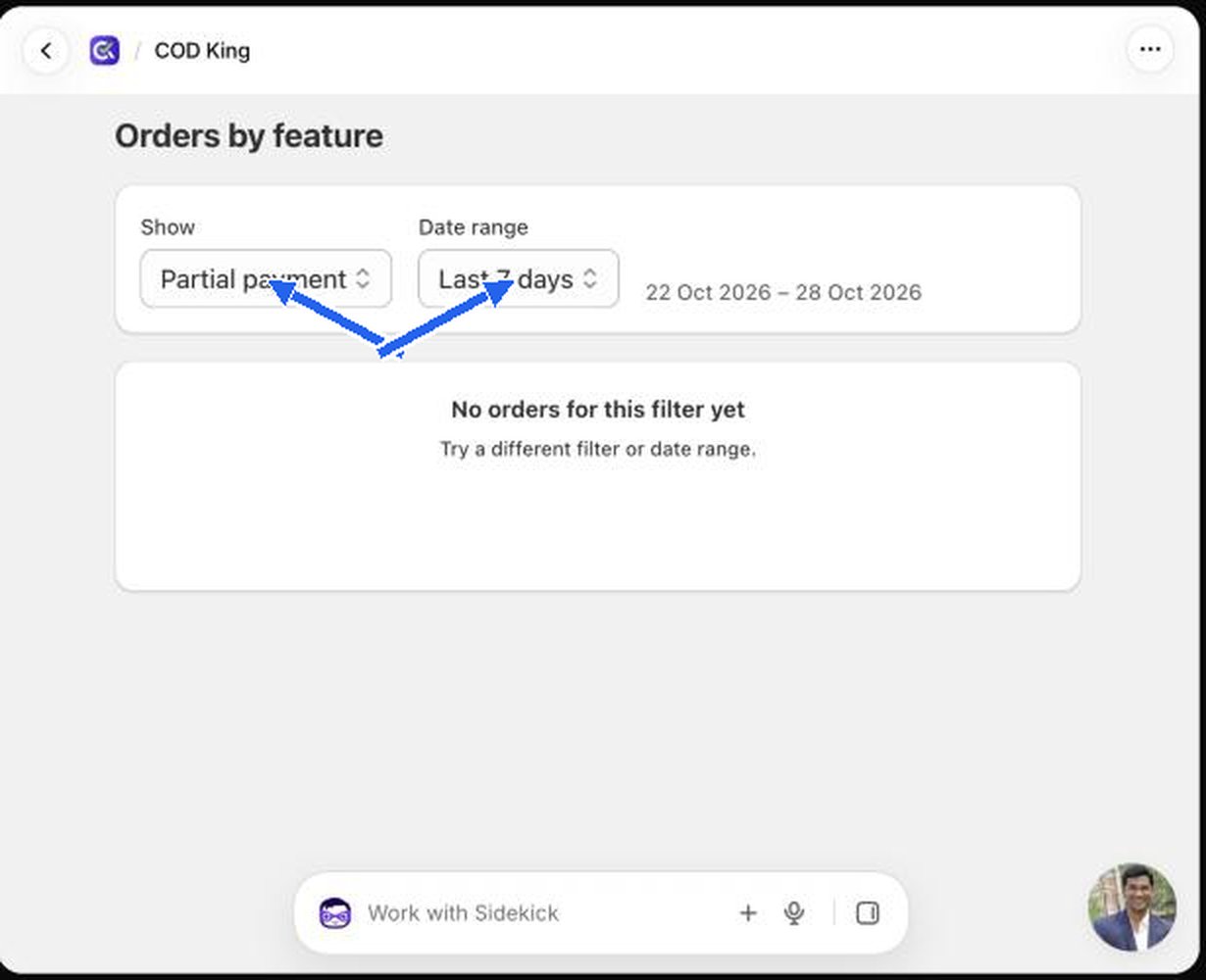
On the Analytics Dashboard, click Orders by feature.
2
Set Show to Partial payment
The Show drop-down lists All orders, COD converted to prepaid, Abandoned carts recovered, Partial payment, COD fee collected, OTP verified, COD Form, Upsell and Free gift. Choose Partial payment.
3
Choose a date range
Use Date range (for example Last 7 days or Last 90 days).
Related views
- Usage Charges lists what COD King has charged you for its features.
- Message Logs shows the WhatsApp and SMS messages sent for these orders.
- In Shopify, open the order itself to see the amount already paid and the balance due on delivery.