Keep customers informed and engaged. Build brand & trust by connecting with your customer
- Confirmation Messages
- Fulfilment Messages
- First Purchase Messages
Keep your notifications enabled and complete your settings - WhatsApp messages will start automatically once your account is approved. You can still send test notifications while approval is pending. To maintain a healthy eco-system and avoid spamming, our team will review your Store.
1. Confirmation Messages
Helps send automated SMS and WhatsApp notifications to customers as soon as an order is placed, ensuring instant communication, improved customer engagement, and a seamless post-purchase experience. What the Customer Receives- A confirmation message
- Order ID
- Order summary (optional)
- Thank you note
- Brand name or store name
Step-by-Step Guide :
Step 1: Open Customer Engagement
Go to COD King then go to Settings after that locate Customer notifications (under Notifications) from your Shopify admin panel.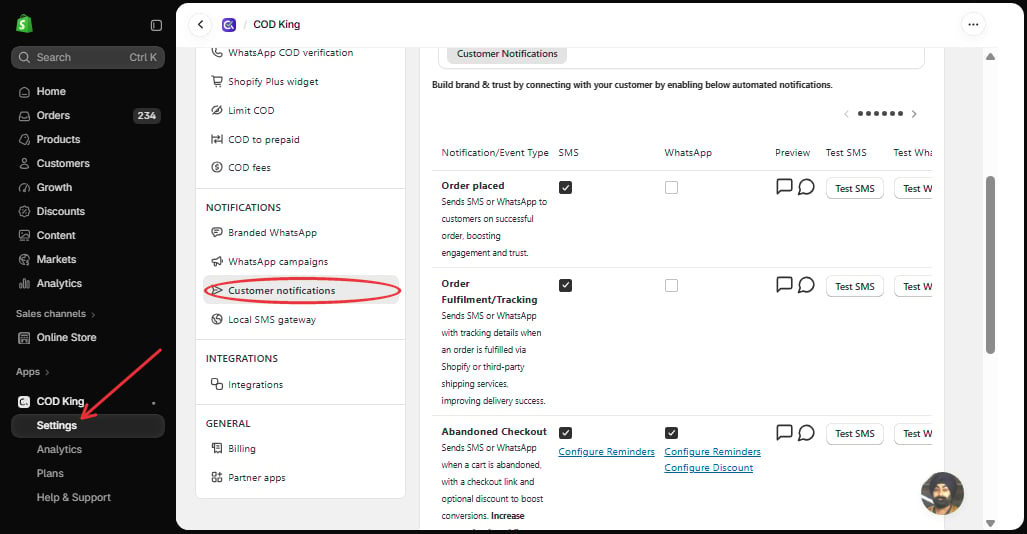
Step 2: Select Confirmation Messages
In the Customer Notifications table, find the Order placed row to configure notifications that are sent when an order is placed.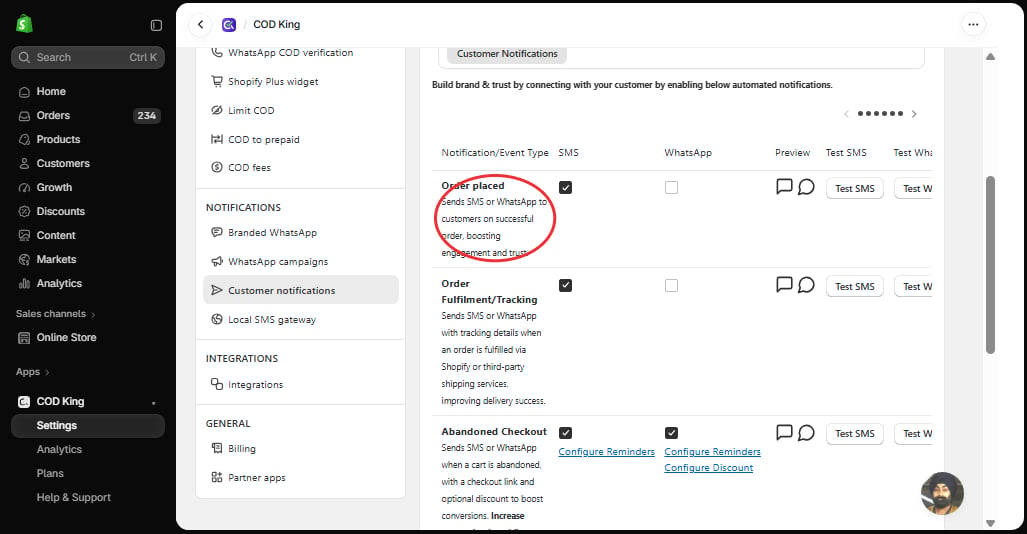
Step 3: Choose the Communication Channel
Select the channel through which you want to notify customers — SMS, WhatsApp, or both.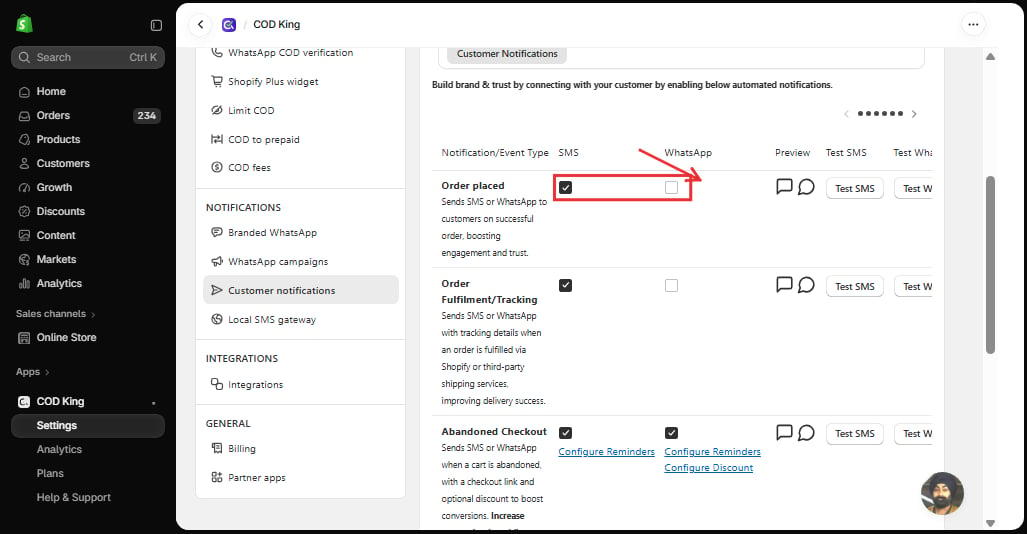
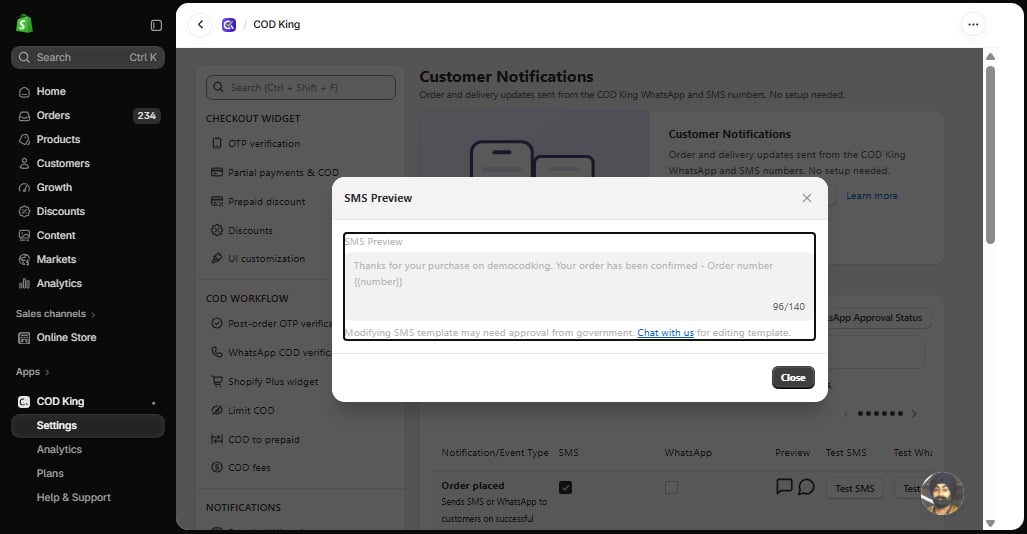
Step 4: Configure the Message
Use the two icons in the Preview column to review the confirmation messages in Whatsapp or SMS whcih customers will receive after placing an order. To change an SMS template, use the Chat with us link in the SMS preview.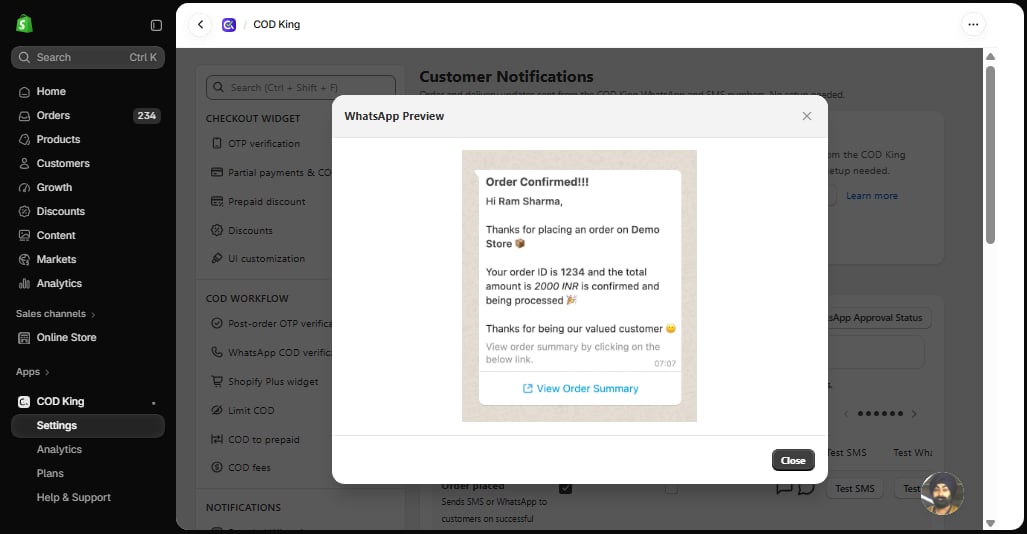
Step 5: Enable the Message
Review your message settings and tick the SMS and/or WhatsApp checkbox in the Order placed row to start sending automated notifications when orders are placed.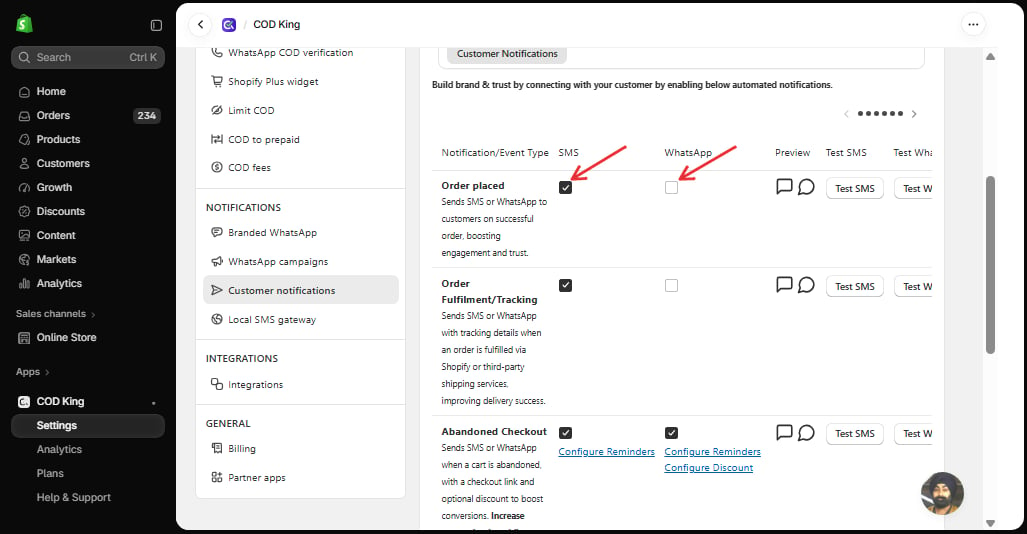
- Stores with high COD order volume
- Stores facing customer hesitation after placing orders
- Brands wanting a professional, automated communication flow
2. Fulfilment Messages
Allows you to send automated SMS and WhatsApp notifications to customers when an order is dispatched, keeping them informed about their order status and ensuring a smooth post-purchase experience. What the Customer Receives- Tracking link
- Courier partner details (if available)
- Estimated delivery message
- Order ID
Step-by-Step Guide :
Step 1: Open Customer Engagement
Go to COD King → Settings → Customer notifications from your Shopify admin panel.Step 2: Select Fulfilment Messages
In the Customer Notifications table, find the Order Fulfilment/Tracking row to configure notifications for dispatched orders.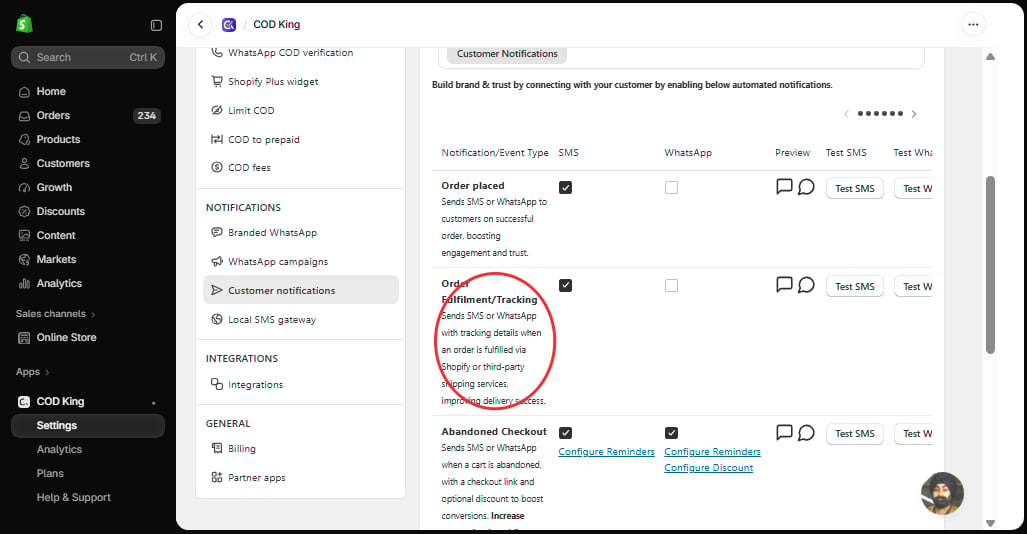
Step 3: Choose the Communication Channel
Select the preferred communication channel — SMS, WhatsApp, or both.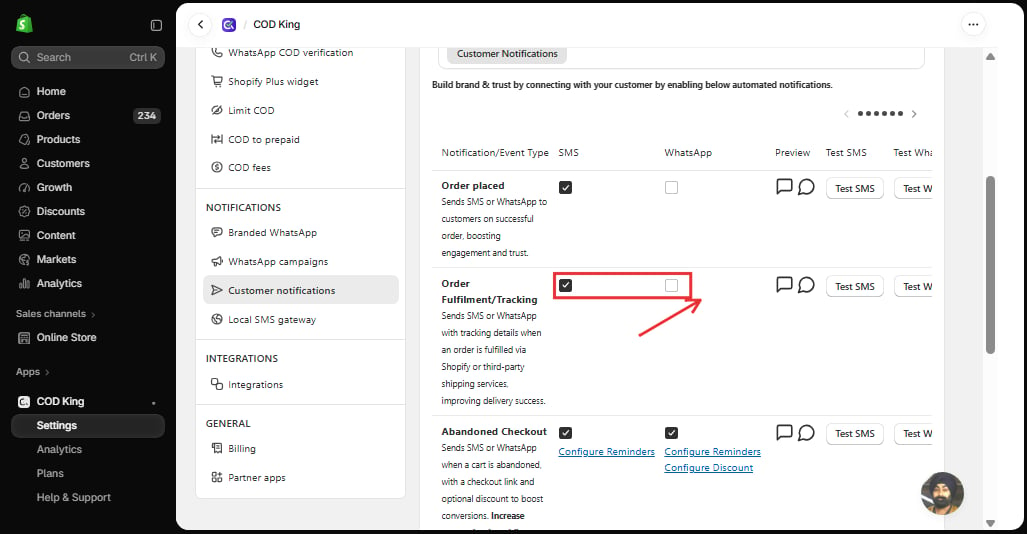
Step 4: Configure the Message
Use the two icons in the Preview column to review the fulfilment message that will be sent when an order is dispatched. To change an SMS template, use the Chat with us link in the SMS preview.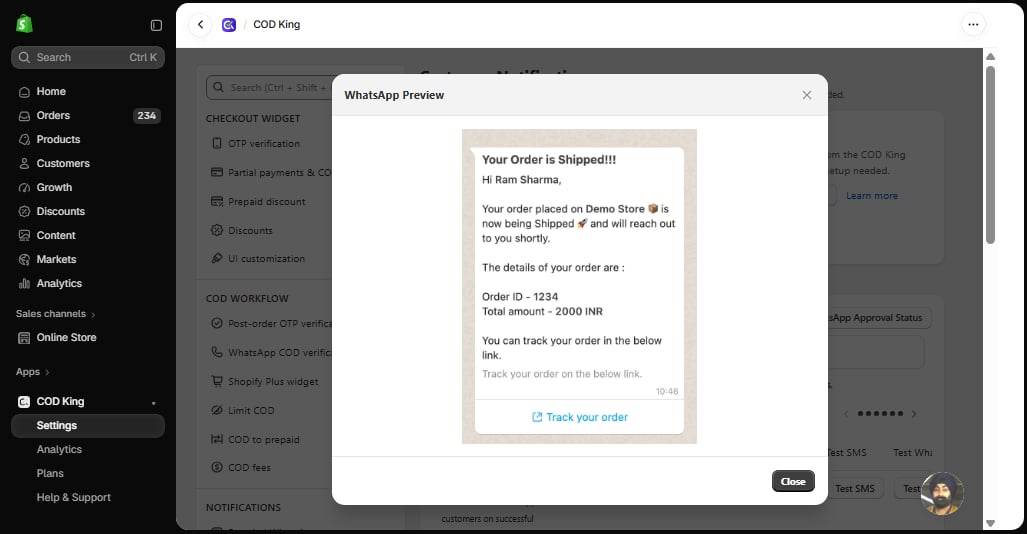
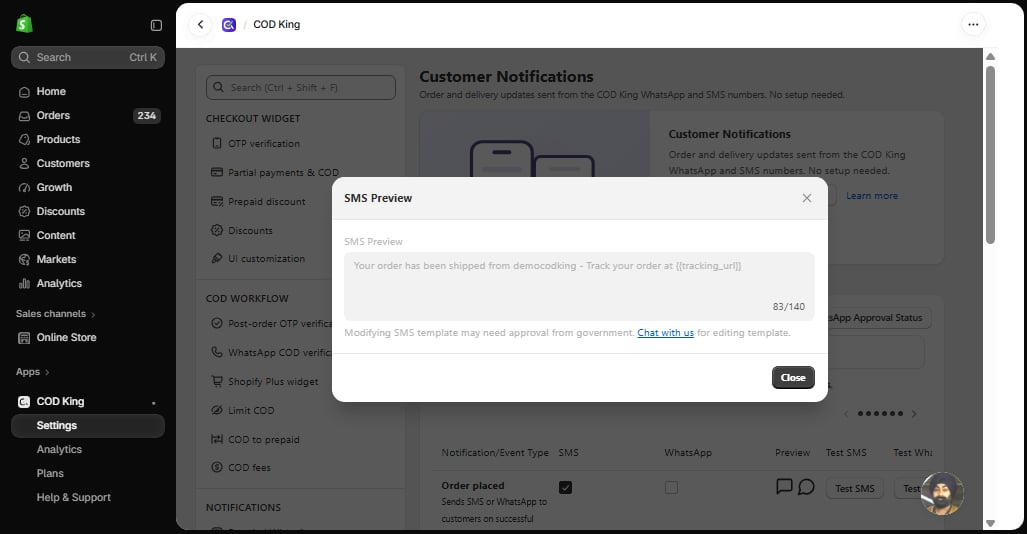
Step 5: Enable Fulfilment Messages
Review your message and settings, then tick the SMS and/or WhatsApp checkbox in the Order Fulfilment/Tracking row to save and enable the fulfilment notification.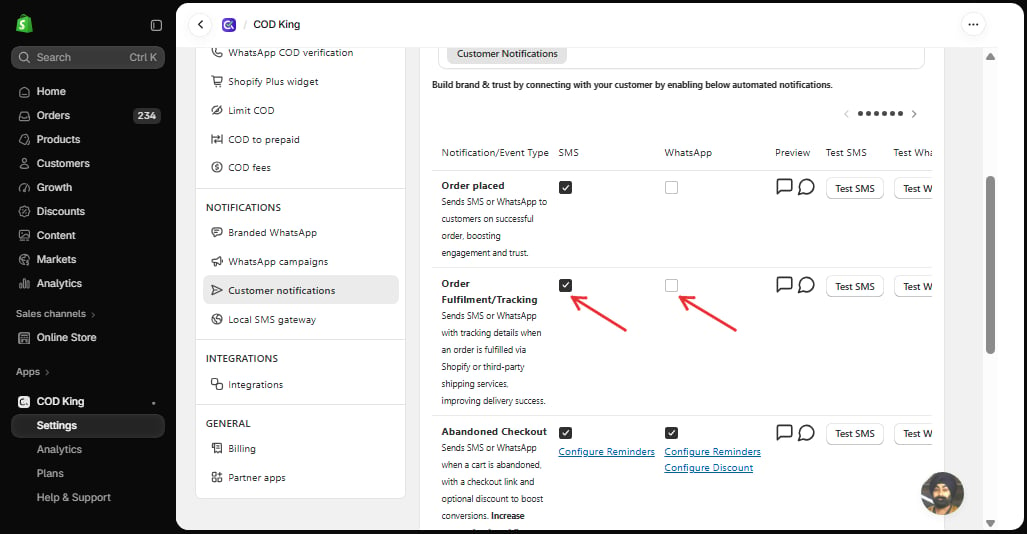
- Stores dispatching through multiple shipping partners
- Stores wanting fewer customer queries
- Businesses wanting to improve delivery performance
3. First Purchase Messages
Helps you send automated WhatsApp messages to customers after their first order by offering exclusive discounts and timely reminders. Encourage repeat purchases, increase customer engagement, and drive higher conversions. What the Customer Receives- Welcome message
- Thank-you note
- Discount code (optional)
- Brand introduction
Step-by-Step Guide :
Step 1: Open Customer Engagement
Go to COD King → Settings → Customer notifications from your Shopify admin panel.Step 2: Select First Purchase Messages
Scroll down the Customer Notifications table to the First Time Purchase row to create automated messages for customers after their first purchase.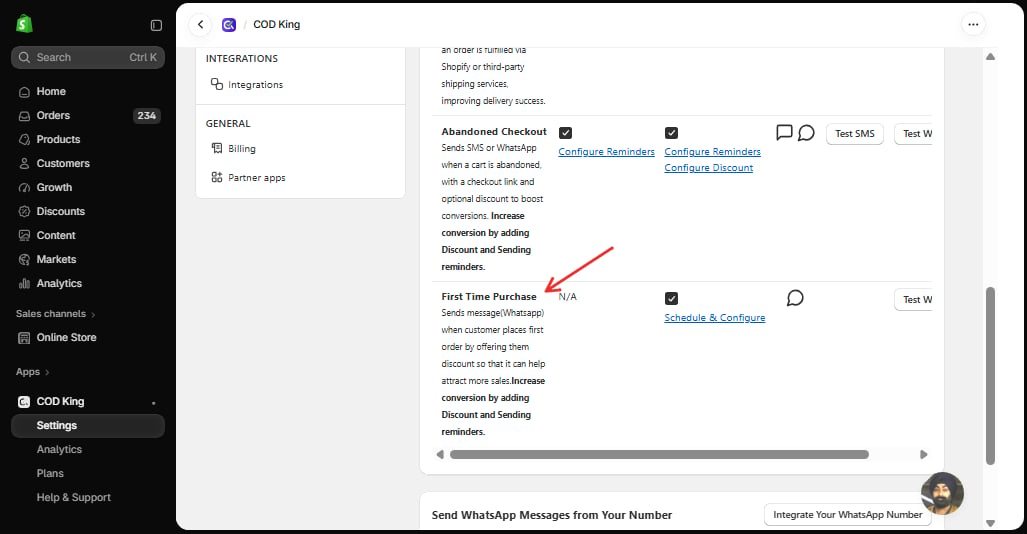
Step 3: Enable WhatsApp Messages
Enable WhatsApp as the communication channel for sending first-purchase messages to customers.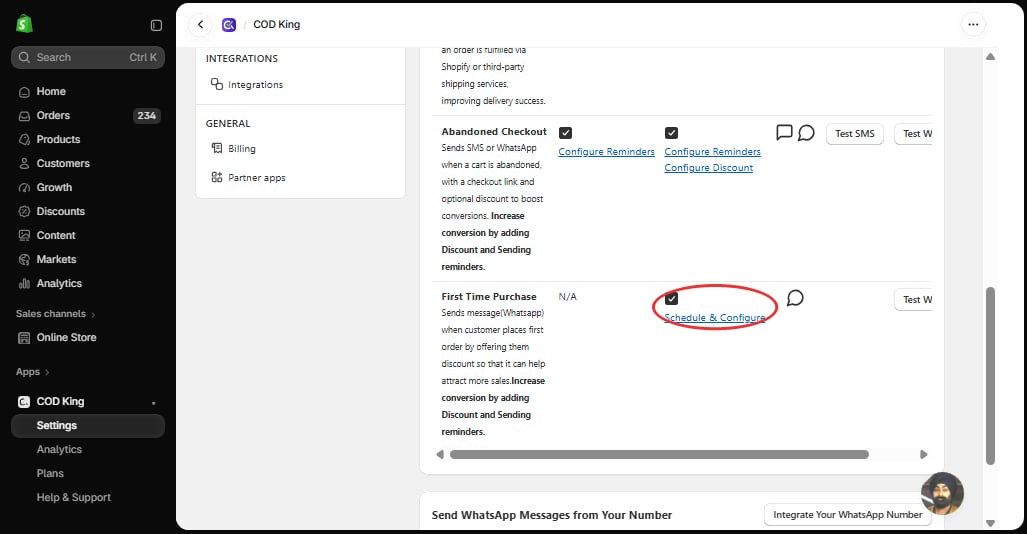
Step 4: Add Your Offer
Click Schedule & Configure and enter the Discount Value and Discount Code for the exclusive discount offered to customers after their first order. Use the Preview icon to see the message.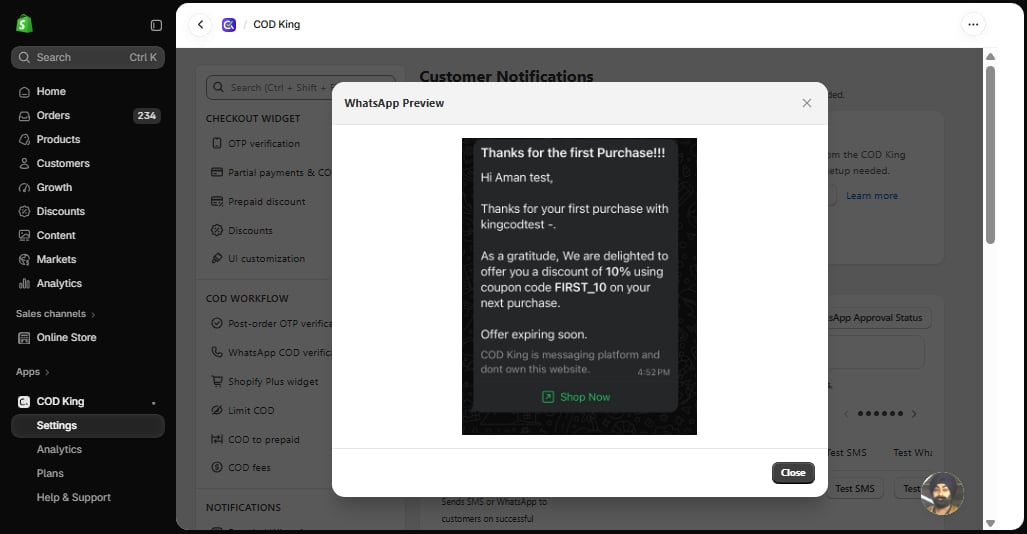
Step 5: Set the Reminder
In the same First Time Purchase Configuration window, set Schedule time for first time purchase to choose the reminder timing for the message.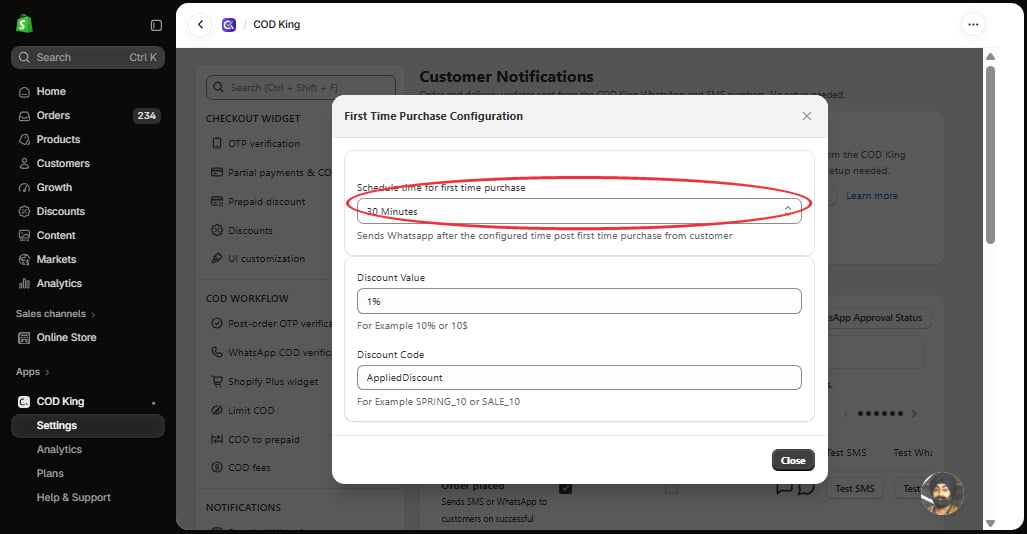
Step 6: Save and Enable
Review the message, discount, and reminder settings, then save and enable the First Purchase Message.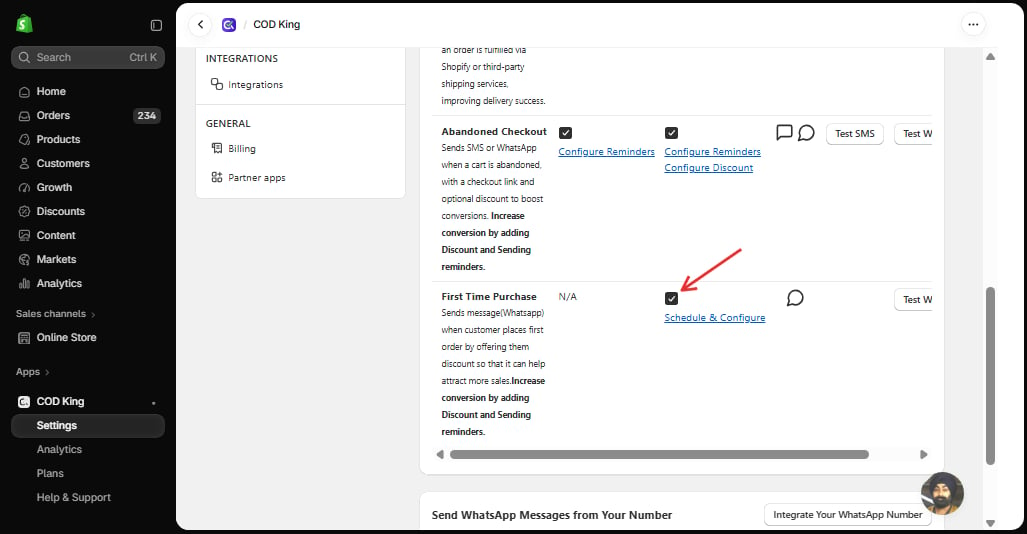
- New brands wanting to grow customer relationships
- Stores focusing on repeat buyers
- Stores with strong branding or loyalty programs
How Customer Engagement Helps Your Business ?
- Builds Customer Trust: Keeps customers informed at every key stage of their order journey.
- Drives Repeat Purchases: First-purchase offers encourage customers to shop again.
- Boosts Conversions: Timely messages and exclusive discounts motivate customers to complete more purchases.
- Improves Customer Experience: Delivers relevant updates through SMS and WhatsApp without manual effort.
- Strengthens Customer Relationships: Consistent communication helps turn first-time buyers into loyal customers.
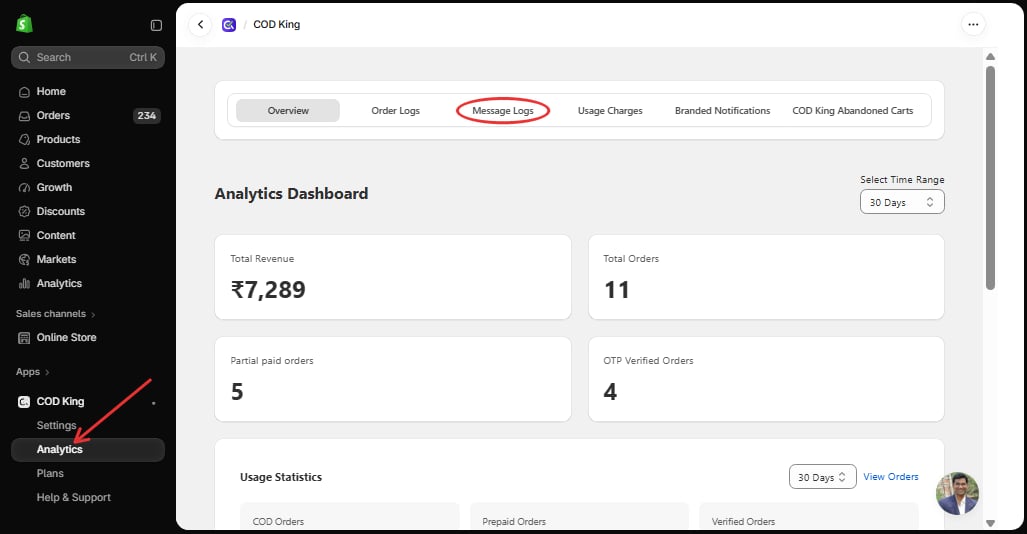
How to Access Customer Engagement/Message Logs ?
- Open the COD King app.
- Go to Analytics from the main menu.
- Select Message Logs