If no rule qualifies for a cart, the shopper sees your No option fits this cart message. You can edit that text in Customer experience.
RTO Engine (risk check)
RTO means return to origin: a parcel refused at the door. The RTO Engine hides a rule from shoppers who look risky, so you can keep Cash on Delivery for trusted buyers and offer risky ones only prepaid or deposit options.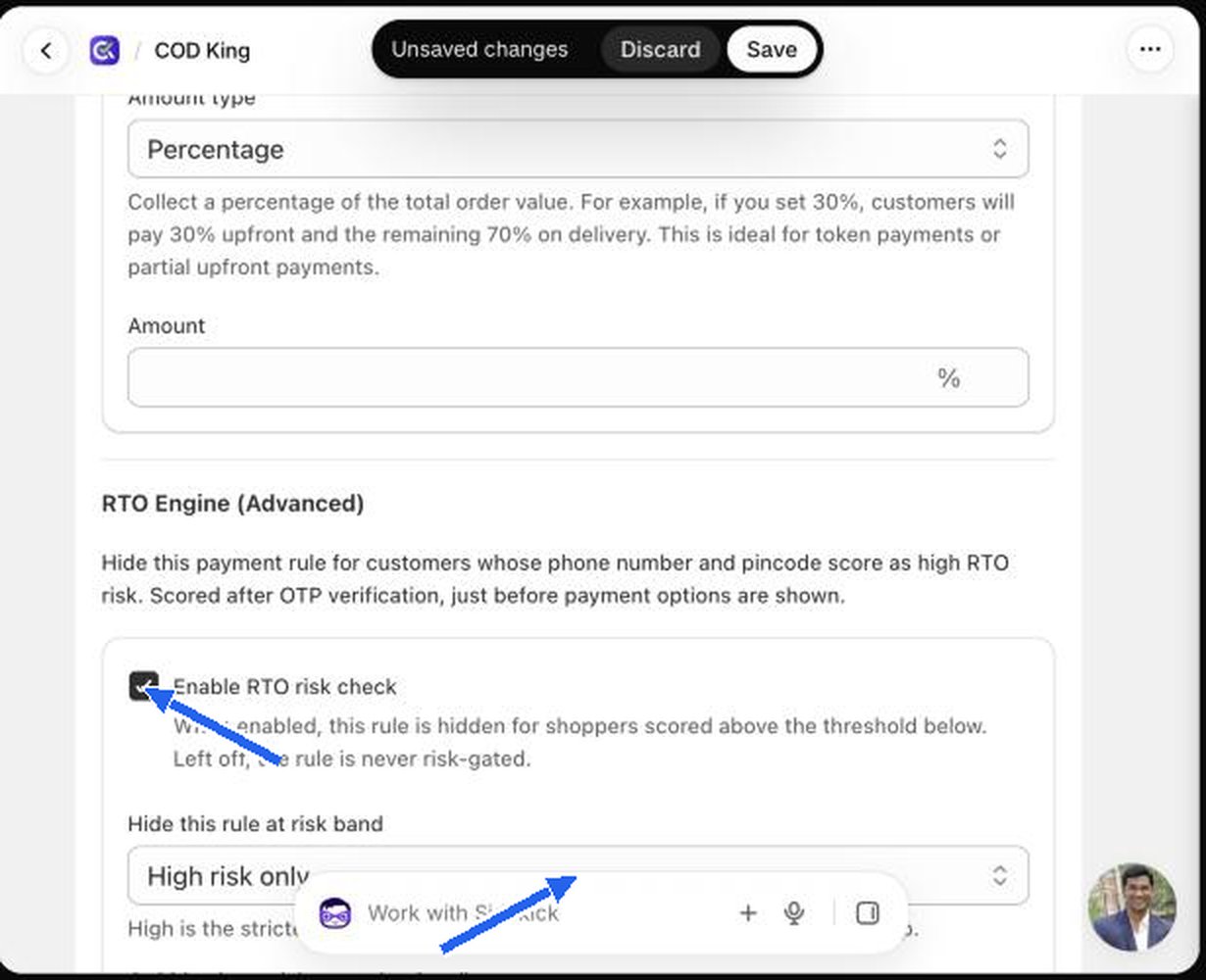
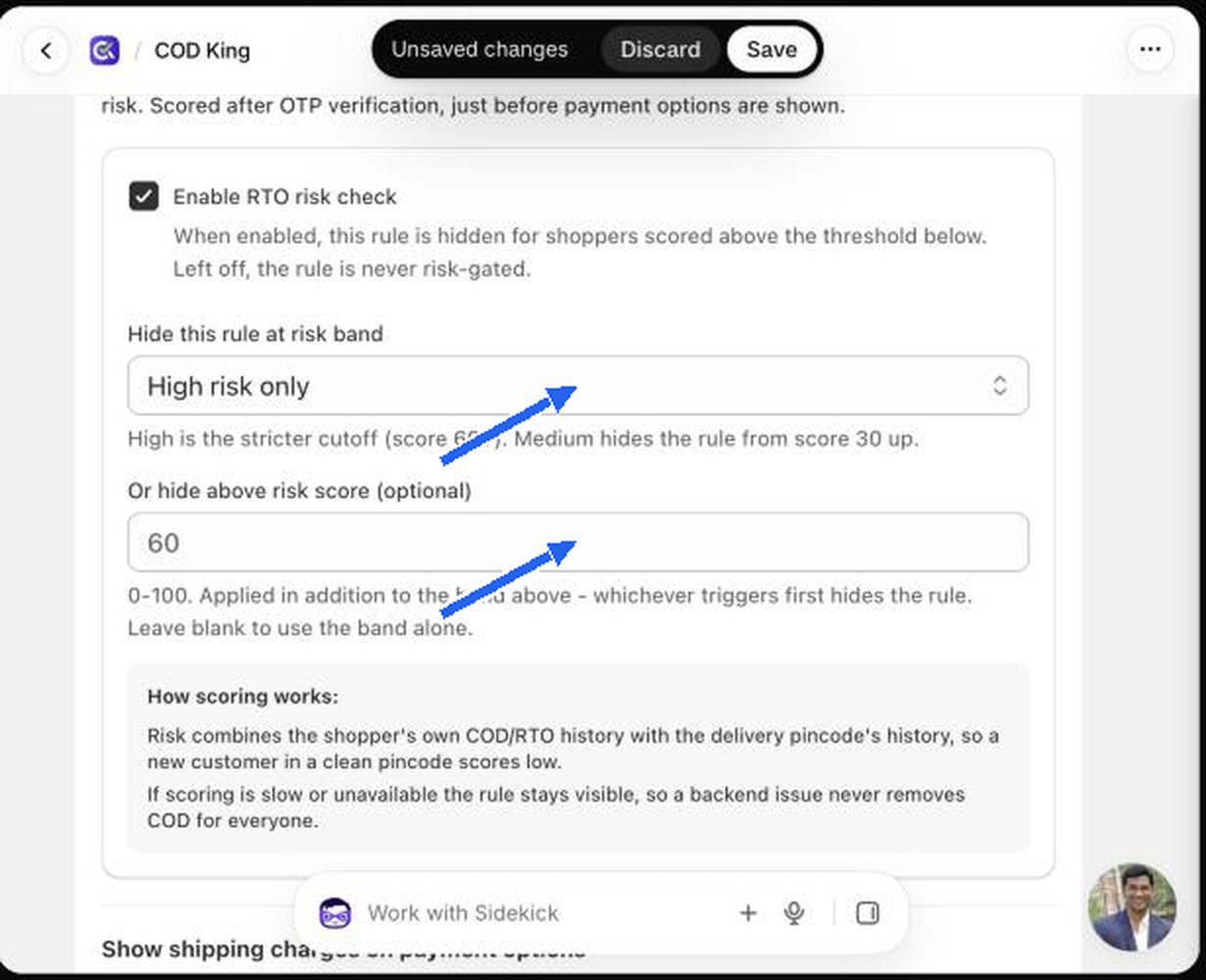
How the score is worked out. The score combines the shopper’s own COD and RTO history with the history of their delivery pincode. A new customer in a clean pincode scores low. The score is calculated after OTP verification, just before the payment options appear. If scoring is slow or unavailable, the rule stays visible and no order is lost.
Cart Range
Show the rule only when the cart value is inside a range. Set Min cart range and Max cart range, for example 500 and 5,000. Leave both empty to apply at every cart value.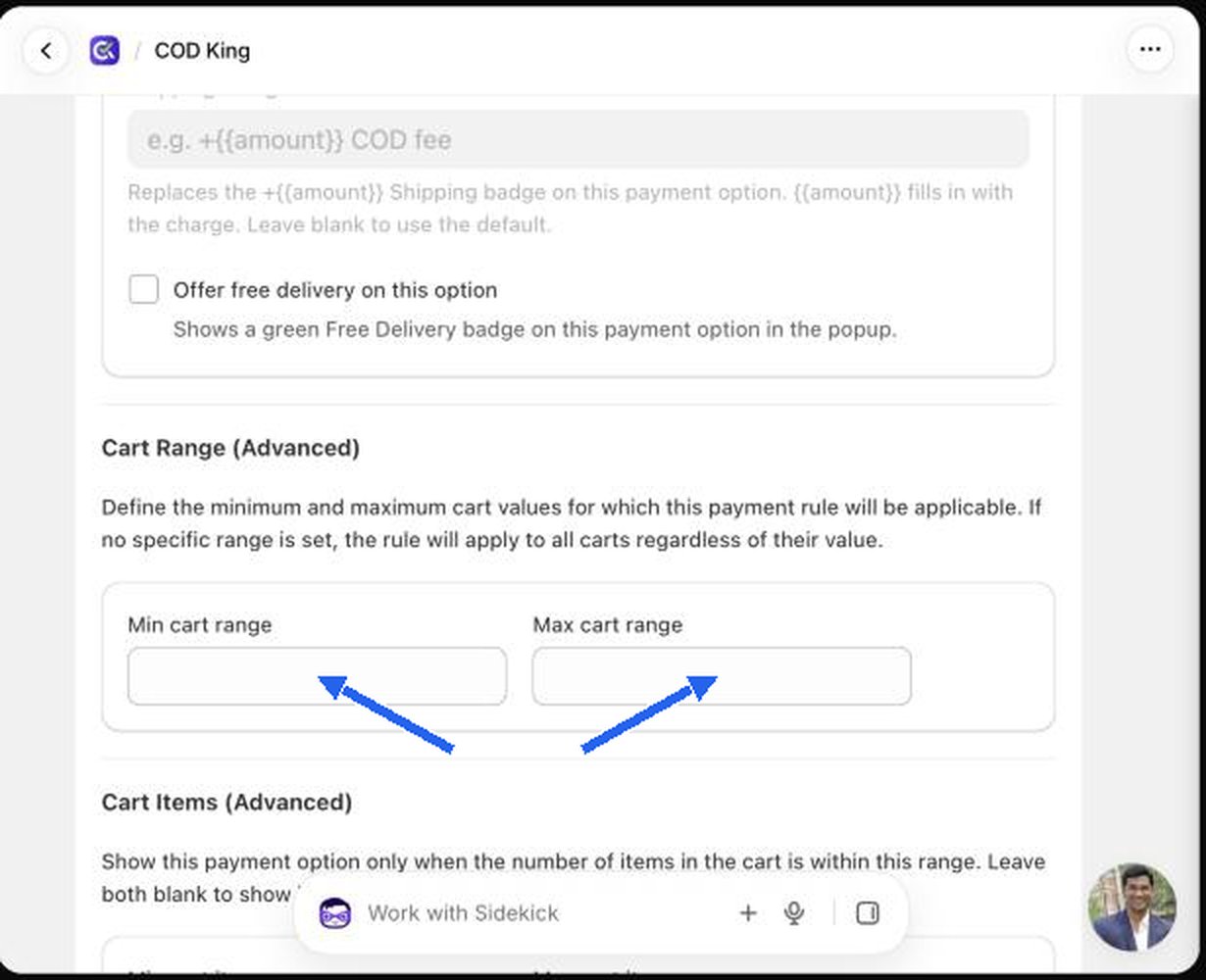
Cart Items
Show the rule only when the number of items in the cart is within a range (Min cart items, Max cart items). Leave both blank for any number.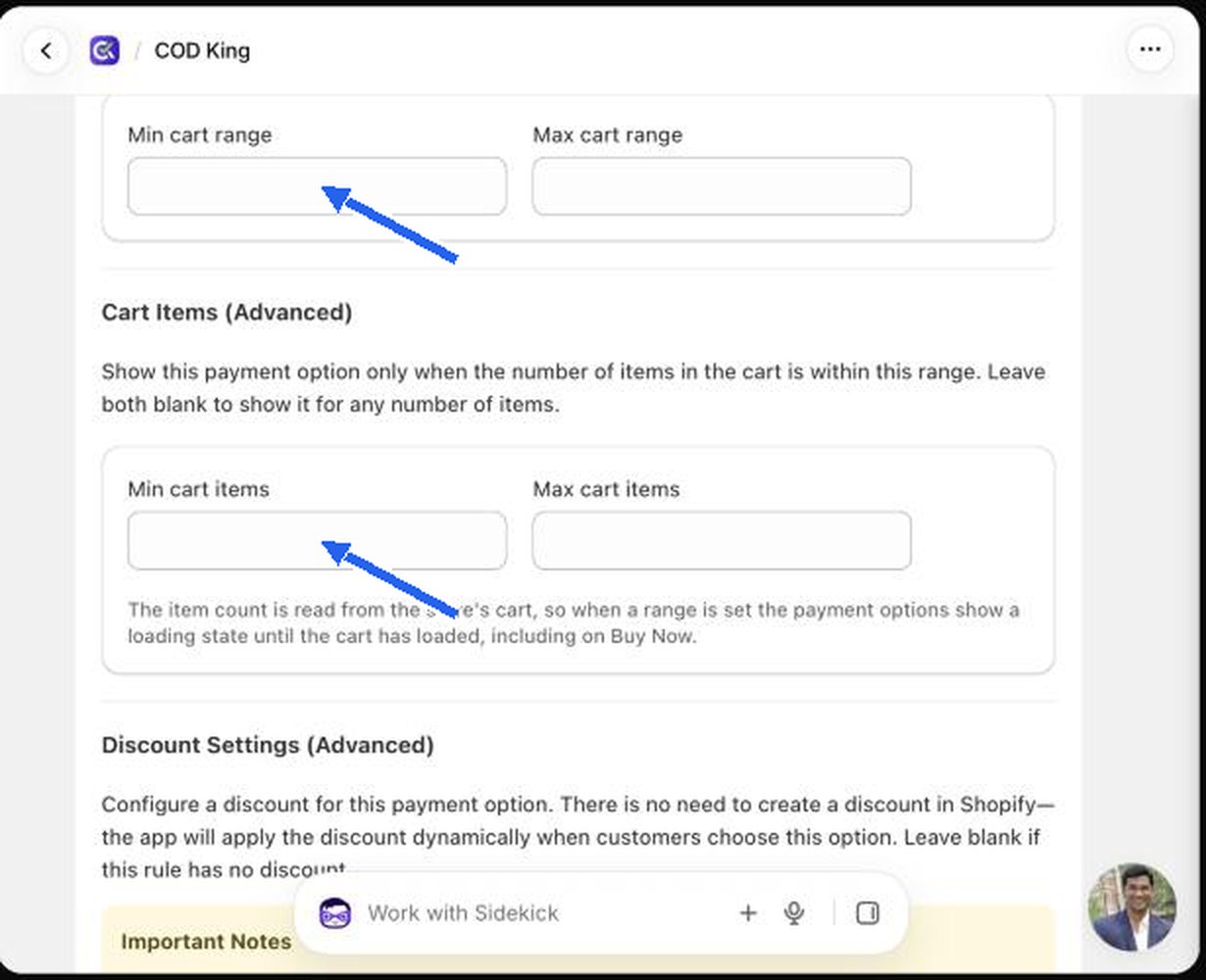
The item count is read from the store’s cart, so when a range is set the payment options show a loading state until the cart has loaded, including on Buy Now.
Product filter
Choose which products the rule applies to.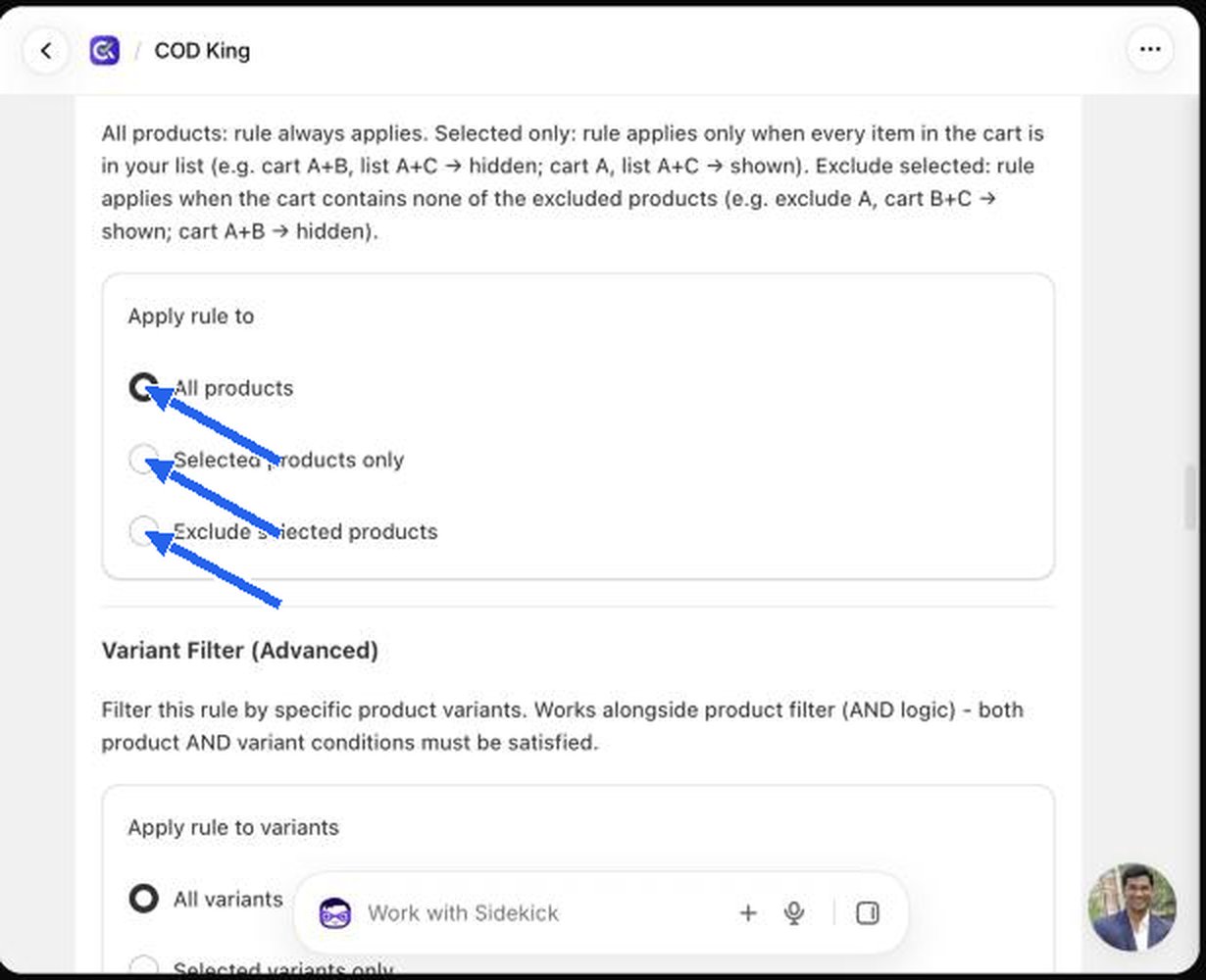
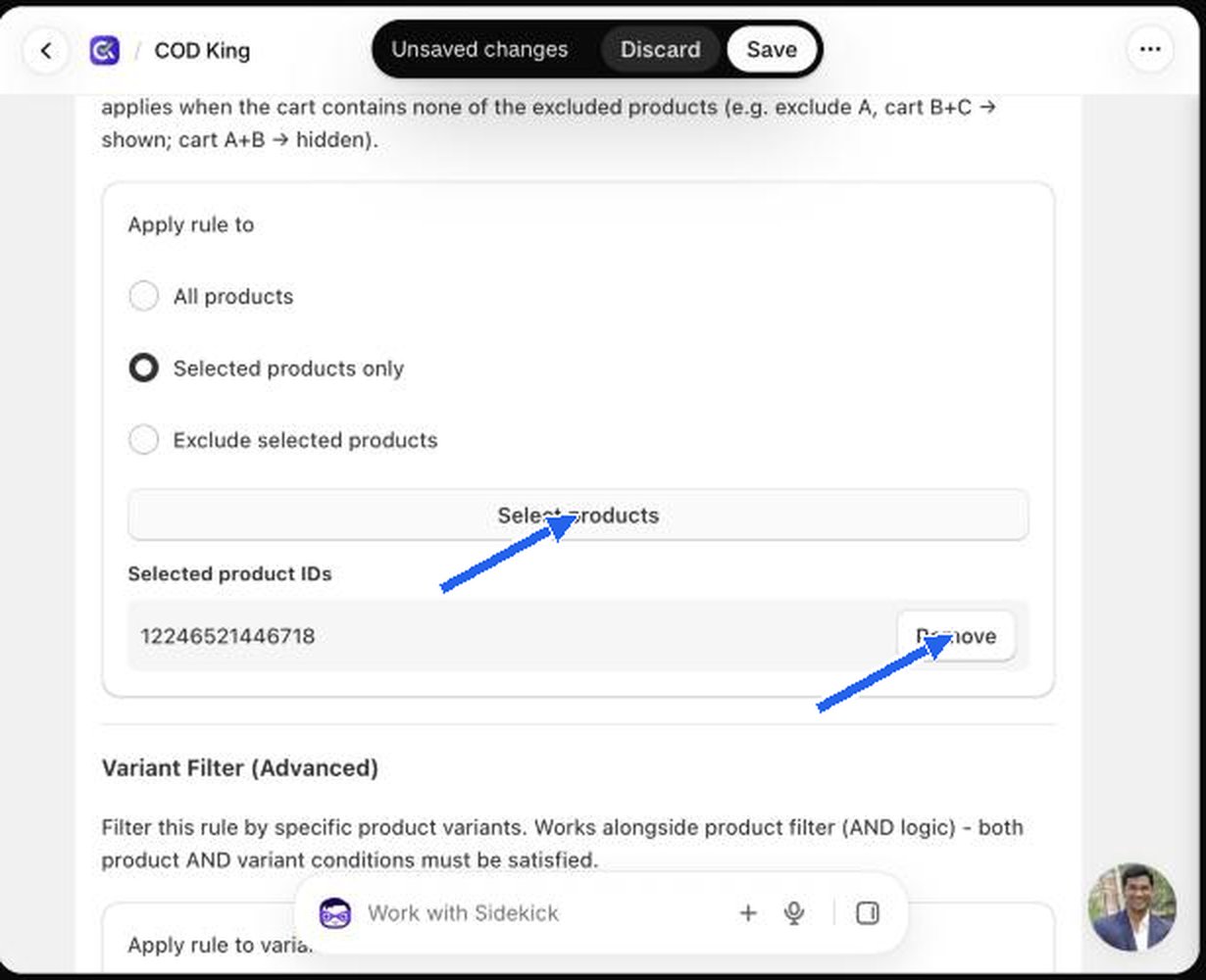
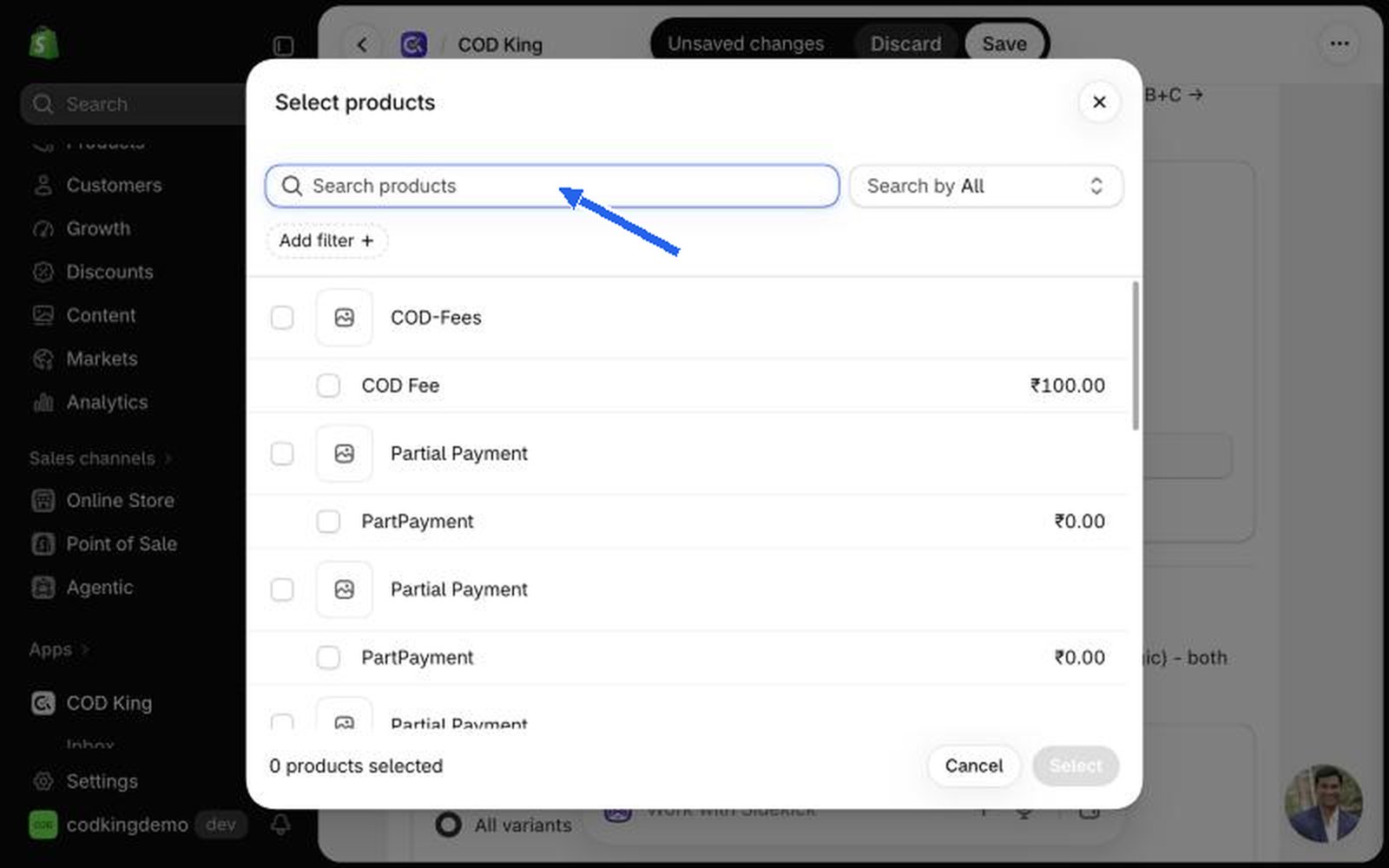
When you choose Selected products only or Exclude selected products, a Select products button appears.
Variant filter
Works like the product filter, but on variants such as size, colour or material. It works alongside the product filter and both must be satisfied. For example, allow the deposit option only on Large t-shirts.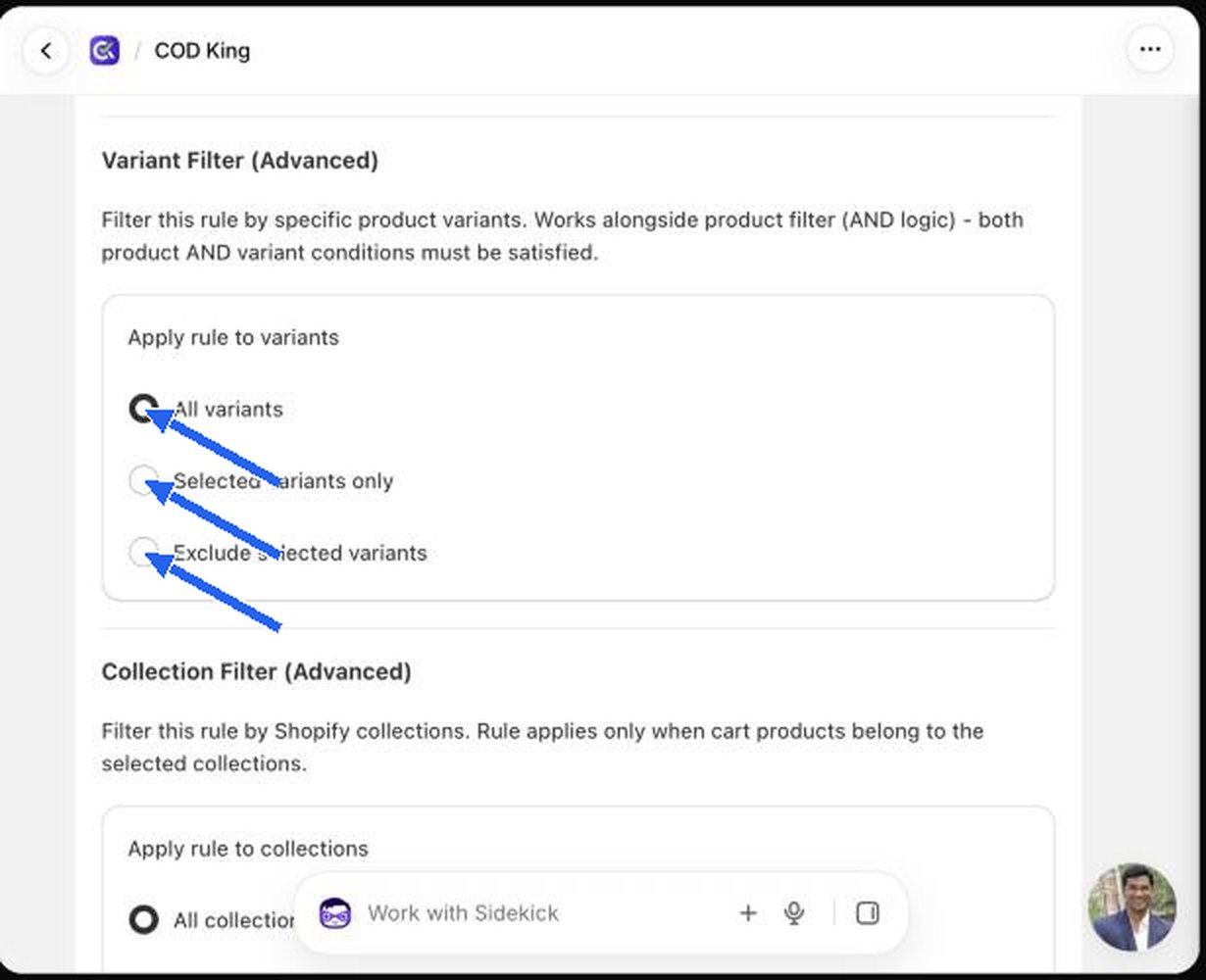
Collection filter
Same idea, scoped to Shopify collections such as “Winter collection” or “Clearance”. The rule applies only when the cart’s products belong to the collections you choose (or, with exclude, none of them do).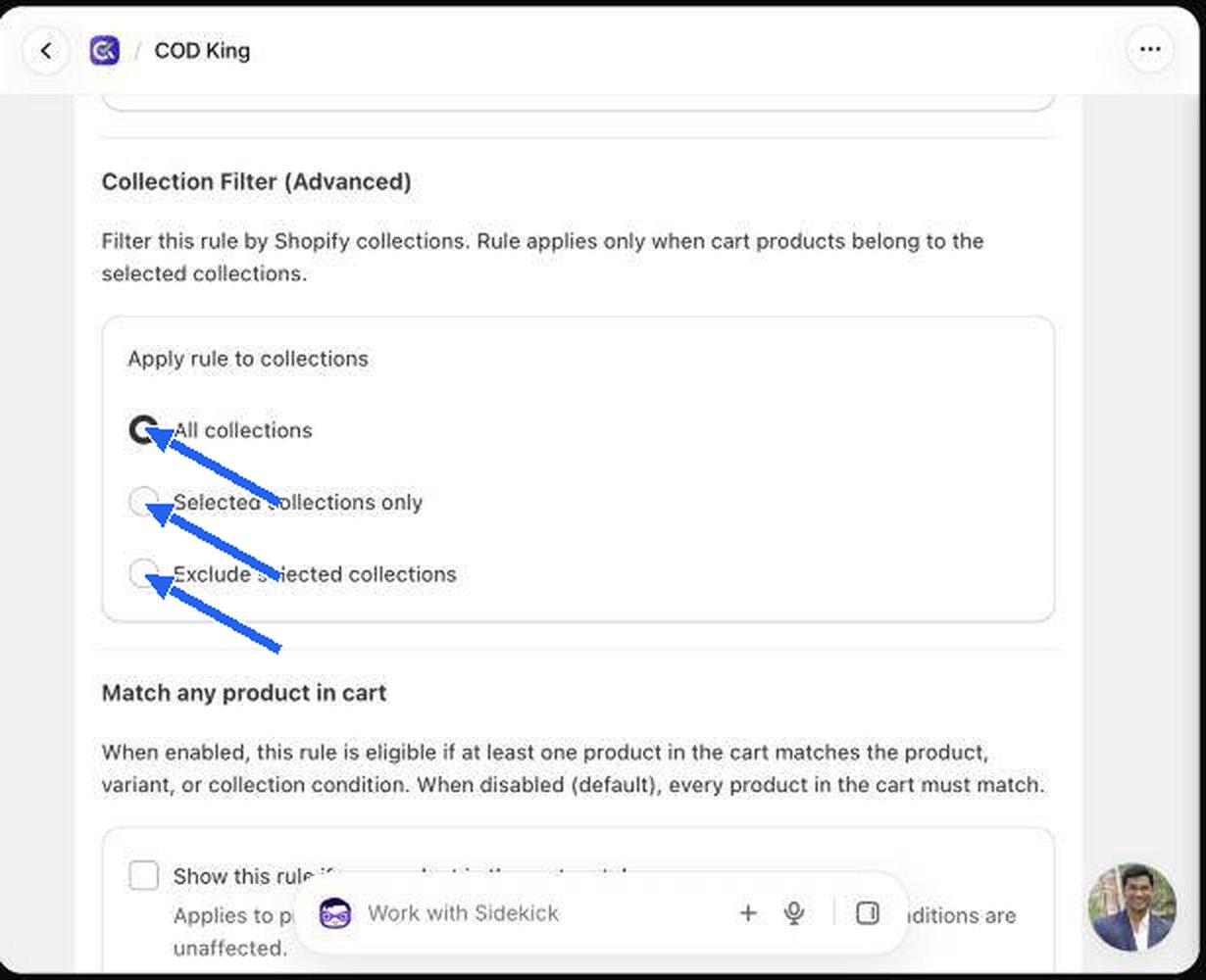
Product, variant and collection filters are combined with AND. A rule shows only when every filter you set is satisfied.
Match any product in cart
By default every product in the cart has to meet your include conditions. Tick Show this rule if any product in the cart matches to relax that: one qualifying product is enough to show the rule for the whole cart.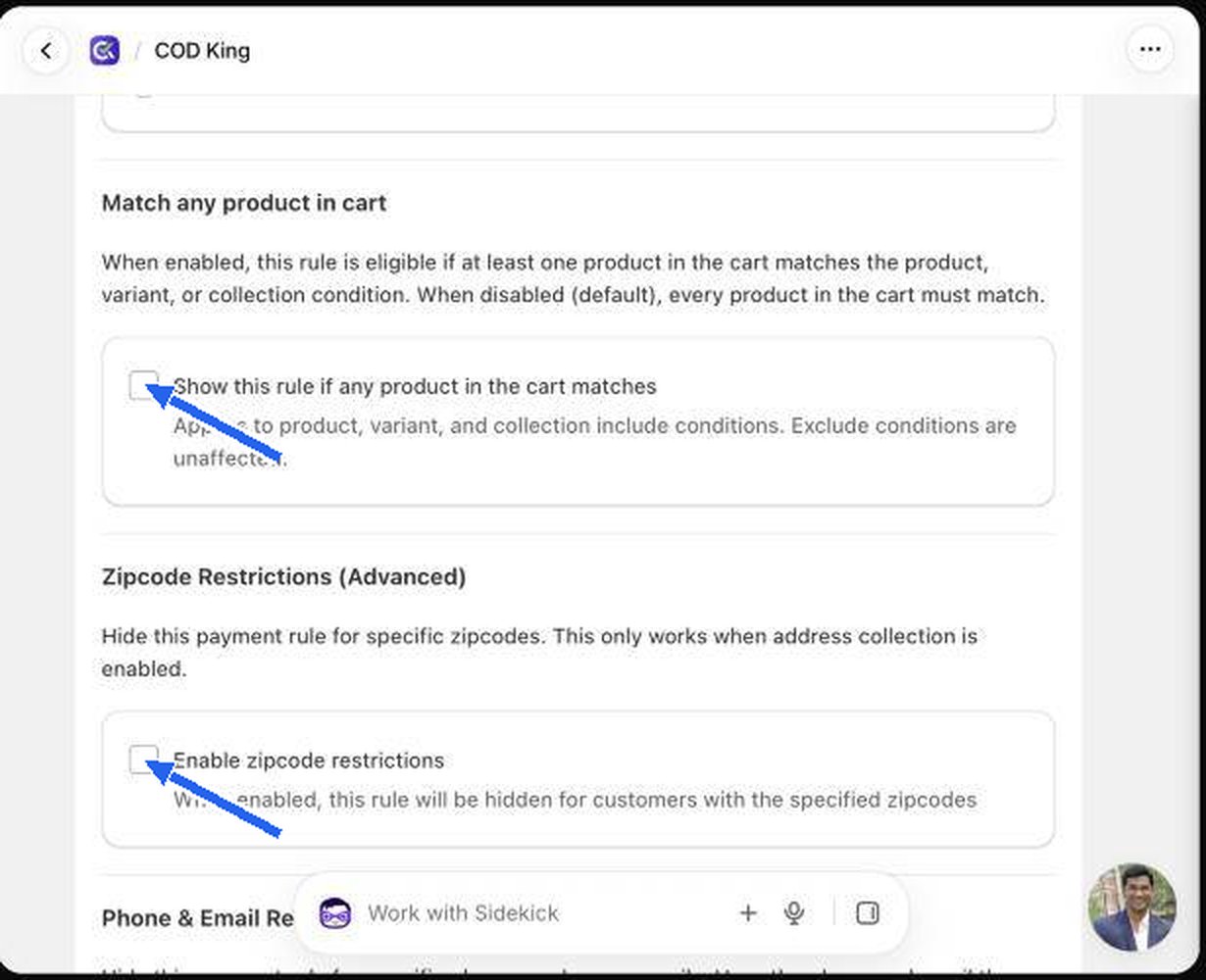
Zipcode restrictions (hide)
Hide the rule for deliveries to certain postcodes, for example areas with a history of returns. Tick Enable zipcode restrictions, then enter zipcodes in Zipcodes to hide this rule.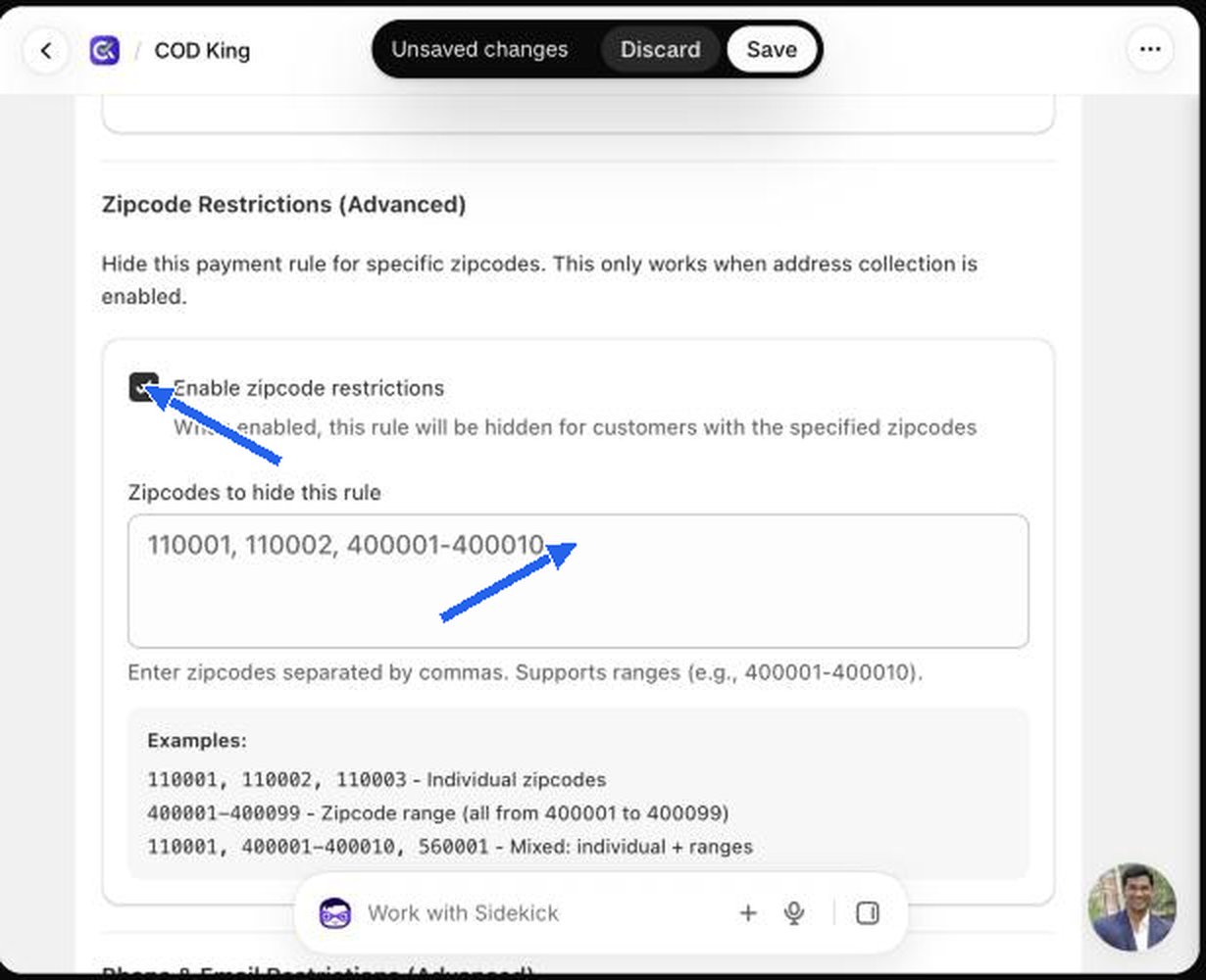
Phone and email restrictions
Hide the rule for specific people. The phone and email used are the ones the shopper enters for OTP or in their address.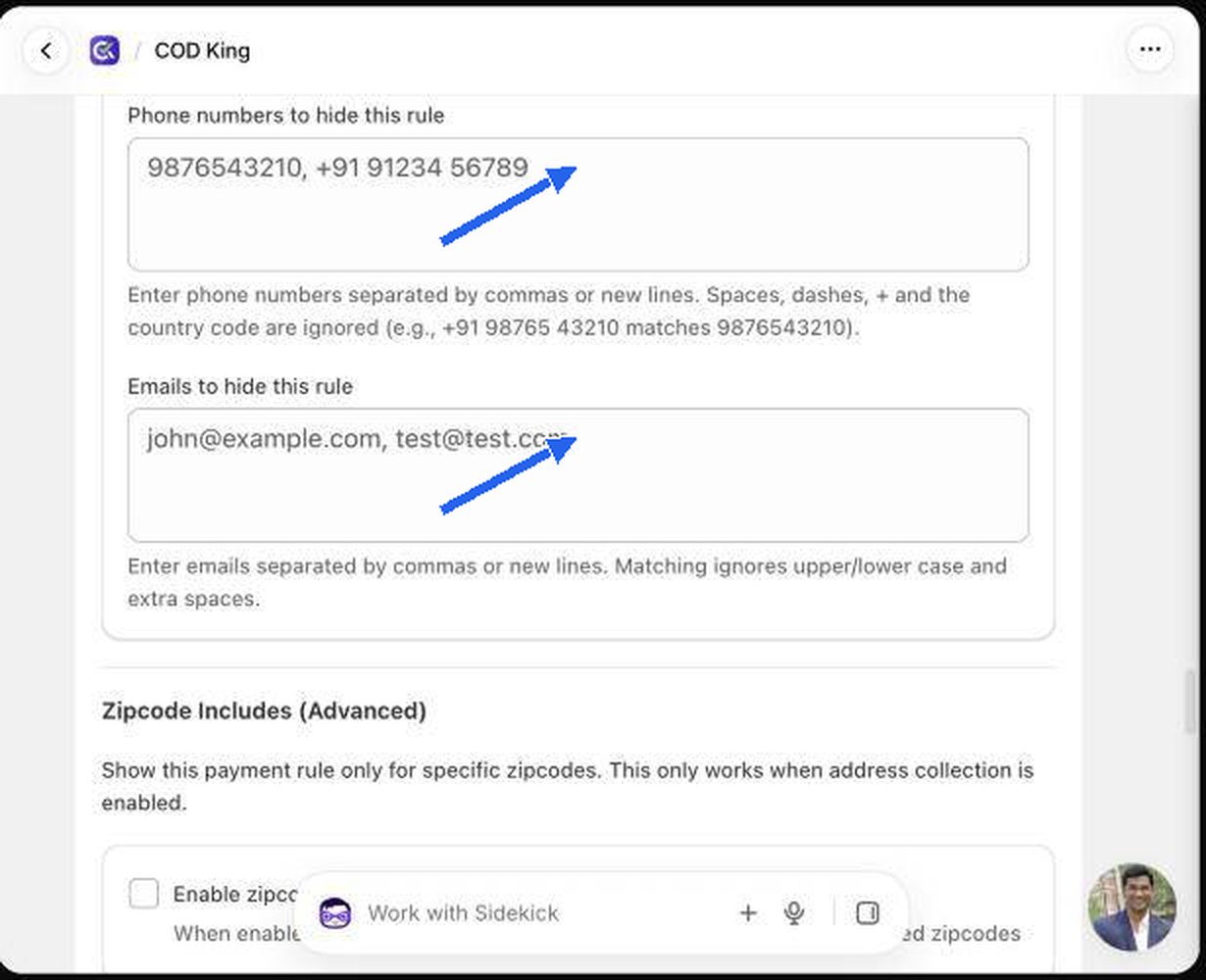
- Phone numbers to hide this rule: separate with commas or new lines. Spaces, dashes, + and the country code are ignored, so
+91 98765 43210matches9876543210. - Emails to hide this rule: separate with commas or new lines. Matching ignores upper and lower case.
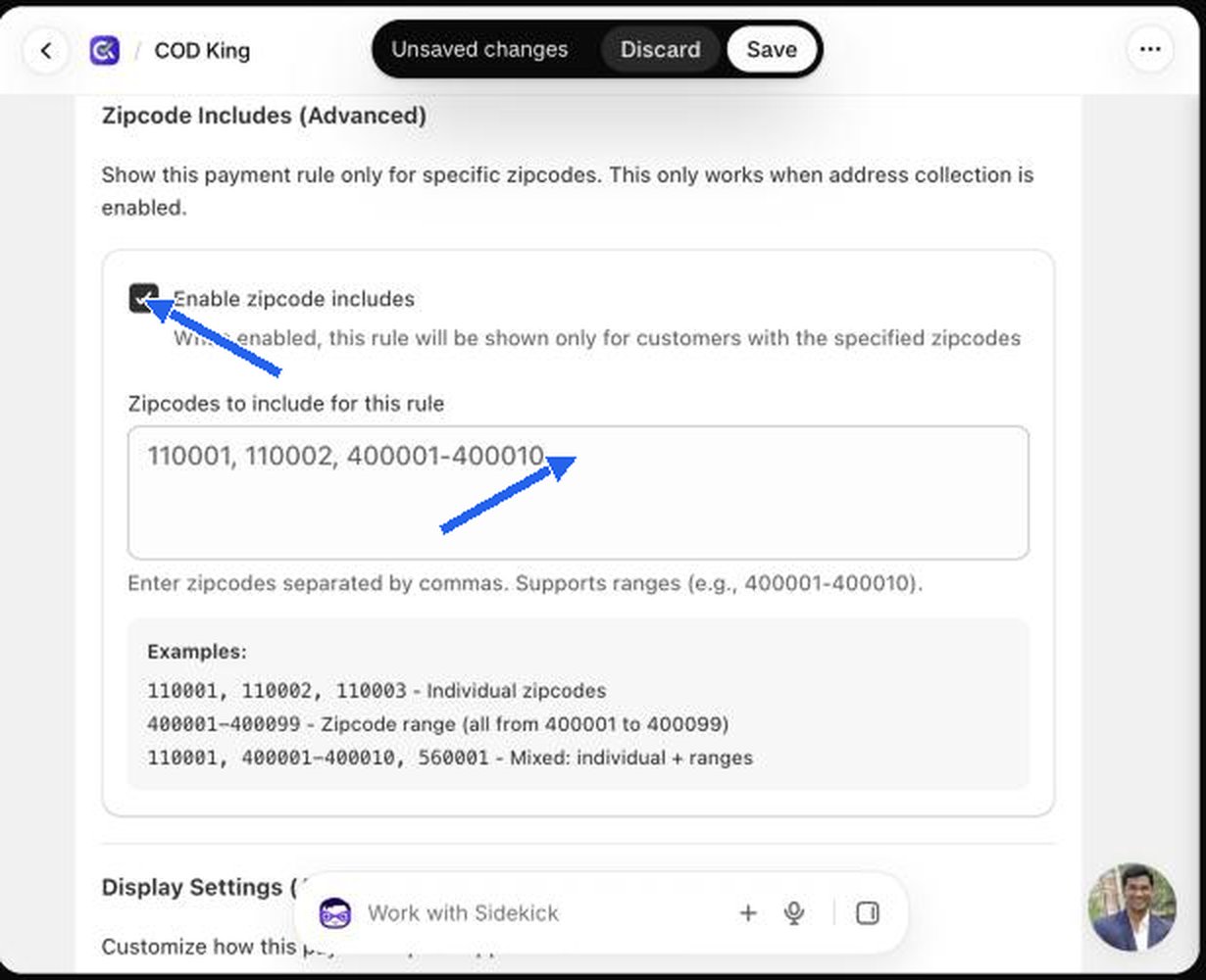
Zipcode includes (show only)
The opposite of zipcode restrictions: tick Enable zipcode includes and the rule appears only for the zipcodes you list in Zipcodes to include for this rule. Use it to offer COD only in cities you deliver to reliably. The same formats and the same address-collection requirement apply.