
Open the page
1
Open COD King → Settings
In your Shopify admin, open the COD King app and click Settings.
2
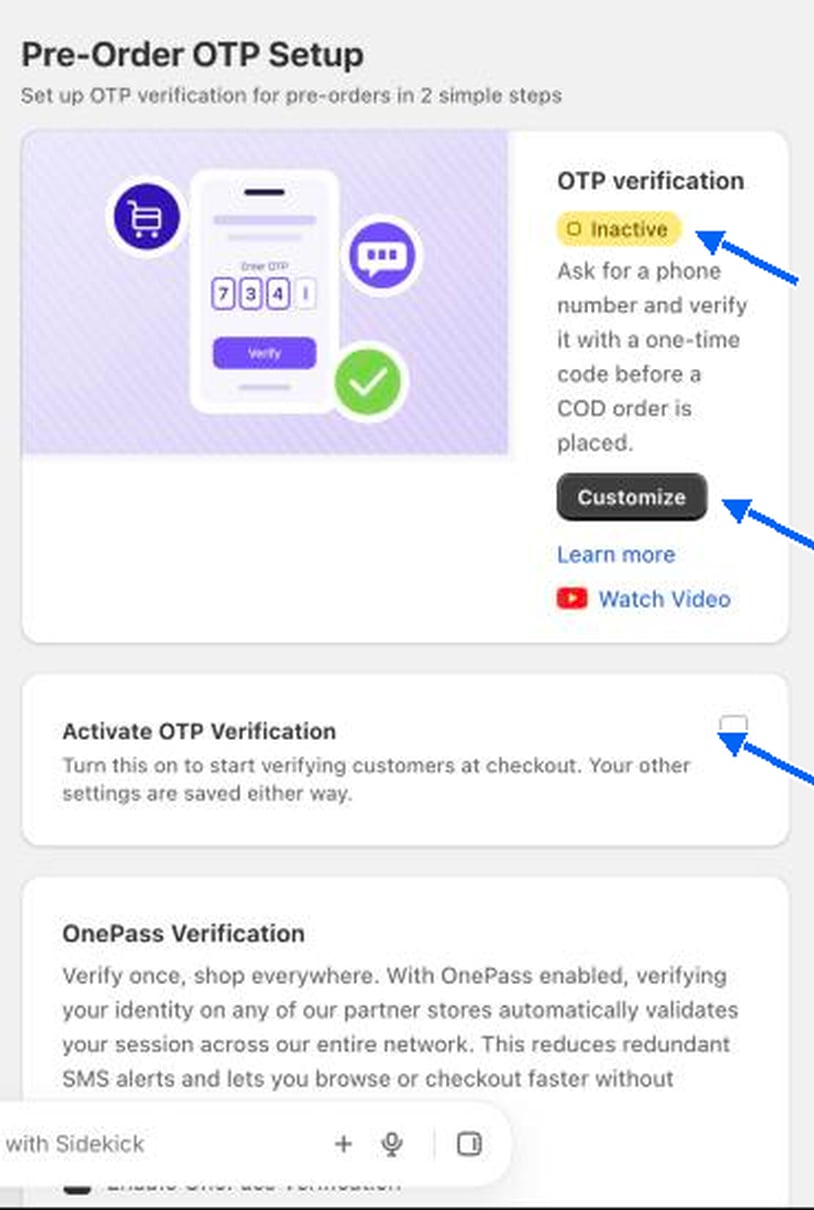
Click OTP verification
It is under Checkout widget in the left menu. The Pre-Order OTP Setup page opens, headed “Set up OTP verification for pre-orders in 2 simple steps”.
If you see a Finish setup banner, the COD King app embed is not switched on in your theme. Open the theme editor, turn on the COD King embed and click Save.
Activate OTP verification
Tick Activate OTP Verification to start verifying customers at checkout. Your other settings on this page are saved whether the box is ticked or not, so you can set everything up first and switch it on last. The status at the top changes from Inactive to Active.OnePass verification
Enable OnePass Verification lets a shopper who has already verified on any partner store skip the code. It reduces repeated SMS and gets returning shoppers through faster.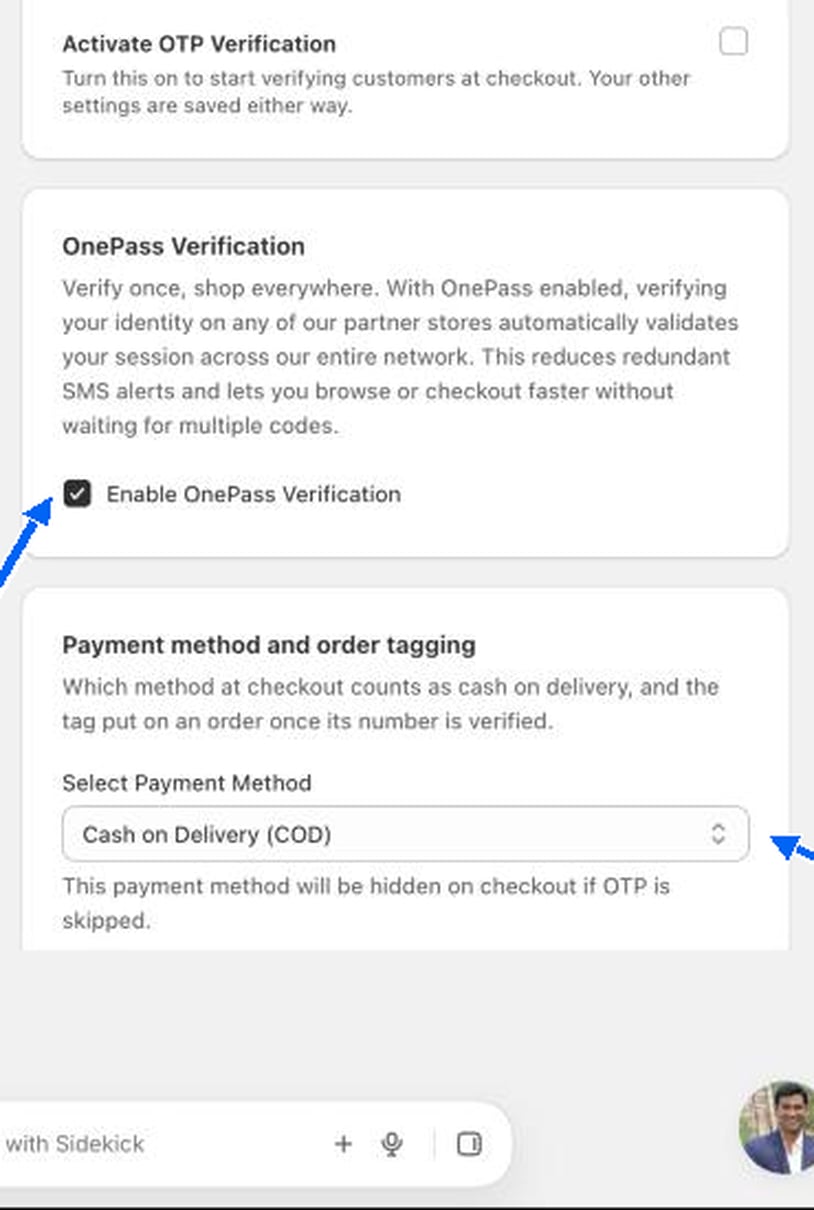
Once a shopper verifies, COD King remembers it in their browser, so opening the same store in another tab does not ask again. With OnePass on, the same applies on other stores that also use COD King OTP with OnePass.
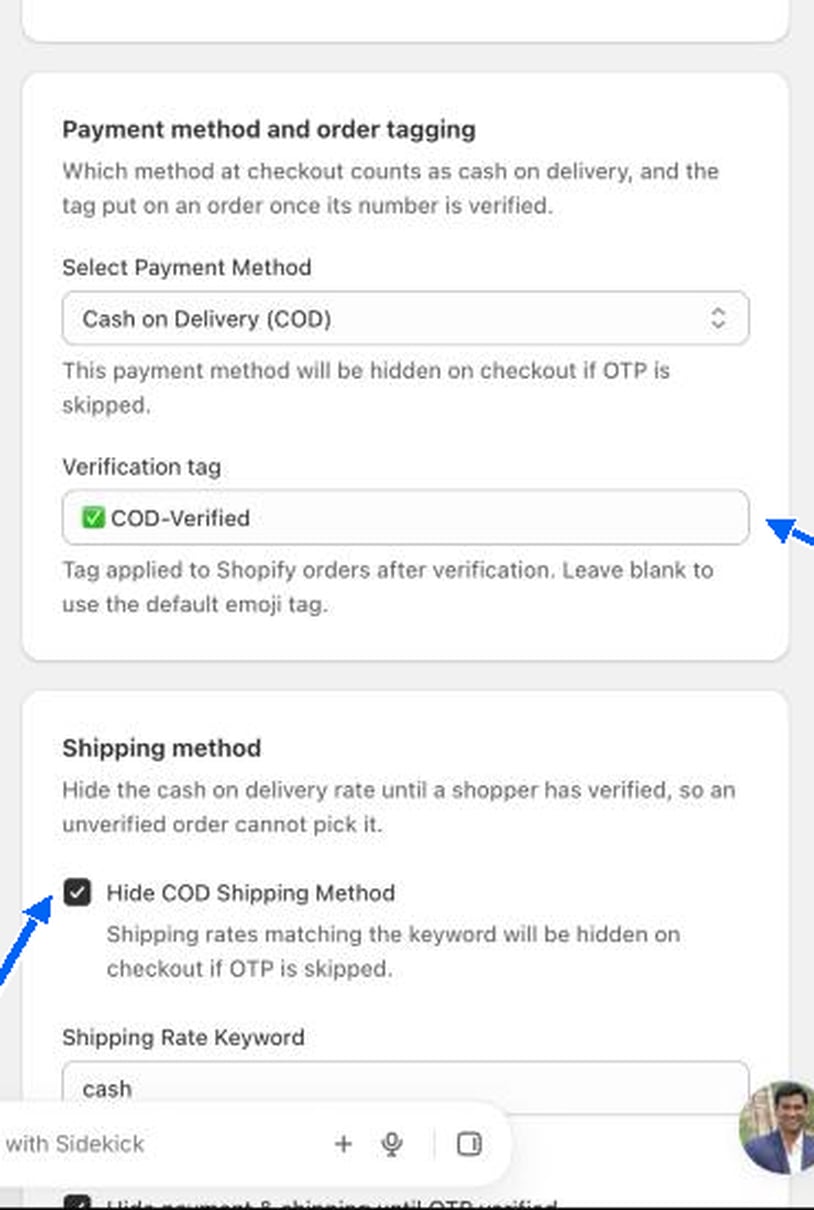
Payment method and order tagging
Shipping method
These settings stop an unverified shopper from picking the cash on delivery rate.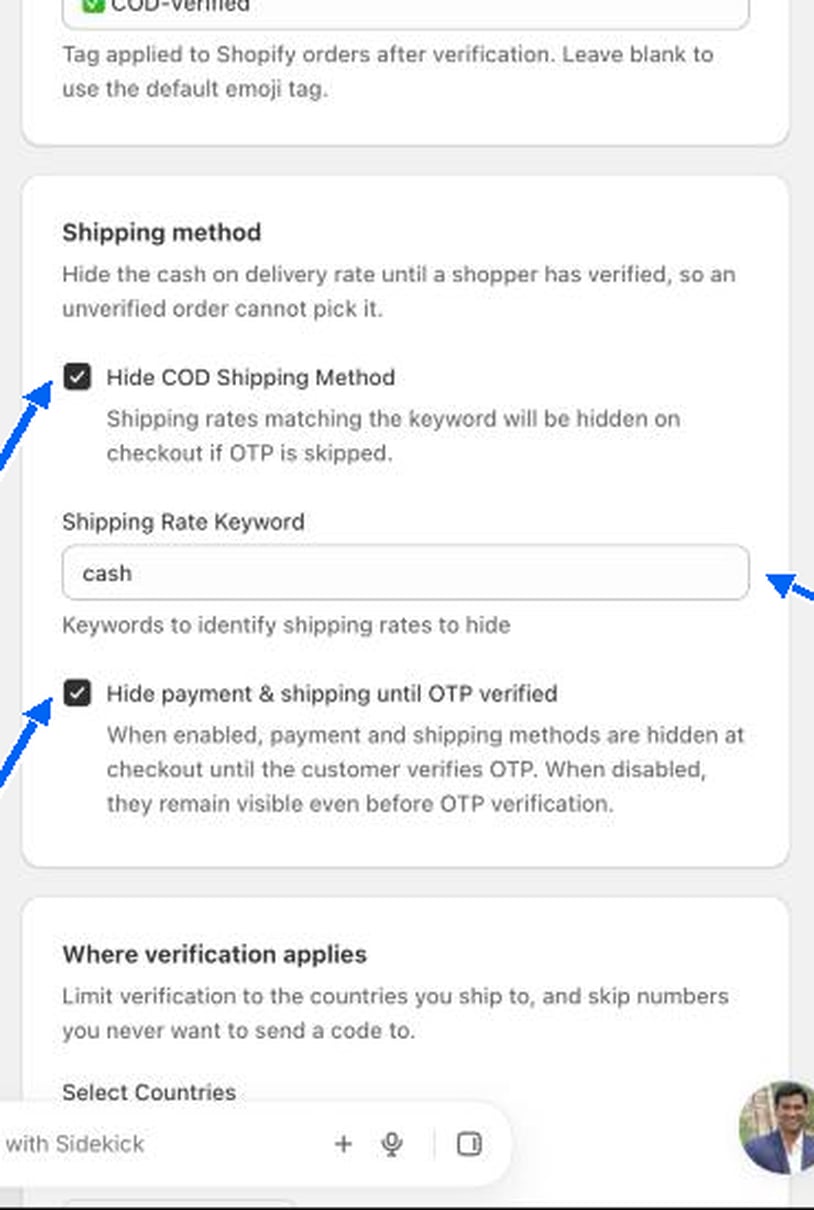
Where verification applies
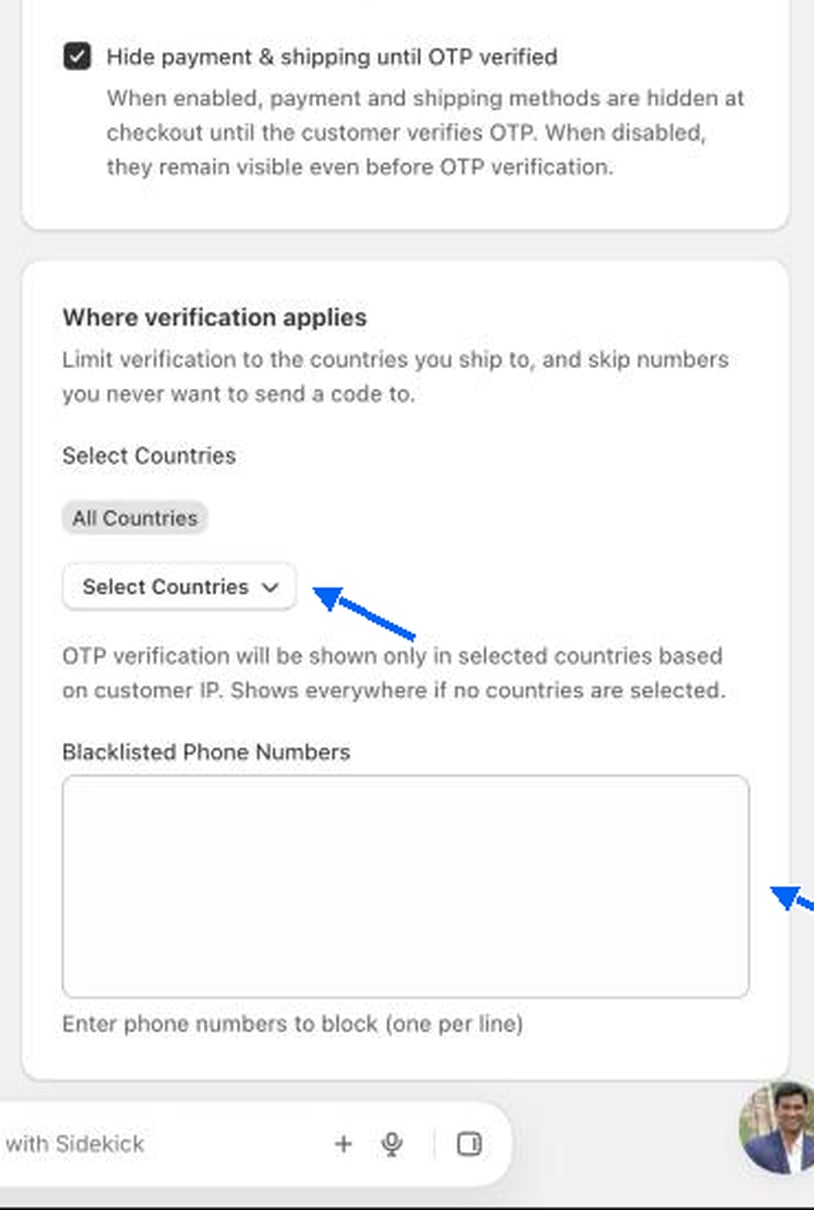
- Select Countries. OTP is shown only in the countries you pick, based on the shopper’s IP address. If no country is selected, it shows everywhere (the label reads All Countries).
- Blacklisted Phone Numbers. Enter numbers you never want to send a code to, one per line. Blocked numbers cannot verify.
Test it as a shopper
1
Tick Activate OTP Verification and save
Use the save bar that appears at the top of the page.
2
Open your store and click Buy it now
The popup asks for a mobile number before checkout continues.
3
Enter your number and click Send Code
Type the code you receive. Only after the code is accepted does the shopper move on.