
Open the page and activate
1
Open COD King → Settings
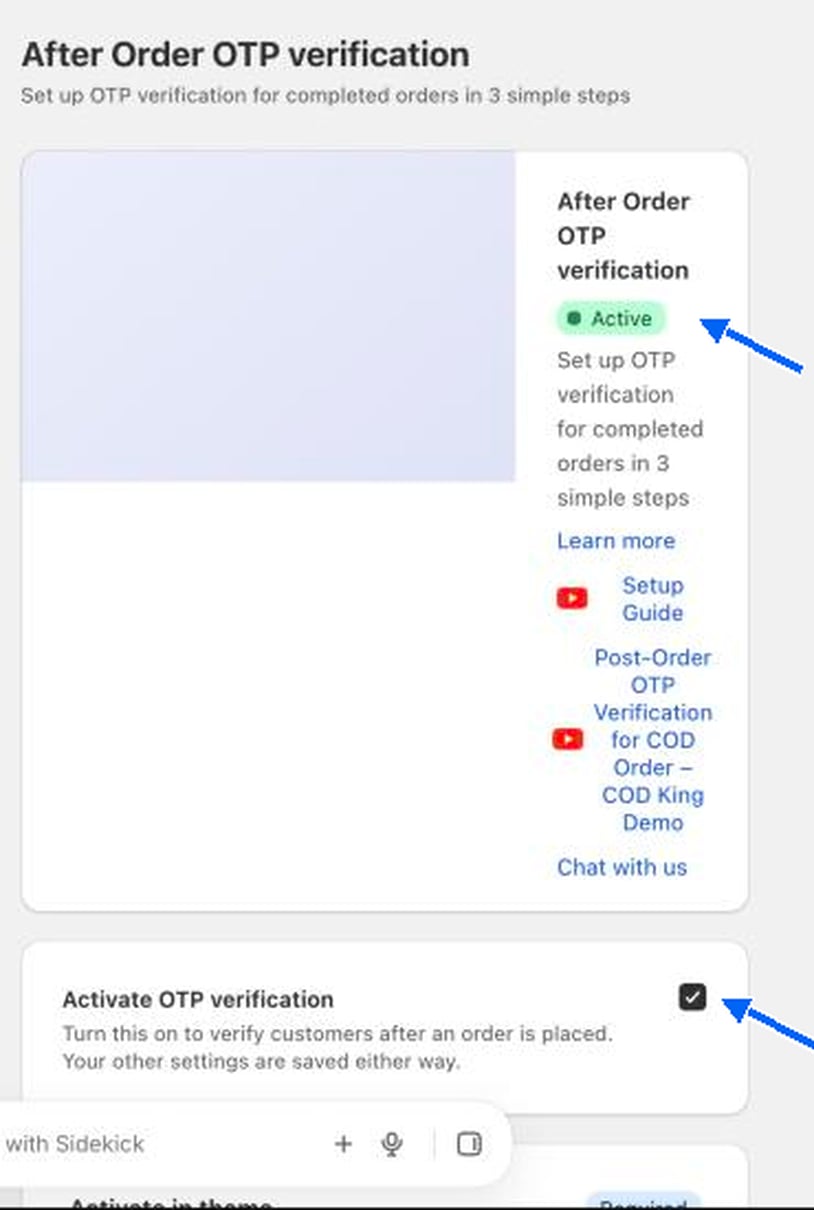
Under COD workflow, click Post-order OTP verification. The After Order OTP verification page opens, headed “Set up OTP verification for completed orders in 3 simple steps”.
2
Tick Activate OTP verification
The status changes to Active. Your other settings are saved either way.
Add the blocks in your theme
Under Activate in theme (marked Required), the Setup Guide says Enable OTP Extensions in your theme. There are two required steps.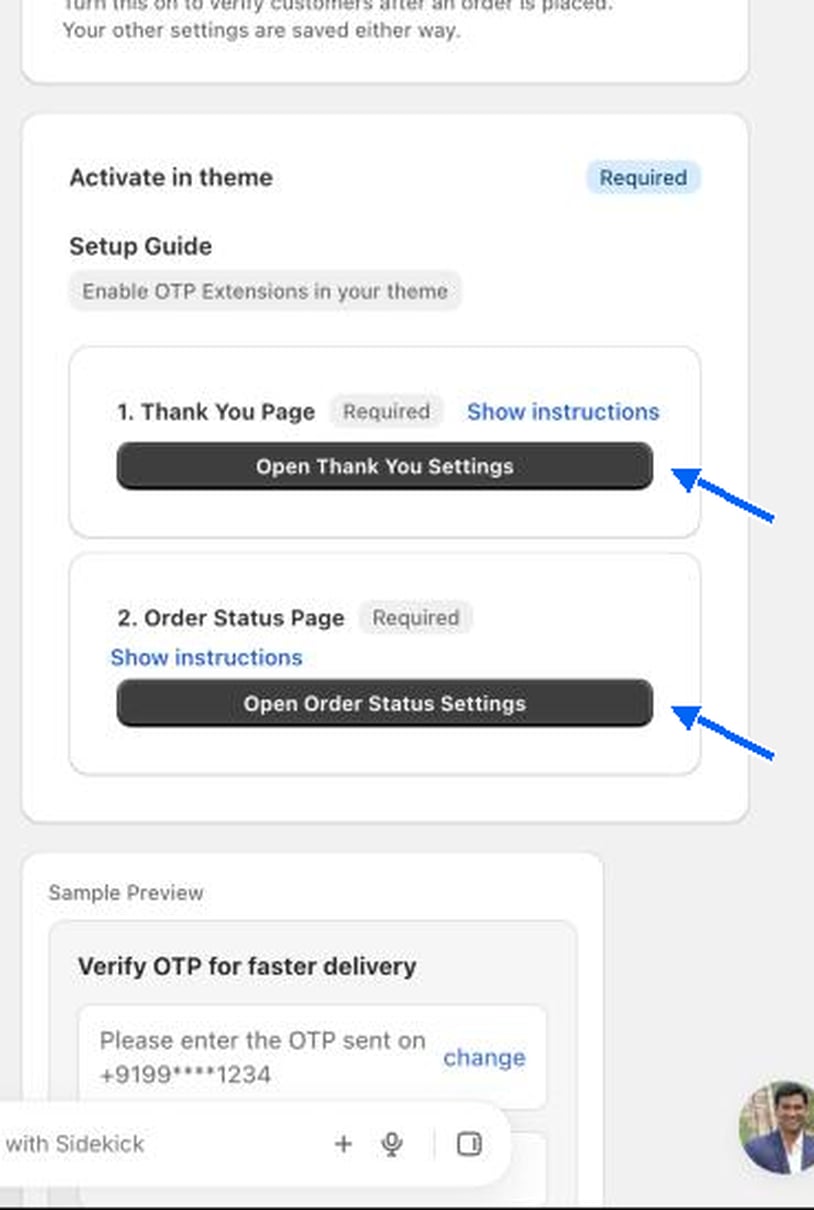
1
Thank You page
Click Open Thank You Settings (use Show instructions for a reminder). In the editor choose Add block, select the COD King thank-you OTP block, and click Save.
2
Order Status page
Click Open Order Status Settings. Choose Add block, select the COD King order-status OTP block, and click Save.
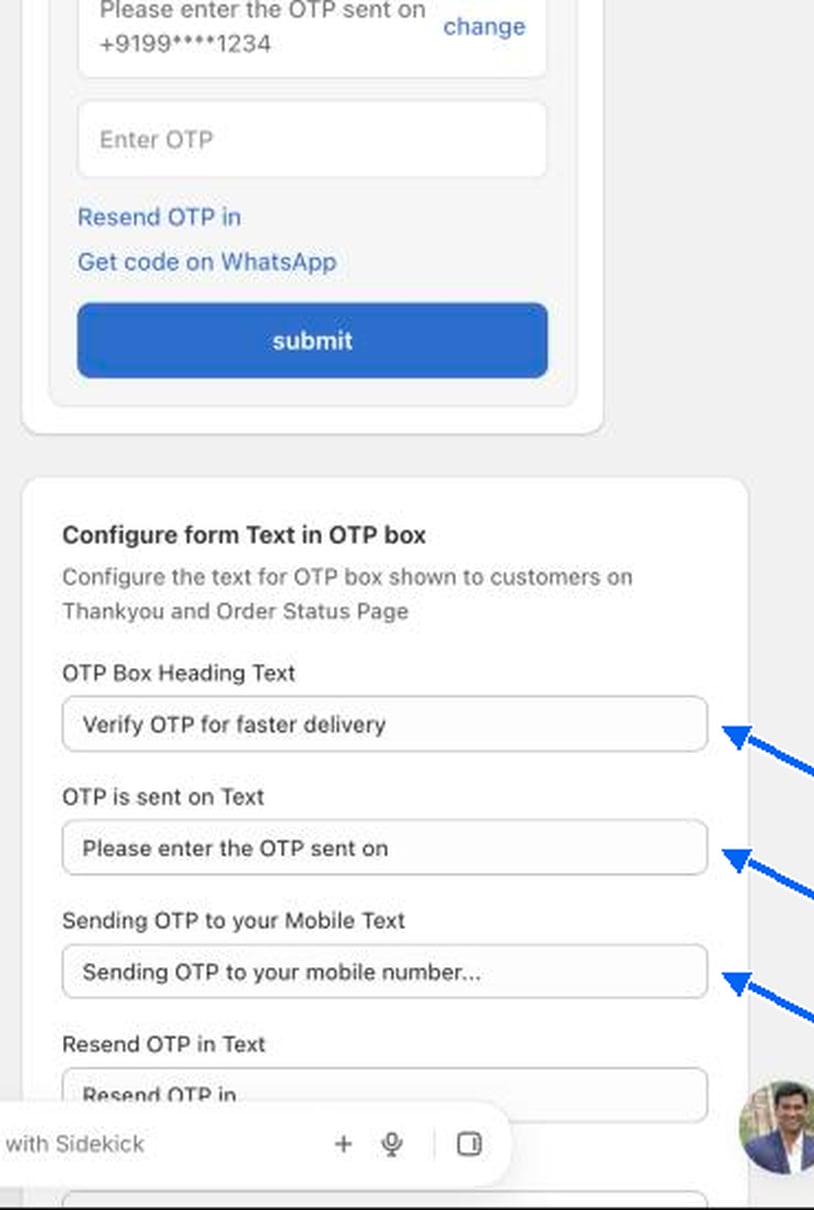
Configure form text in the OTP box
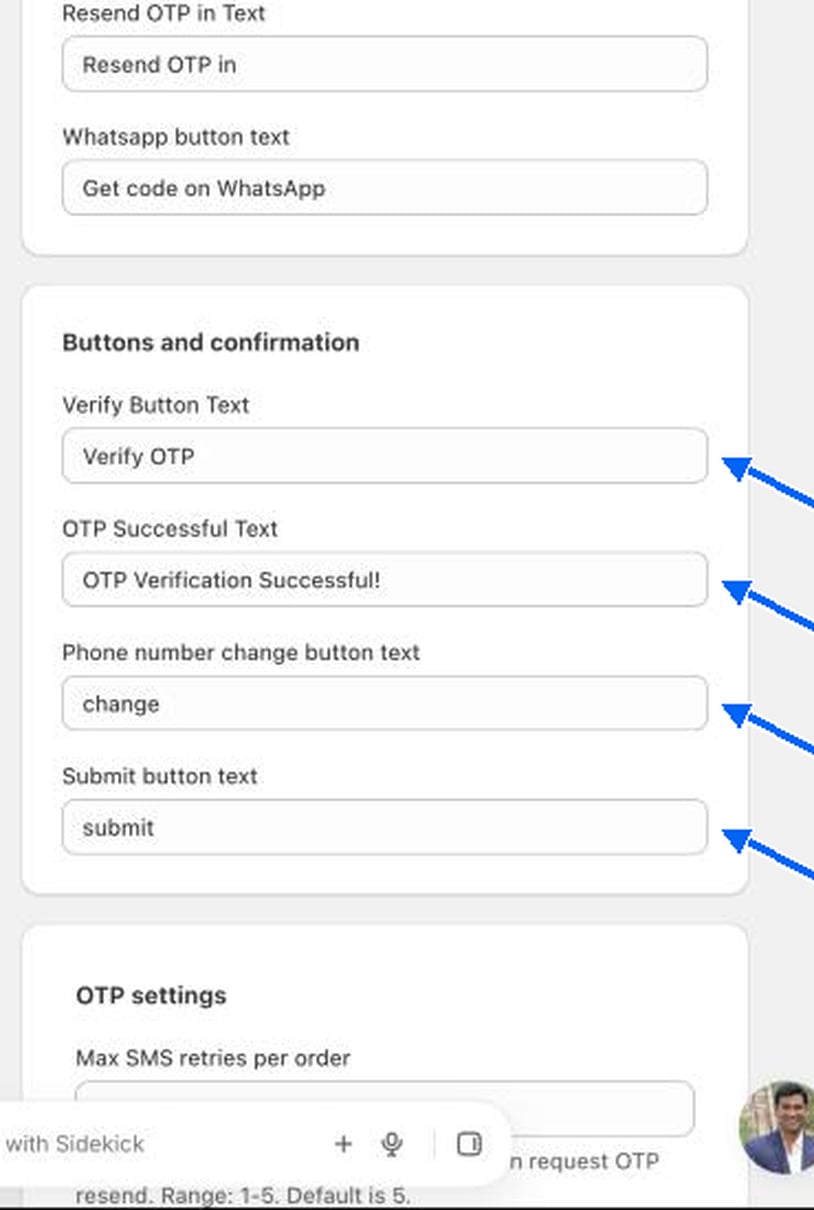
Buttons and confirmation
OTP settings
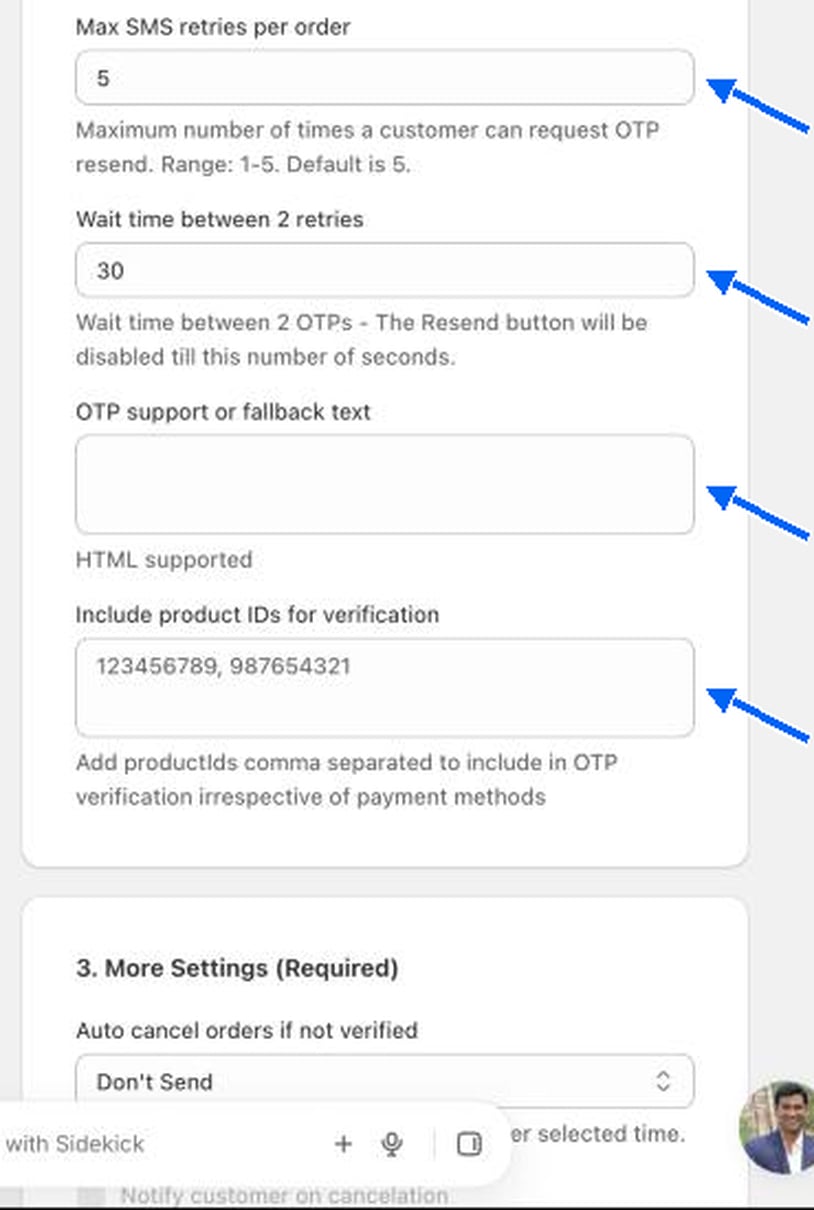
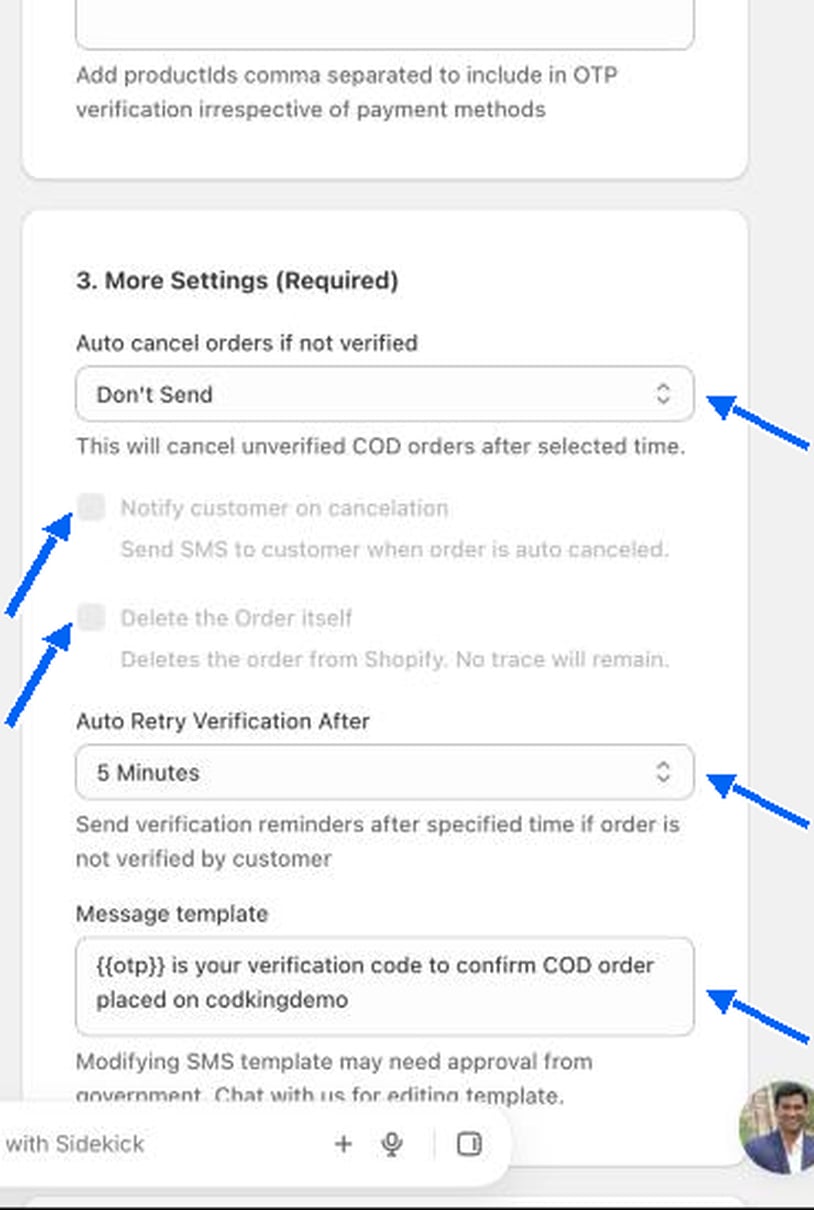
More settings (required)
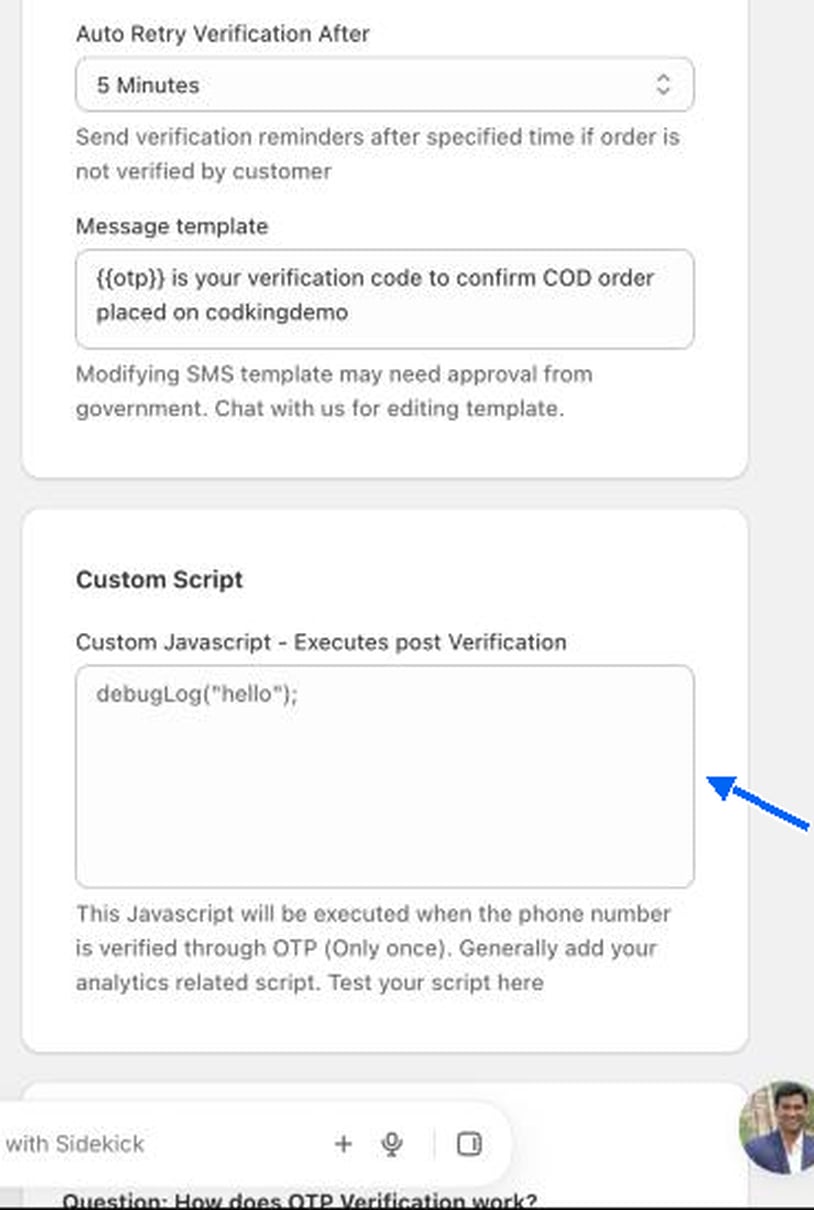
Custom script
Test it
1
Place a test COD order on your store
Use Cash on Delivery.
2
Look at the Thank You page
The OTP box appears. Enter the code you receive.
3
Check the order in Shopify
A verified order carries your verification tag.