
1. What is the COD Form?
The COD Form is COD King’s one-page Cash on Delivery order form. A shopper taps the COD button on your product page, cart page or cart drawer, and the form opens as a pop-up. They enter their details, confirm, and the order is created — all without leaving the page they were on. The form is added to your store by an app embed. It adds the COD button and loads the form only when a shopper asks for it, so it does not slow down the rest of your page.What your shopper sees
On the product page the shopper sees your COD button (here a purple Buy with COD under Add to cart and Buy it now). If you have a quantity offer, its tiers sit just above the buttons.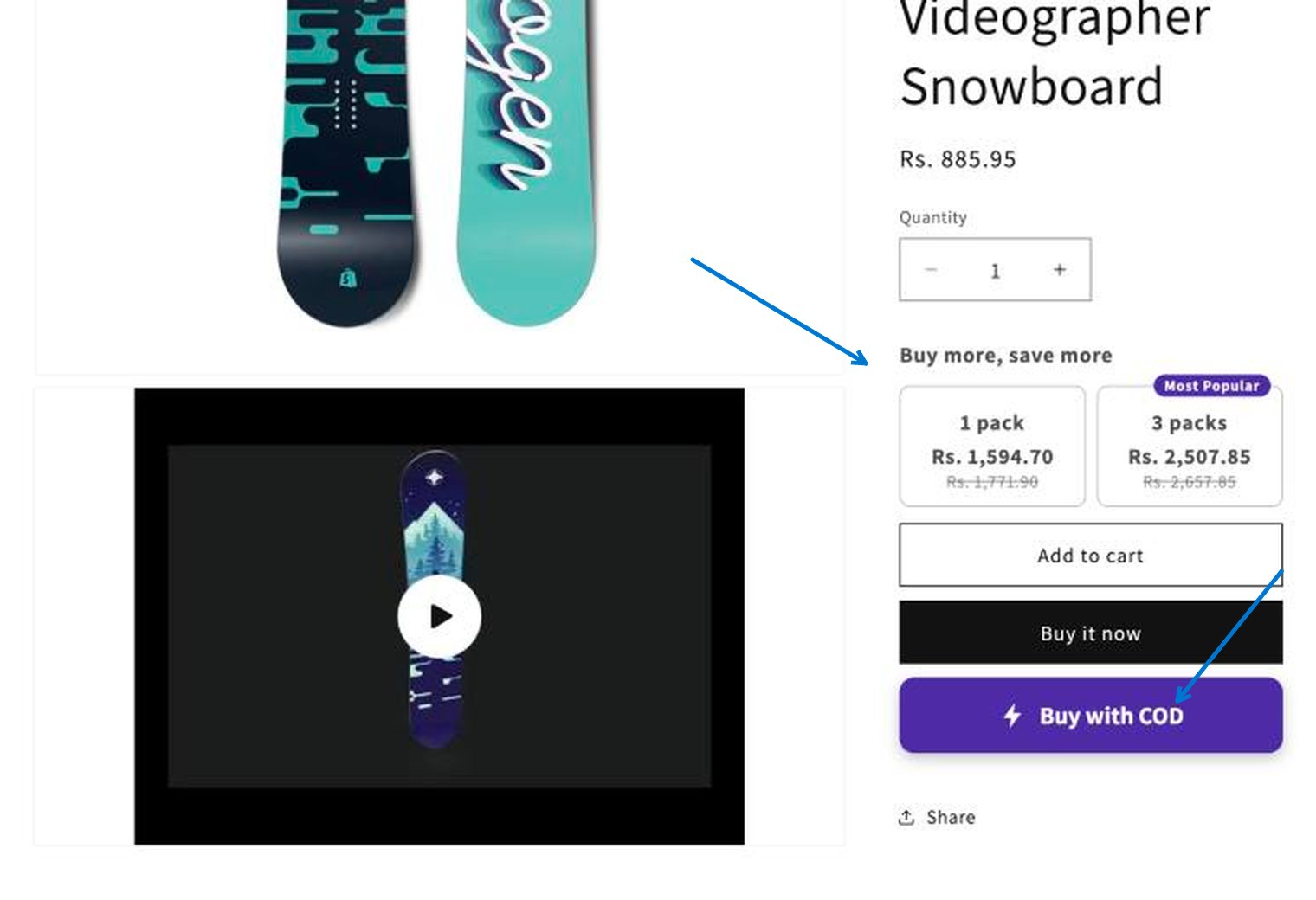
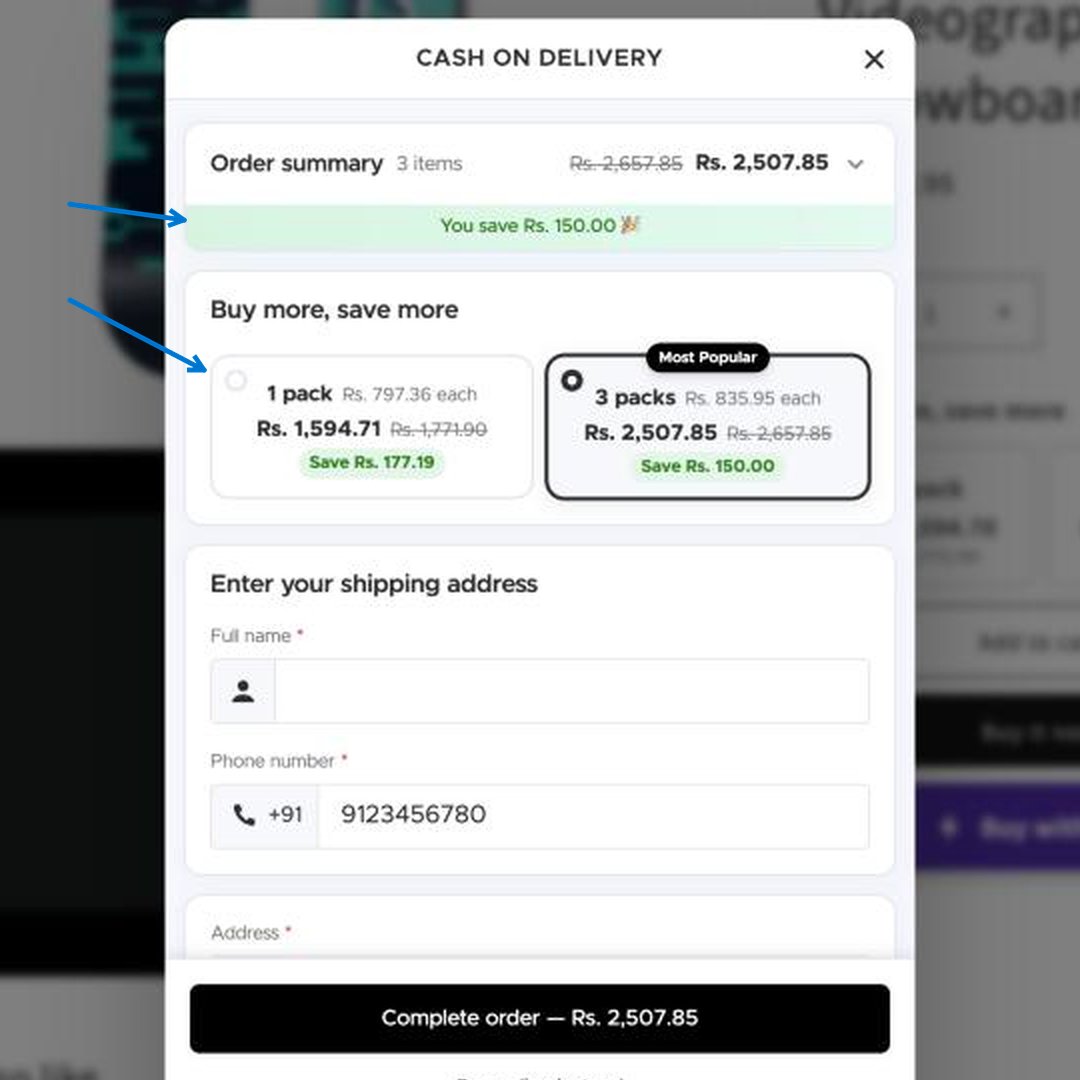
2. Why use it?
- Fewer steps to buy. Shoppers order from the page they are already on instead of going through a multi-step checkout.
- Fewer fake and repeat orders. Phone verification, order limits, block lists and bot protection are built in.
- More revenue per order. Quantity offers, bundles, order bumps and upsells can appear right inside the form.
- Clean addresses. Address suggestions while the shopper types, and fields that follow each country’s address format.
- Your brand. Colours, texts, logo, fields and the thank-you step are all yours to change.
3. Where to find it
In your Shopify admin, open COD King → Settings. The COD FORM group in the settings menu has seven pages: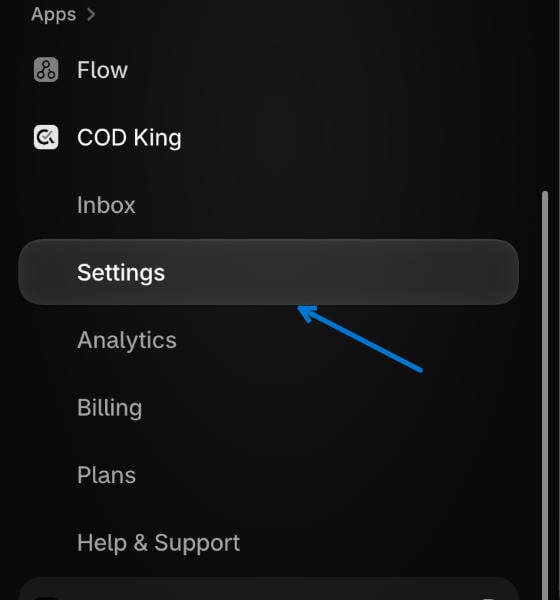
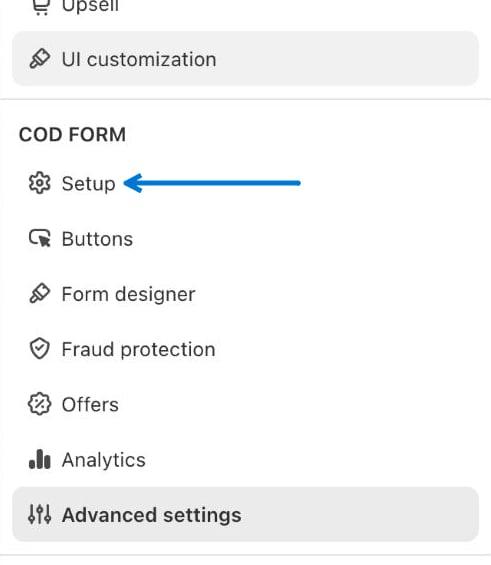
4. Recommended order to set it up
- Setup — make sure the app embed is on, the COD Form is on, and pick where the COD button shows.
- Buttons — set the button text and colours so it matches your store.
- Form designer — choose the fields shoppers fill in, then style the form and write your thank-you message.
- Fraud protection — add order limits and block lists before you start taking real orders.
- Offers and Advanced settings — optional extras once the basics work.
- Place a test order from your storefront and check the Analytics page.
Your changes to the COD Form apply to the COD Form only. Other COD King checkout settings, such as Partial Payment and Prepaid Discount, are separate and are not changed.
Start with Setup
Turn the form on and choose where the COD button appears.
Need Help?
Contact our support team for setup assistance.