
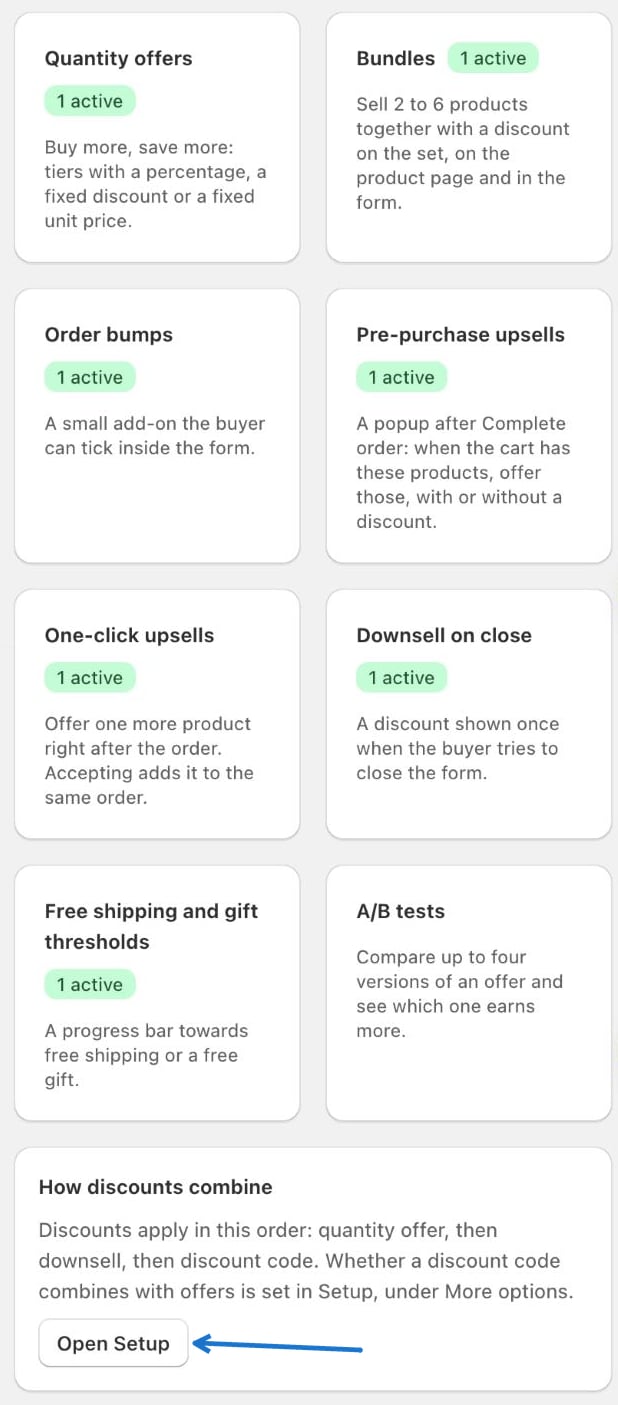
Fields every offer shares
Each offer editor starts with an Offer card and ends with a Products card. These behave the same everywhere.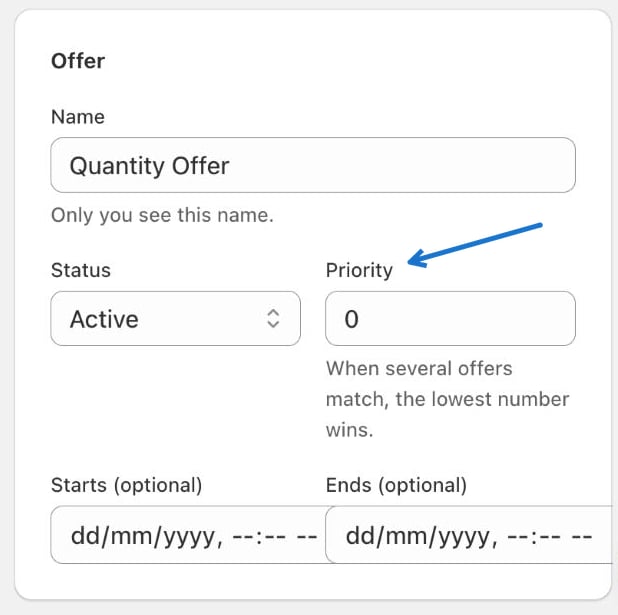
Every offer is created and edited the same way: open the card, click Add (or Edit on an existing offer), fill in the fields, and save. Use Pause to switch an offer off without deleting it.
Quantity offers
In plain words: the more a buyer takes, the cheaper each piece gets. A quantity offer shows tiers such as “Buy 2, get 10% off, buy 3, get 15% off”. The buyer picks a tier on the product page, and the choice carries into the COD form with the same price. Use it when you want to lift the number of units per order, for example for consumables, accessories or anything buyers happily stock up on.What your buyer sees
On the product page, a “Buy more, save more” block appears between the quantity box and the buttons. Each tier is a card with its label, the discounted price, the original price crossed out, and an optional badge such as Most Popular.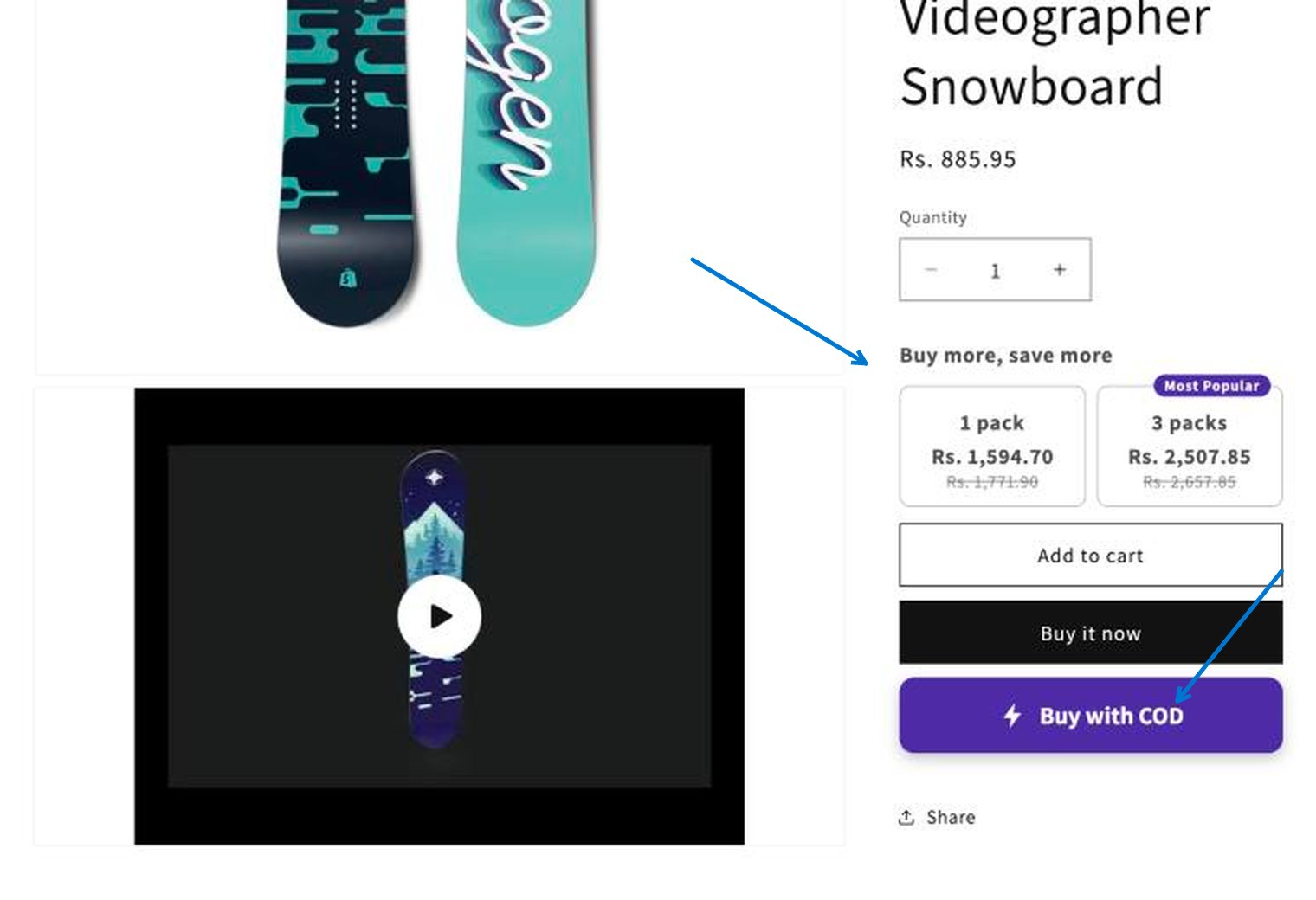
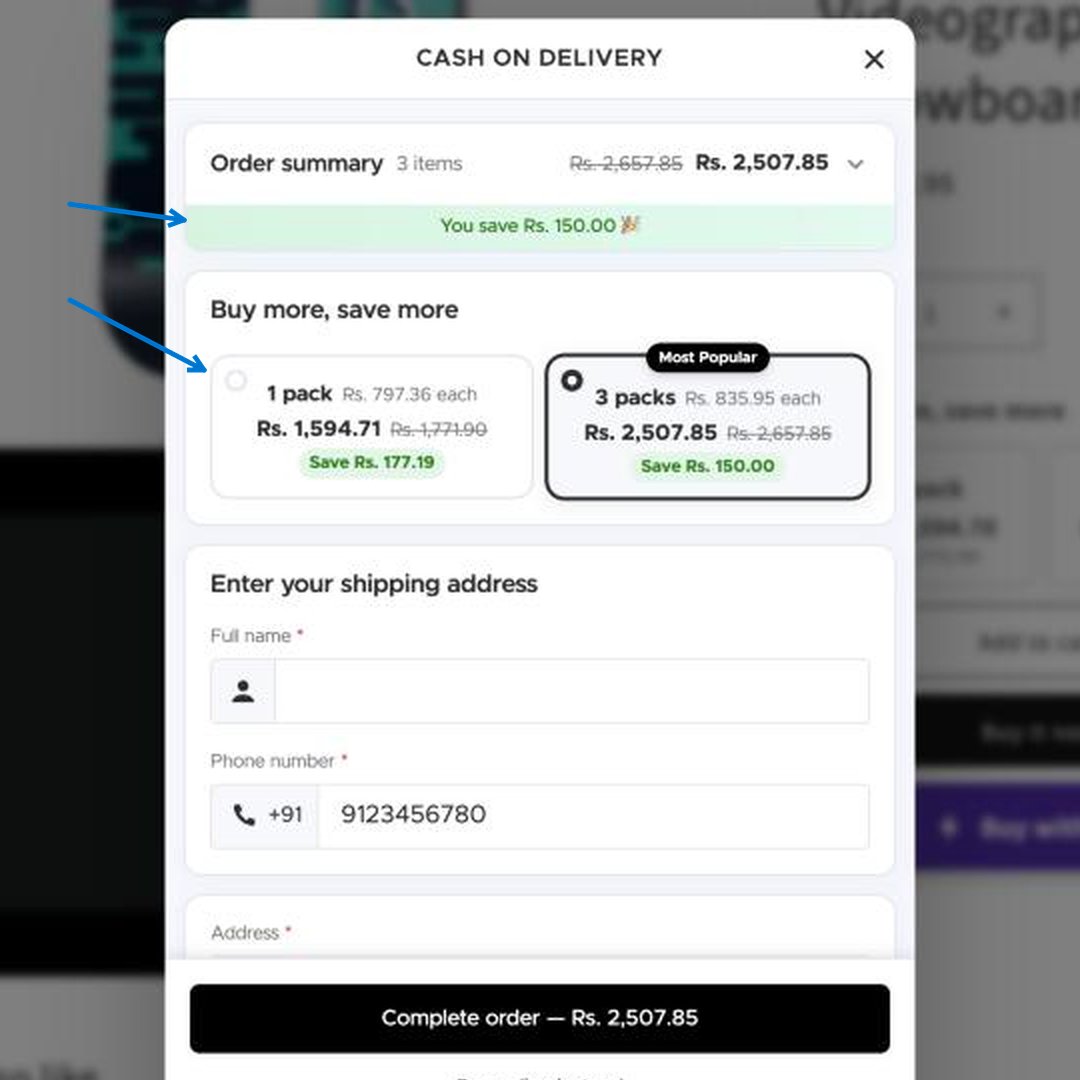
How to set it up
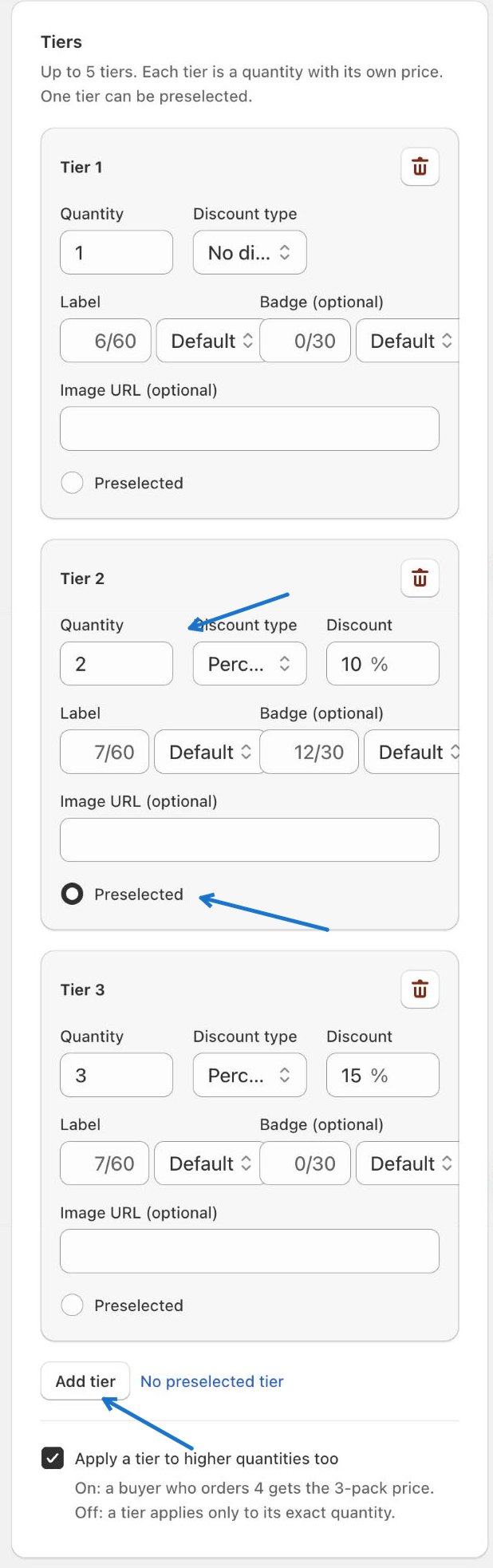
Tiers
Add up to 5 tiers. Each tier has:
Apply a tier to higher quantities too. When on, a buyer who orders 4 units gets the 3-unit tier price. When off, a tier only applies to its exact quantity.
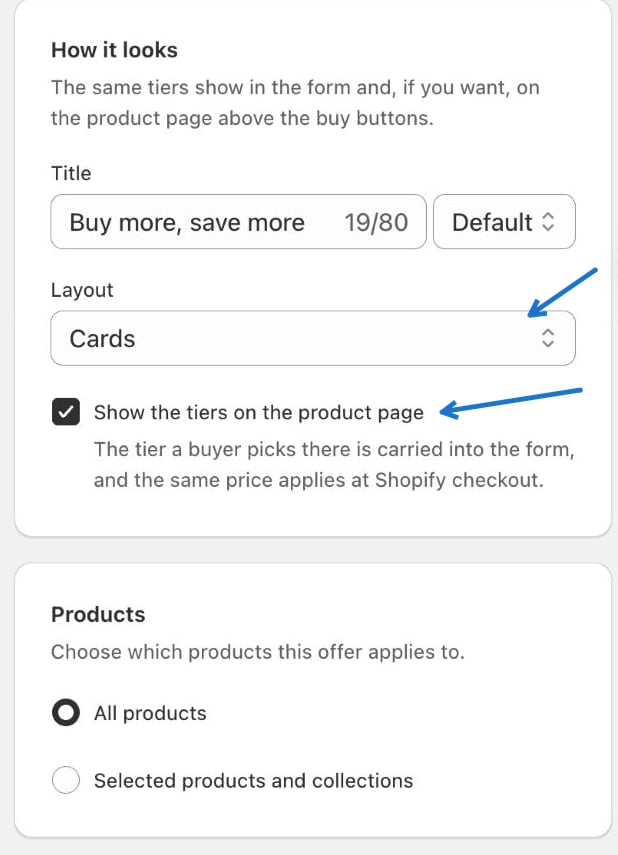
How it looks
Worked example
You sell a face serum for 500. You want buyers to take two or three.
Mark tier 2 as Preselected if you want most buyers to land on the two-pack.
The quantity widget on the product page also needs to be on in Buttons. If your tiers show inside the form but not on the product page, check that switch and Show the tiers on the product page.
Common mistakes
- Tiers that make no sense together. A bigger quantity should never cost more per unit than a smaller one.
- Forgetting “apply to higher quantities”. With it off, a buyer who raises the quantity to 4 gets no tier price, because only the exact quantities 1, 2 and 3 have one.
- A very long label. Labels are limited to 60 characters and badges to 30, and long text wraps awkwardly on a phone.
- Two quantity offers on the same product. The one with the lowest Priority number wins; the other is ignored.
Bundles
In plain words: “frequently bought together”. You group 2 to 6 products as a set, and the buyer gets a discount for taking the whole set. The buyer chooses the variant of each product, and the discount applies to every complete set. Use it when products naturally go together (a phone and its case, a shampoo and conditioner) or when you want to clear slower products by attaching them to a bestseller. Example: Shampoo 300 + Conditioner 300 + Serum 400 = 1,000. Set Amount off the set to 100 and the buyer pays 900 for all three.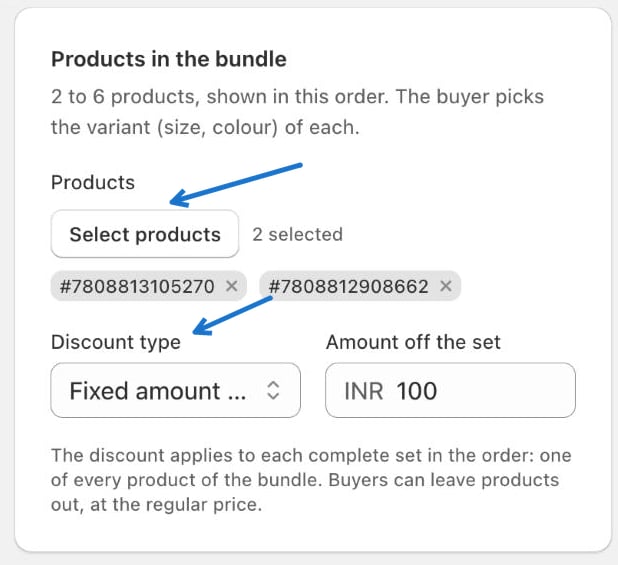
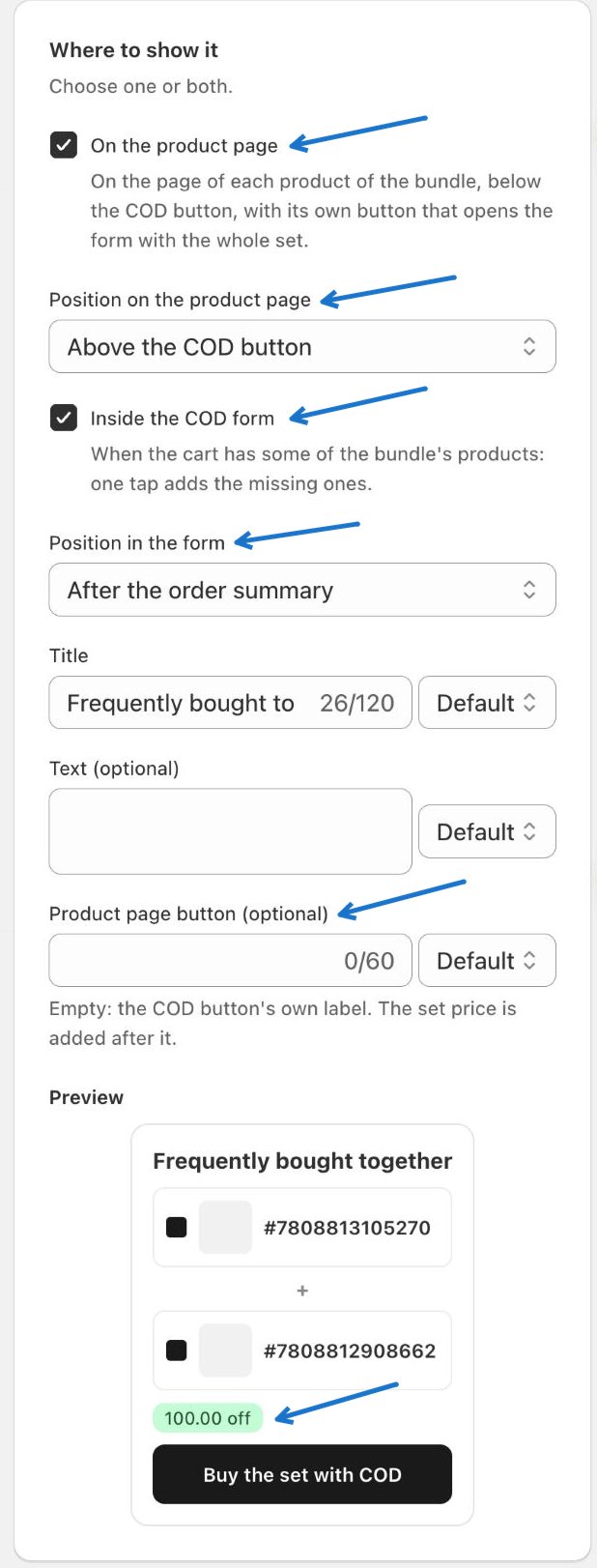
What your buyer sees
On the product page, a “Frequently bought together” box appears under the COD button. The product the buyer is looking at is already ticked and cannot be unticked. The other products in the set are ticked too, and the buyer can untick any of them. The strike-through price is the normal total, the green badge is what the buyer saves, and the button shows the price they will pay.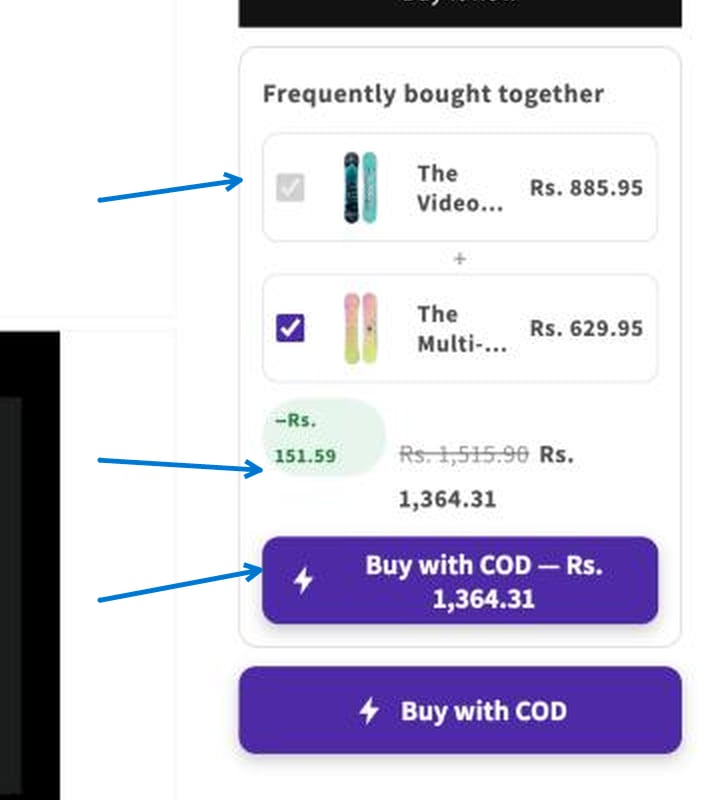
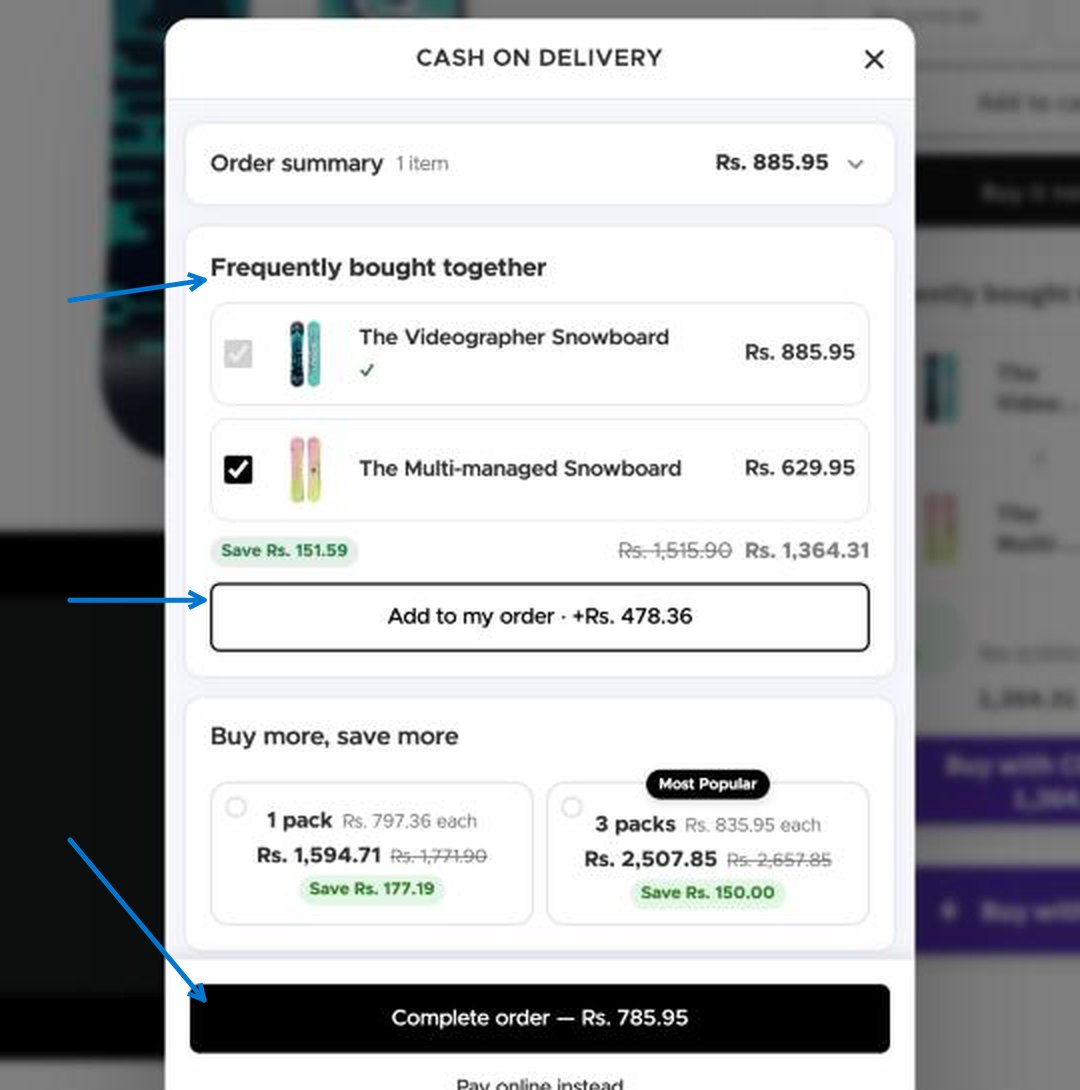
The discount applies to the complete set. Check how your store behaves when a buyer unticks a product by trying it on your own product page before you promote the offer.
Order bumps
In plain words: a tick-box add-on inside the form, like the “add gift wrap for 49” box at a shop counter. It needs one tap and no extra page. Up to 3 matching bumps are shown, in priority order. Use it when the add-on is cheap, easy to understand and does not need explaining: gift wrap, express handling, a small accessory, a free gift you want buyers to notice.What your buyer sees
A dashed box appears in the form, above the order totals. It shows the title, the price, and the original price crossed out. The buyer ticks the box to add it.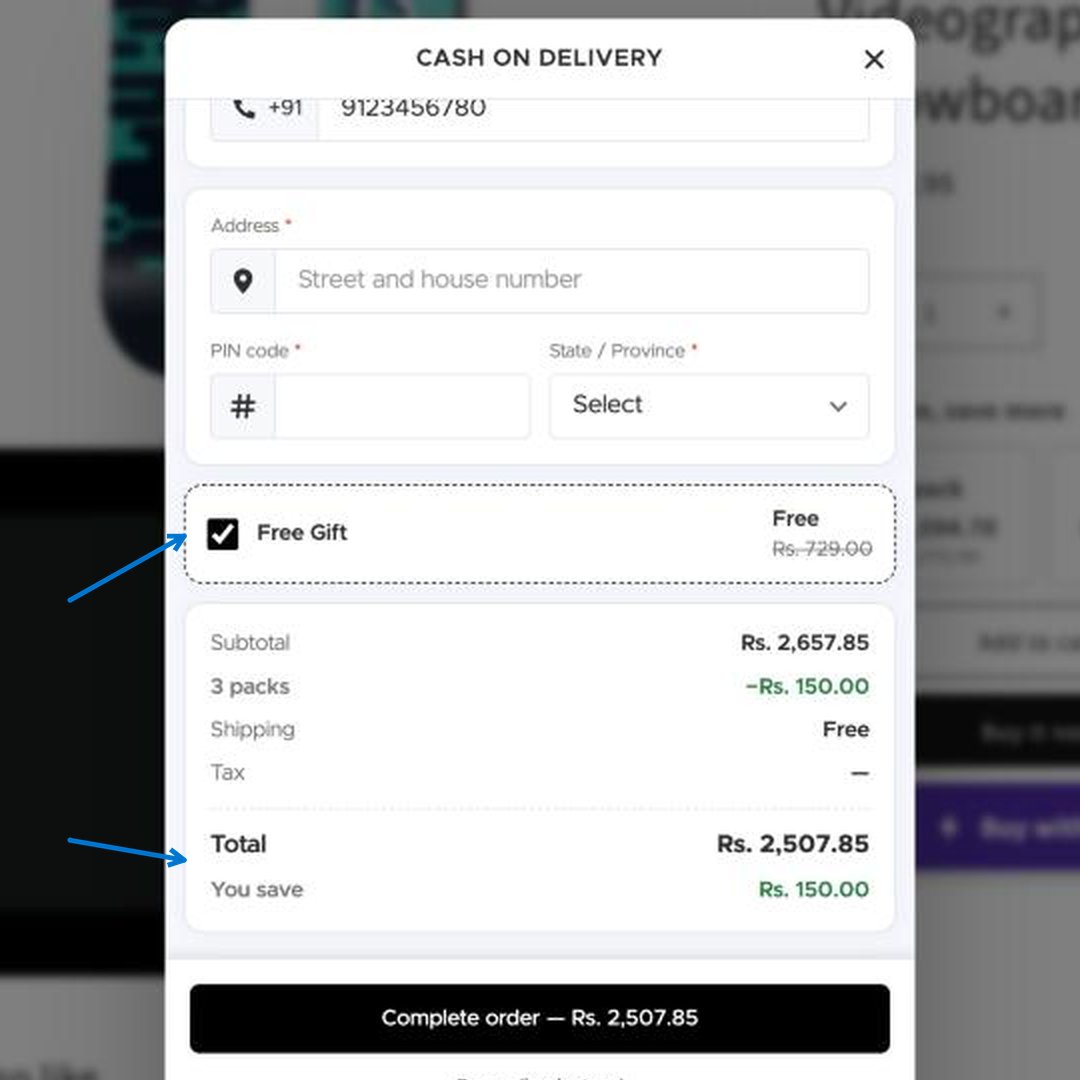
How to set it up
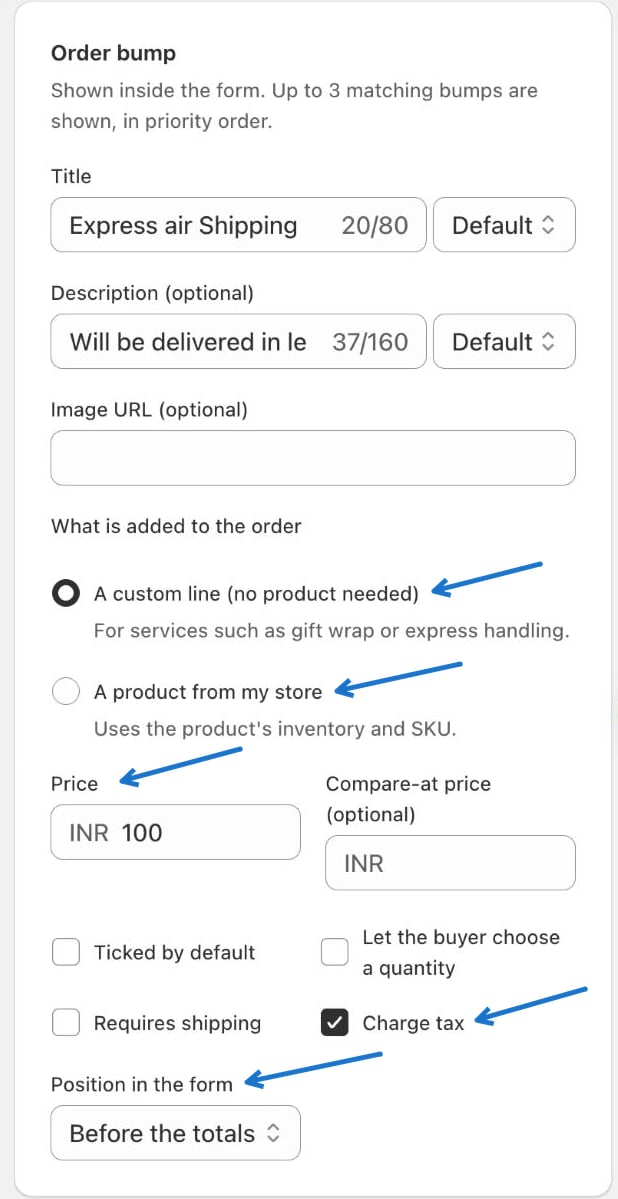
The Order bumps block must be on in the Form designer.
Common mistakes
- Pricing the bump higher than the product. Buyers notice. Keep it small compared to the main order.
- Ticked by default. It lifts the take rate, but some buyers feel tricked when they see an extra line. Use it only for things they would clearly want.
- Using a custom line for something you stock. A custom line does not use inventory or SKU. Choose a product from my store when you need stock tracked.
Pre-purchase upsells
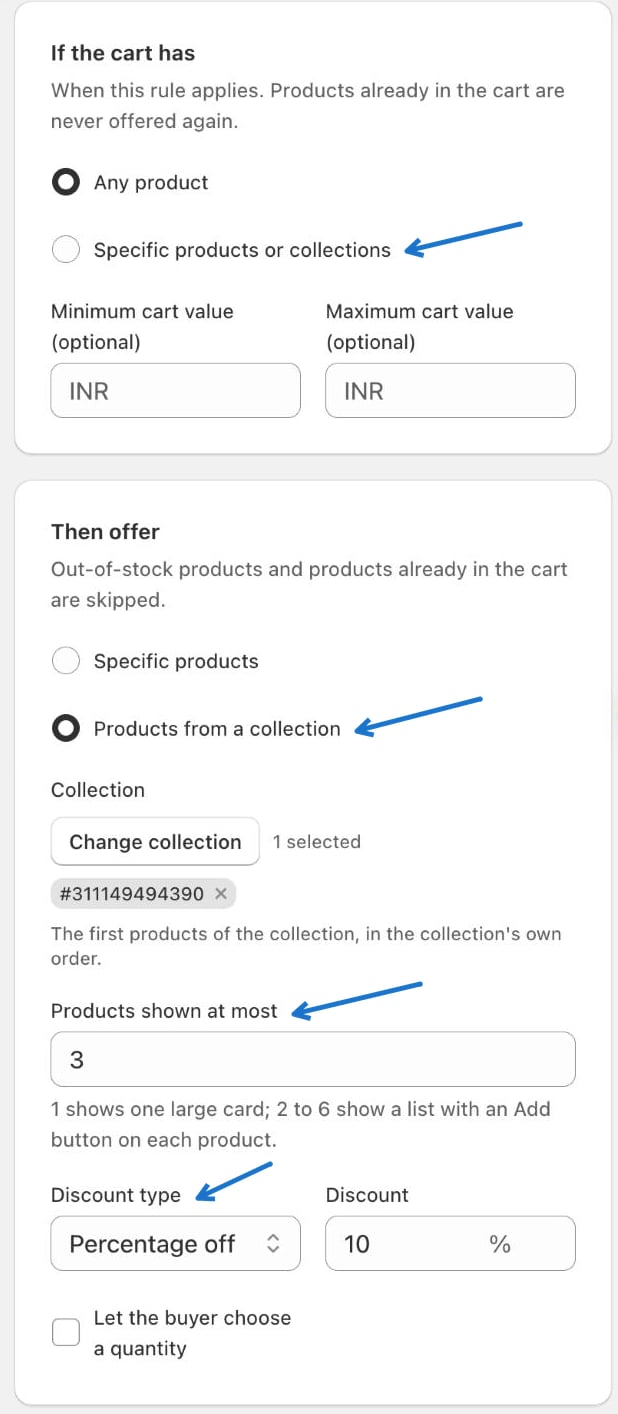
In plain words: “before you order, want to add this?” It checks what is in the cart, and if it matches your rule it suggests other products, with or without a discount. Use it when you can say in one line why the second product fits the first, for example “cart has a snowboard, suggest bindings”. If the cart has
Then offer
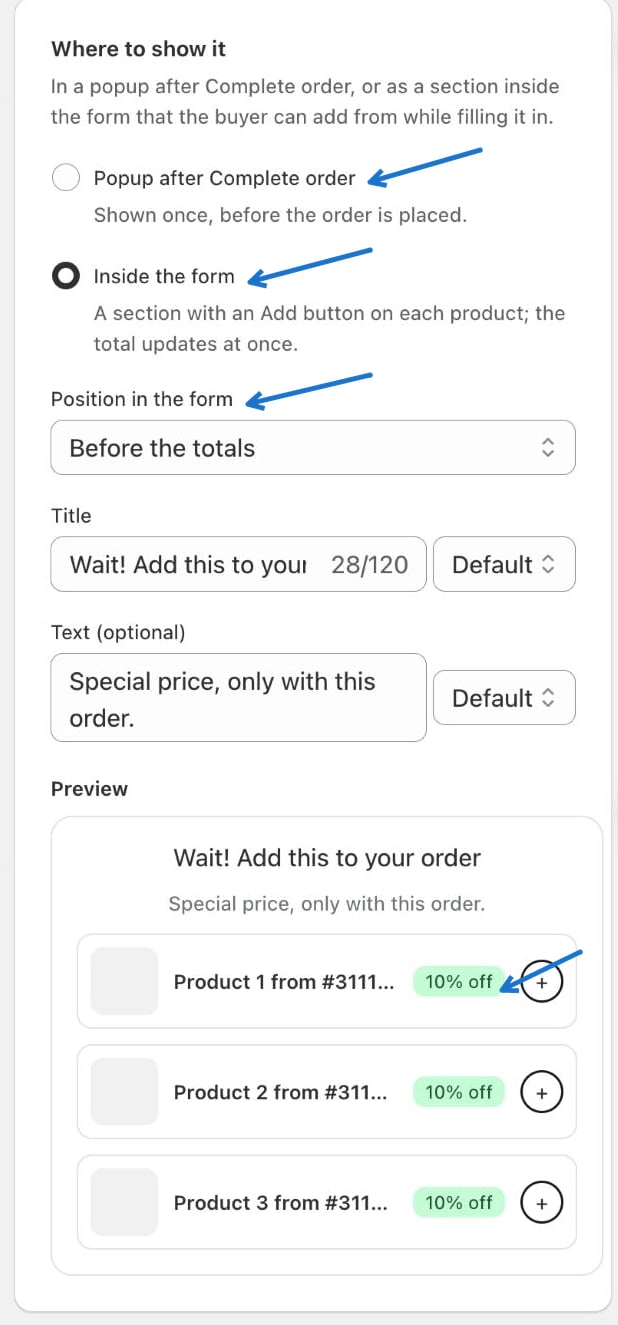
What your buyer sees
The buyer fills in the form and taps Complete order. Before anything is placed, a pop-up appears with your suggestion. If they tap Add to my order, the product joins the order at the offer price. If they tap No thanks, complete my order, the order goes through as it was. The pop-up is shown once, so a buyer is never asked twice.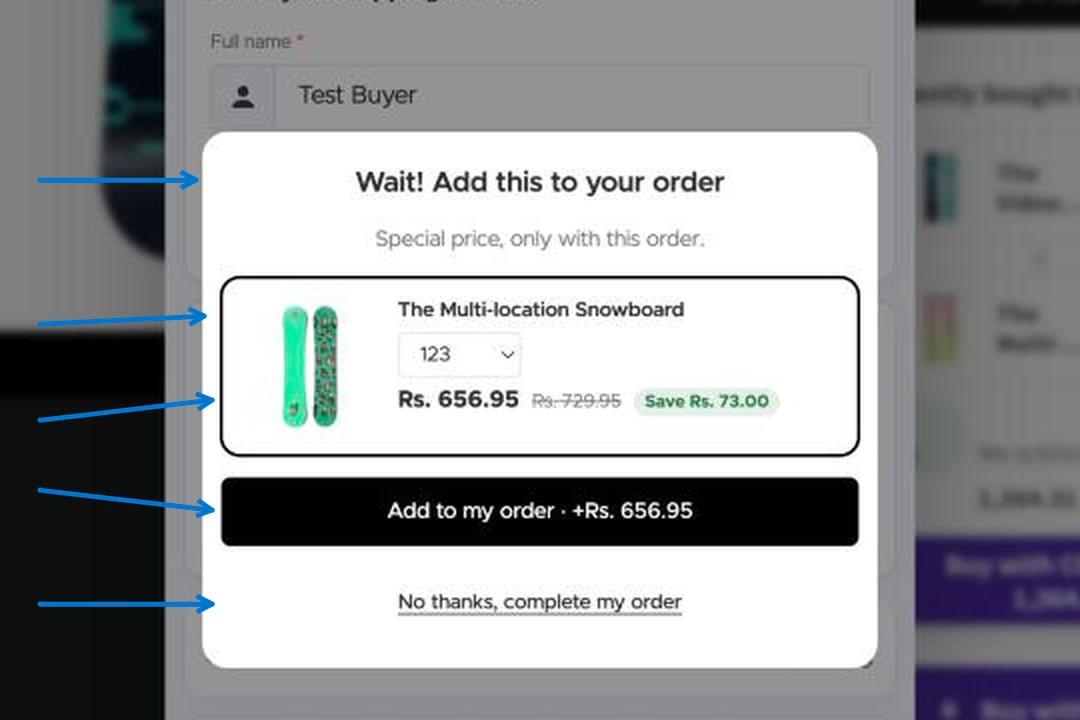
One-click upsells
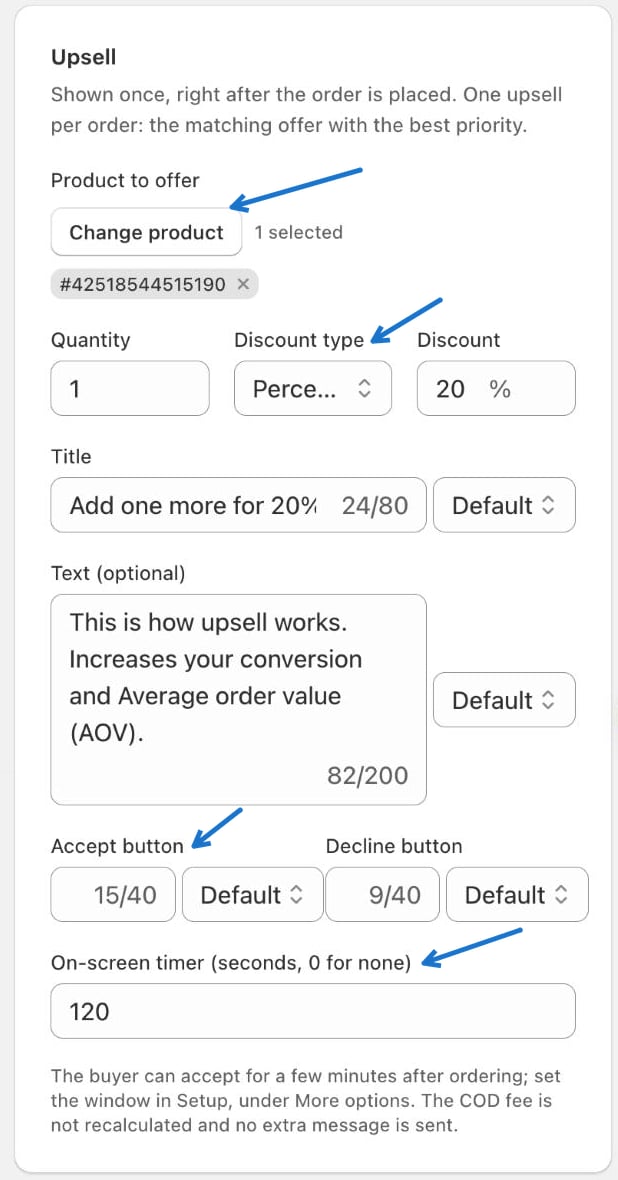
In plain words: right after the buyer places the order, you offer one more product at a special price. The buyer accepts with one tap, because the address and phone are already known. Only one upsell is shown per order: the matching offer with the best priority. Use it when you have a cheap, popular product that most buyers would be happy to add to a parcel that is already going out.What your buyer sees
The order is confirmed first (a green “Order confirmed”). Then the offer appears: a heading, the product picture and name, the new price with the old price crossed out, a countdown (“Offer ends in 118s”) and two buttons. Add to my order adds the product to the same order. No thanks closes the offer and shows the order confirmation.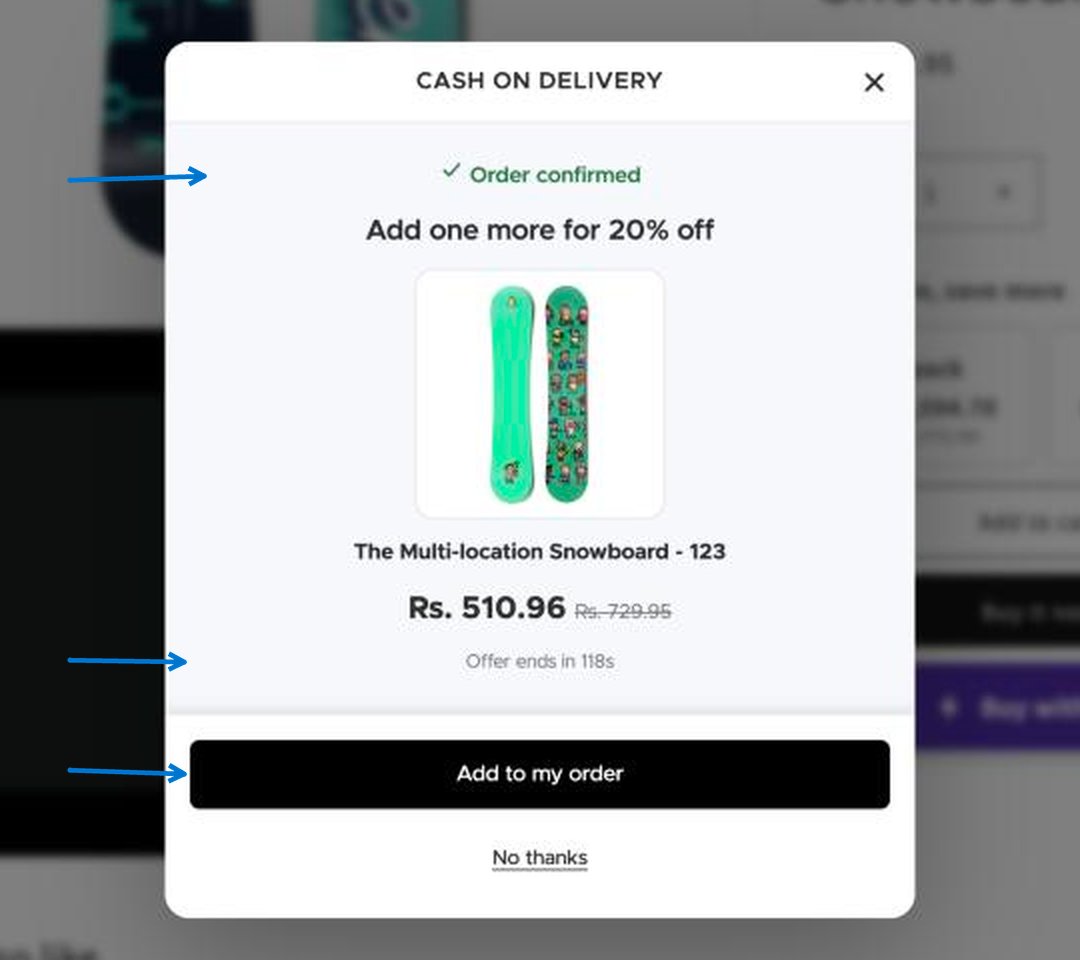
How to set it up
Downsell on close
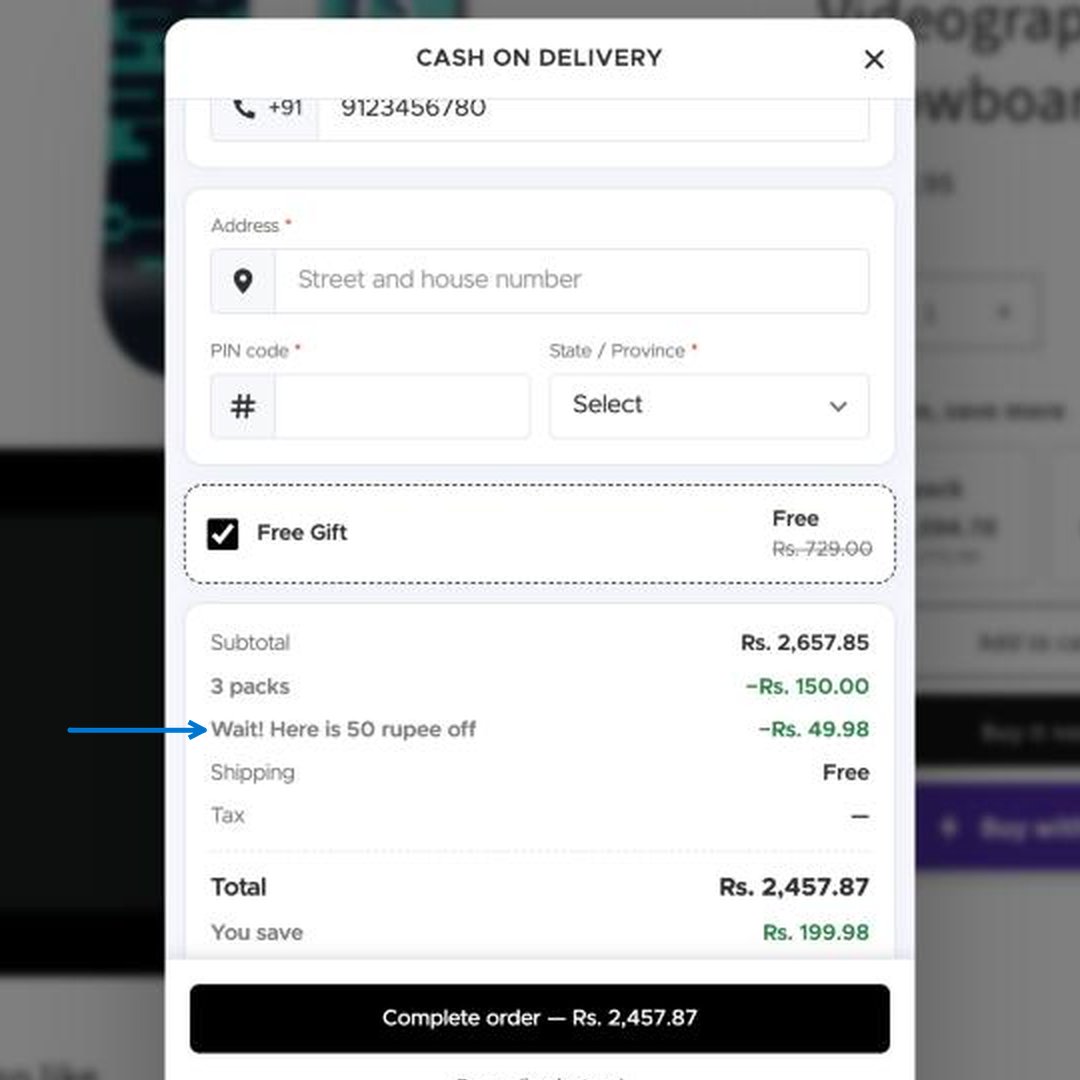
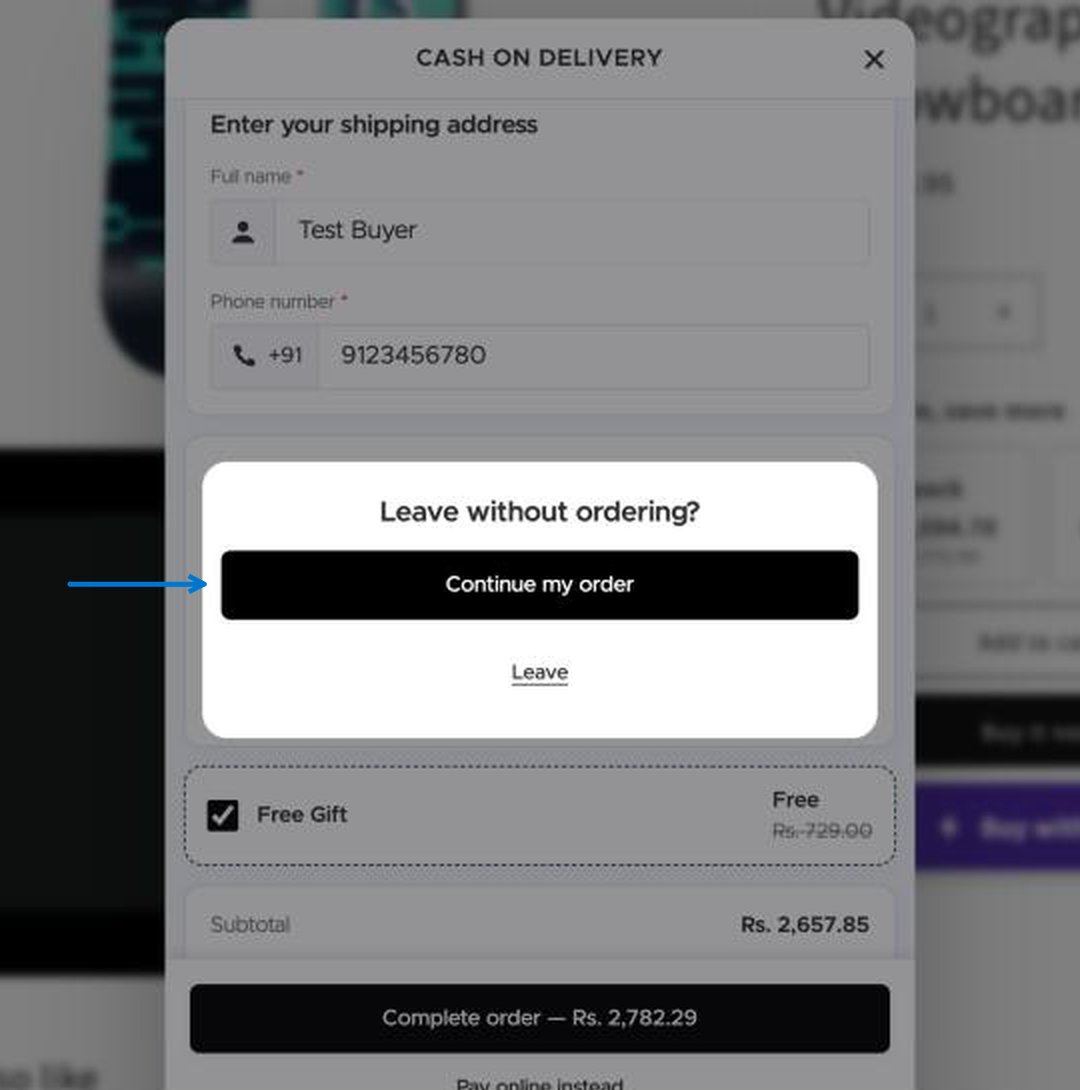
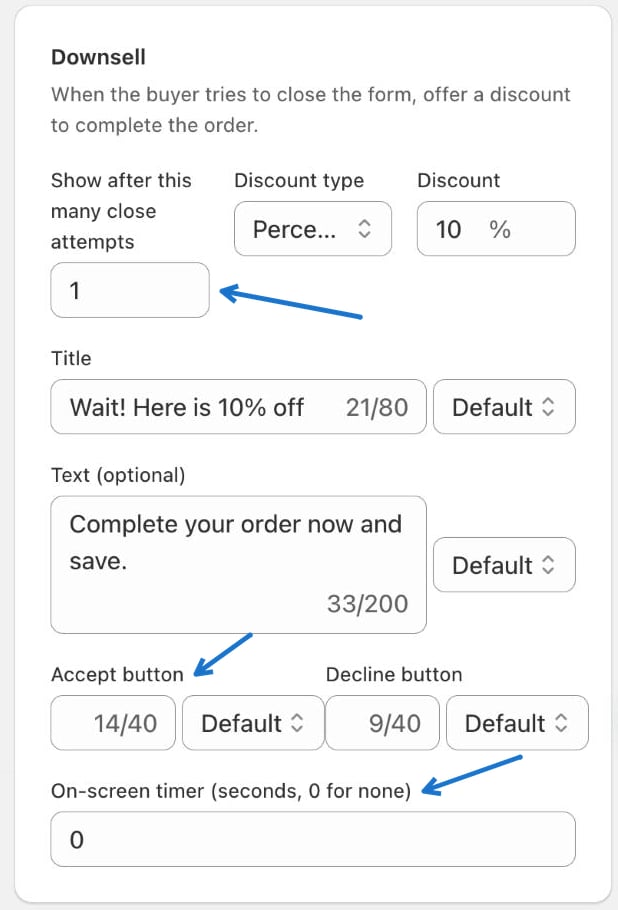
In plain words: a last attempt to save the sale. When the buyer tries to close the form without ordering, a small pop-up offers a discount. Use it when you see many buyers open the form and leave. It works best with a small, clear discount you can afford on every order.What your buyer sees
When the buyer taps the close button (×), a pop-up appears instead of closing the form. Claim discount applies the discount and returns to the form. No thanks lets the buyer leave.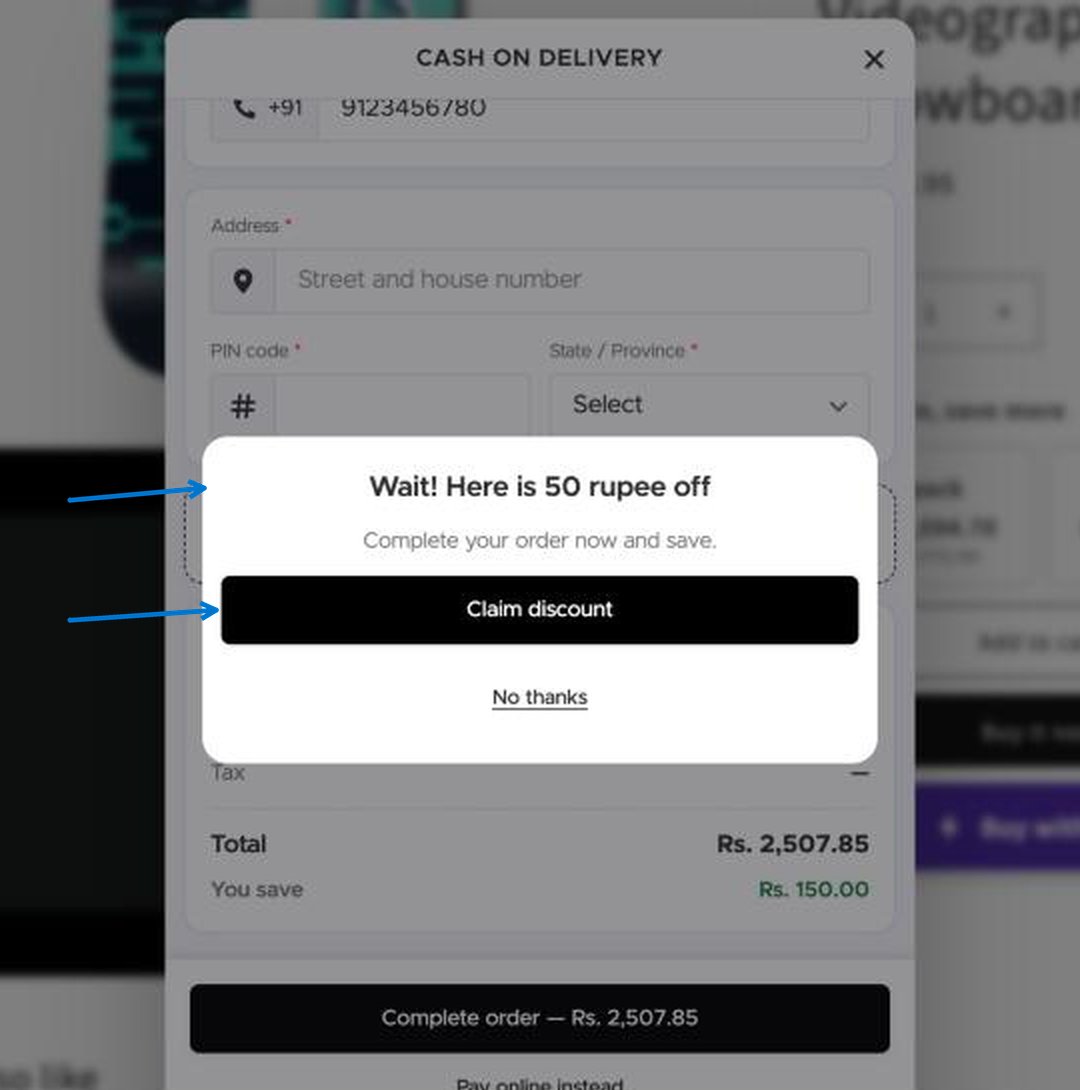
How to set it up
Free shipping and gift thresholds
In plain words: a progress bar that says “spend a little more and get free shipping (or a free gift)”. Buyers who are close to the amount often add one more item to reach it, so your average order grows. Use it when you want to lift your average order value without cutting prices. Set the amount about 20 to 30 percent above what most buyers spend today.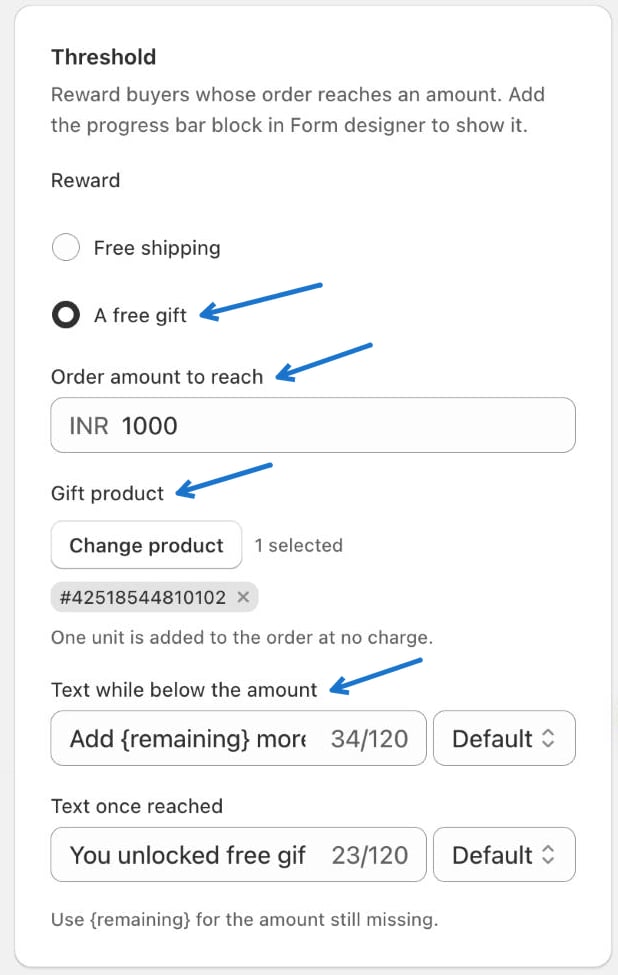
What your buyer sees
Near the bottom of the form, under the totals, the buyer sees a bar with a message such as “Add Rs. 1,214.05 more for free shipping”. The bar fills as the order total grows, and the numbers under it show where the buyer is now and the amount to reach. When the goal is reached, the message changes to your “Text once reached”.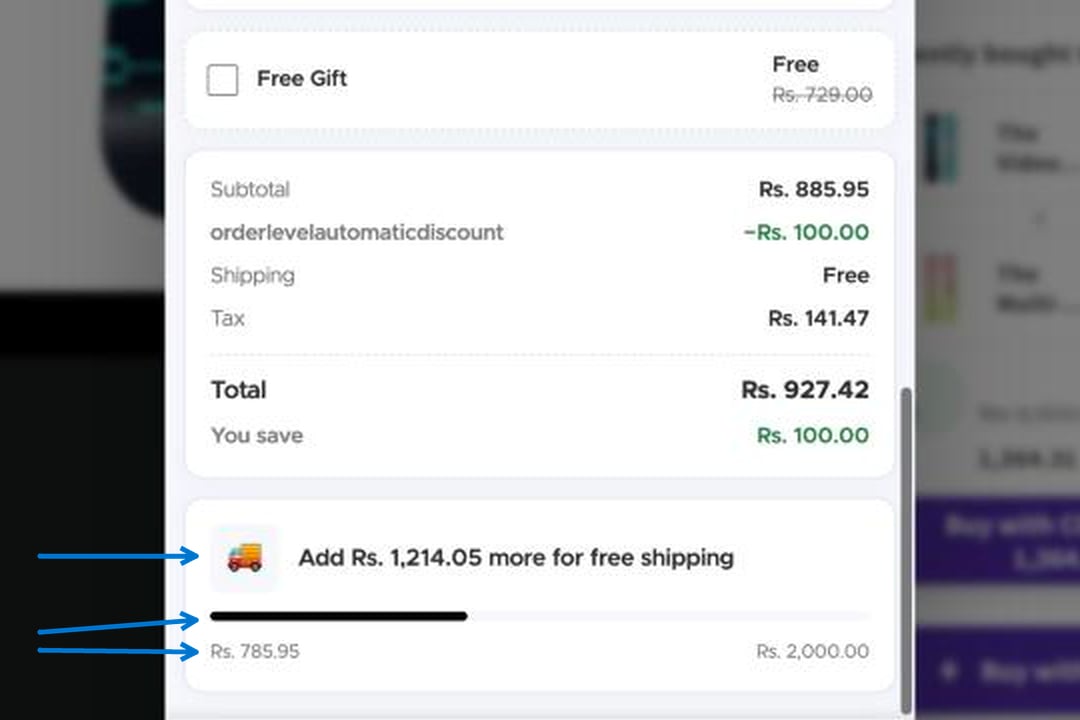
The bar counts the order total after discounts, so a buyer using a quantity offer or a bundle needs to reach the amount after that saving.
A/B tests
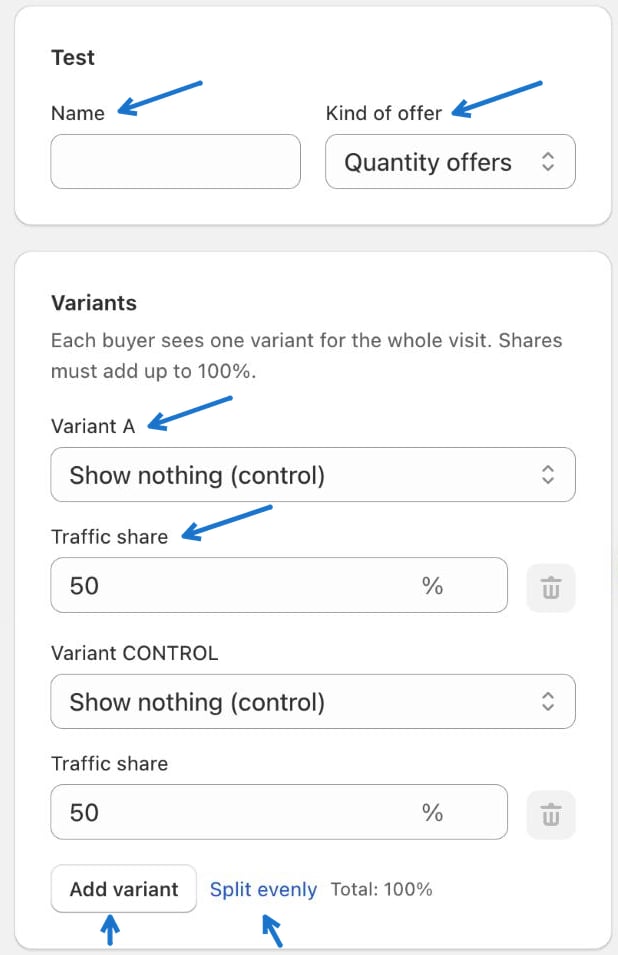
In plain words: you are not sure which offer works better, so you let your buyers decide. Half of them see offer A and half see offer B, and Analytics shows which one earned more. Each buyer sees one version for the whole visit, so nobody sees the offer change while they shop. Compare up to four versions. Use it when you want to settle a question with data, for example “does 10 percent off beat 100 rupees off?”. Test one change at a time, and let the test run until you have a good number of orders, not just a few. On the storefront there is nothing extra for the buyer to see: each buyer simply gets the version they were assigned.- Create two or more offers of the same kind.
- Click New A/B test.
- Enter a Name and choose the Kind of offer (for example Quantity offers).
- In Variants, choose which offer each variant shows. Show nothing (control) is a version with no offer.
- Set each Traffic share. Shares must add up to 100 %. Split evenly divides them equally, and Add variant adds another (up to four).
- Save the test.
How discounts combine
When several discounts could apply to one order, they apply in this order:- quantity offer,
- then downsell,
- then discount code.
Form designer
Turn offer blocks on or off inside the form.
Analytics
Measure the effect of your offers.