Creating a Template and Binding Events
This article explains two separate steps that merchants often mix up:- Creating a template writes the message text and sends it to WhatsApp for approval.
- Binding an event chooses which customer event (for example, Order placed) sends that message.
Where to find events
Go to COD King → Settings → Notifications → Customer notifications. The Notification/Event Type table lists each event with SMS and WhatsApp checkboxes and a Preview column.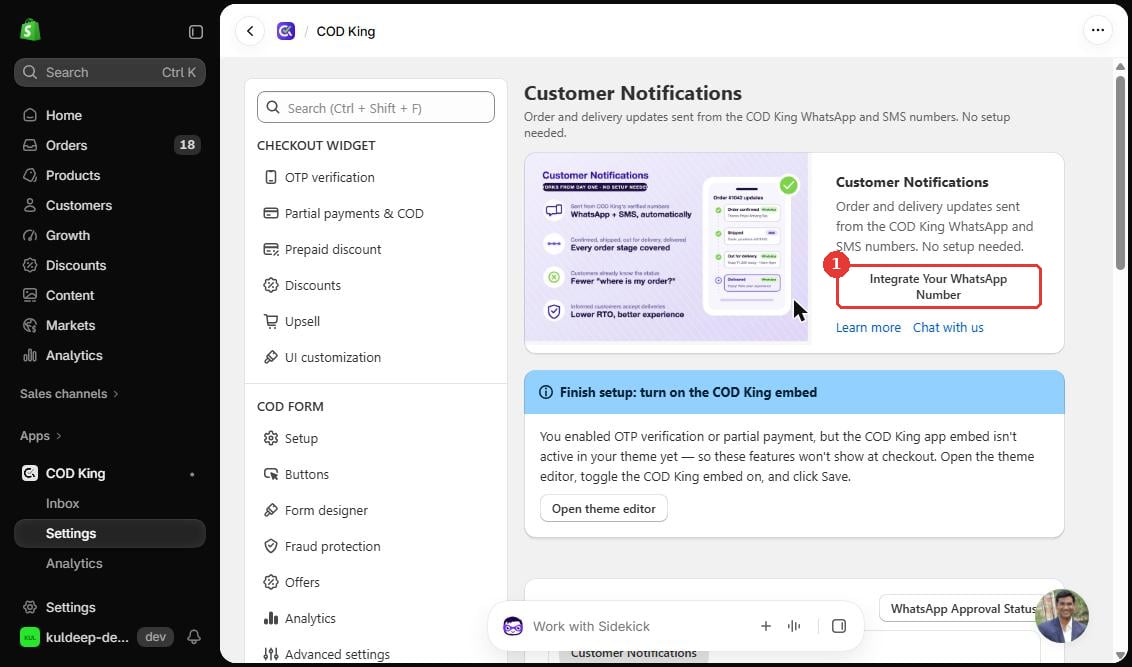
Step-by-step: review and bind an event
Step 1: Choose the message language
In WhatsApp message language, select the language for the messages your customers receive.Step 2: Tick WhatsApp for an event
In the event row, tick the WhatsApp checkbox. For example, tick WhatsApp on the Order placed row to send a confirmation when an order is placed.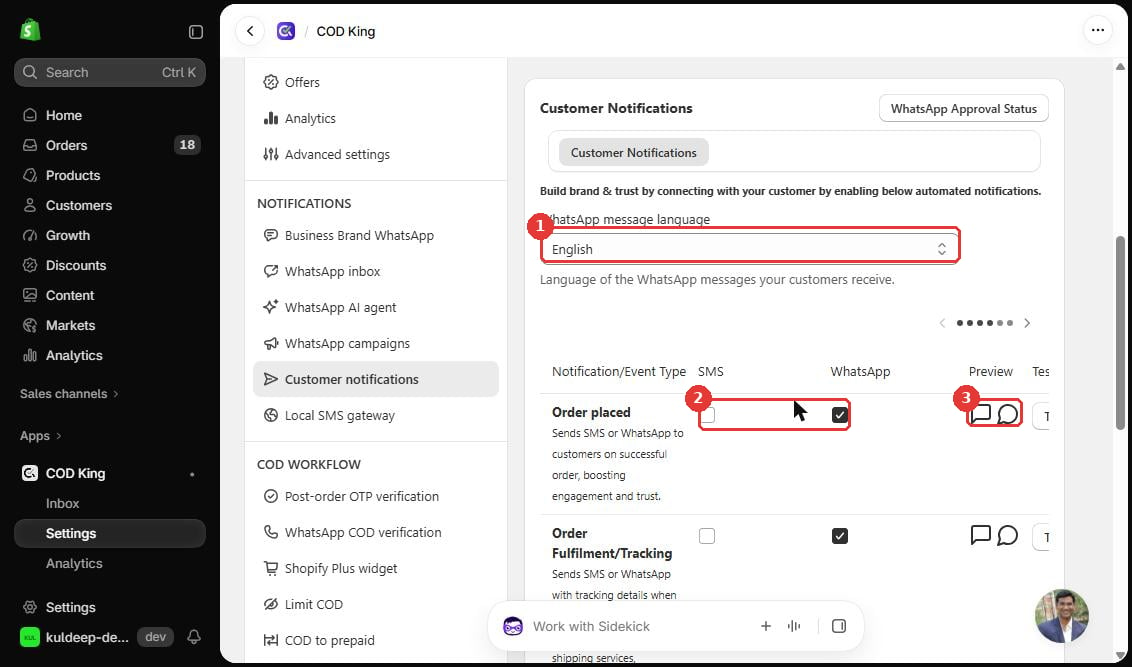
- WhatsApp message language dropdown.
- SMS and WhatsApp checkboxes. On the Order placed row, the WhatsApp box is ticked.
- Preview icons. Click them to see the WhatsApp or SMS message.
Step 3: Preview the message
Click the WhatsApp Preview icon in the event row to review the message before customers receive it.Creating a new template
Configuration options
Practical example
A merchant wants customers to receive a WhatsApp confirmation after every order. They open Customer notifications, tick WhatsApp on the Order placed row, and use the WhatsApp Preview icon to check the text. Next, they open WhatsApp Approval Status to confirm the message is approved.Verification
- The Preview icon shows the message text for the event.
- The WhatsApp checkbox stays ticked after you refresh the page.
- WhatsApp Approval Status shows the approval state of your messages.
Troubleshooting
- You see the Integrate Your WhatsApp Number button. Your WhatsApp Business number is not connected yet. Click the button and connect the number first. The page also says that the COD King WhatsApp and SMS numbers need no setup.
- You see a Finish setup banner. OTP verification or partial payment is turned on, but the COD King app embed is not active in your theme. Open the theme editor, turn on the COD King embed, and click Save.
Important notes and limitations
- Messages sent from COD King’s shared number and from your own number follow different setup steps.
- WhatsApp only allows pre-approved messages for campaigns.
- Each sent message is charged. See Introduction and How It Works for rates.