
Branded WhatsApp: Introduction and How It Works
Branded WhatsApp lets your store send order updates and marketing messages from your own verified WhatsApp Business number. Customers see your store name on every message, instead of a shared sender. In COD King, the feature lives under Settings → Notifications → Business Brand WhatsApp.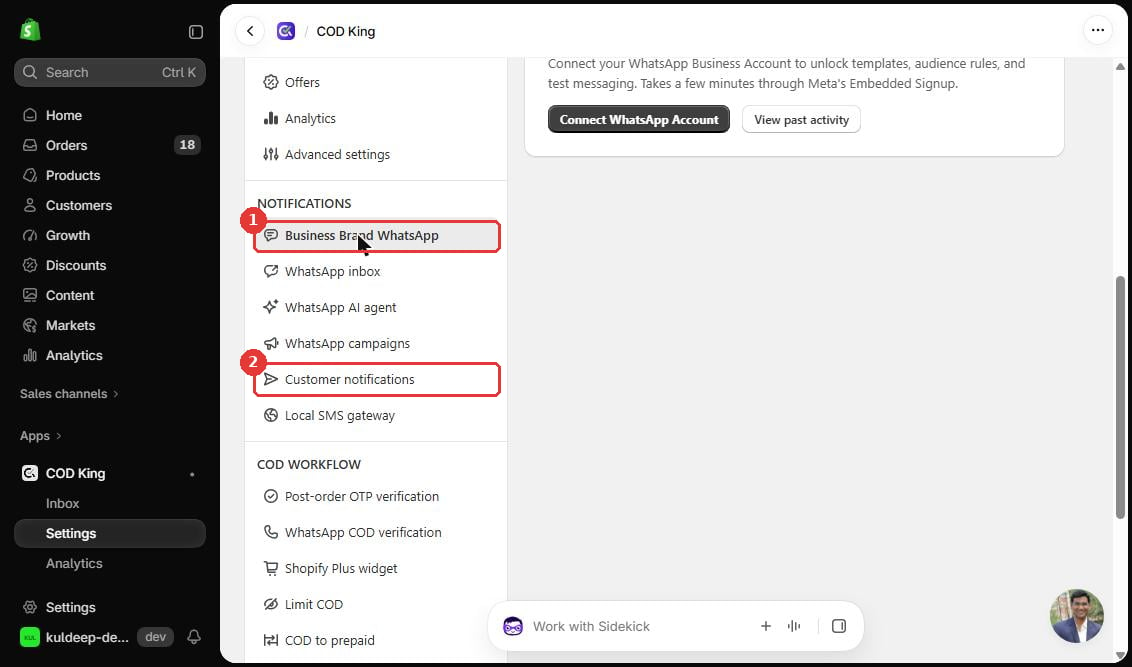
What is Branded WhatsApp?
The Business Brand WhatsApp page describes the feature like this: order updates arrive from your own verified number, with your store name on the message, instead of a shared sender. Customers can also reply, so it is a two-way chat rather than one-way alerts.How it differs from standard notifications
COD King already sends WhatsApp and SMS notifications from its own shared sender. Branded WhatsApp changes the sender to your number.How it works
- You connect your WhatsApp Business Account from the Business Brand WhatsApp page.
- You use approved message templates. WhatsApp only allows pre-approved messages for campaigns.
- Messages for orders, campaigns and automations are sent from your number, and customer replies appear in the WhatsApp inbox.
Prerequisites
Before you start, make sure you have:- COD King installed on your Shopify store.
- A WhatsApp Business Account that you can connect through Meta.
- A phone number to register for WhatsApp Business.
- Message templates approved by WhatsApp. Messages marked Message needs approval cannot be sent until approved.
Step-by-step setup
Step 1: Open Business Brand WhatsApp
- Go to COD King → Settings.
- In the left menu, under Notifications, click Business Brand WhatsApp.
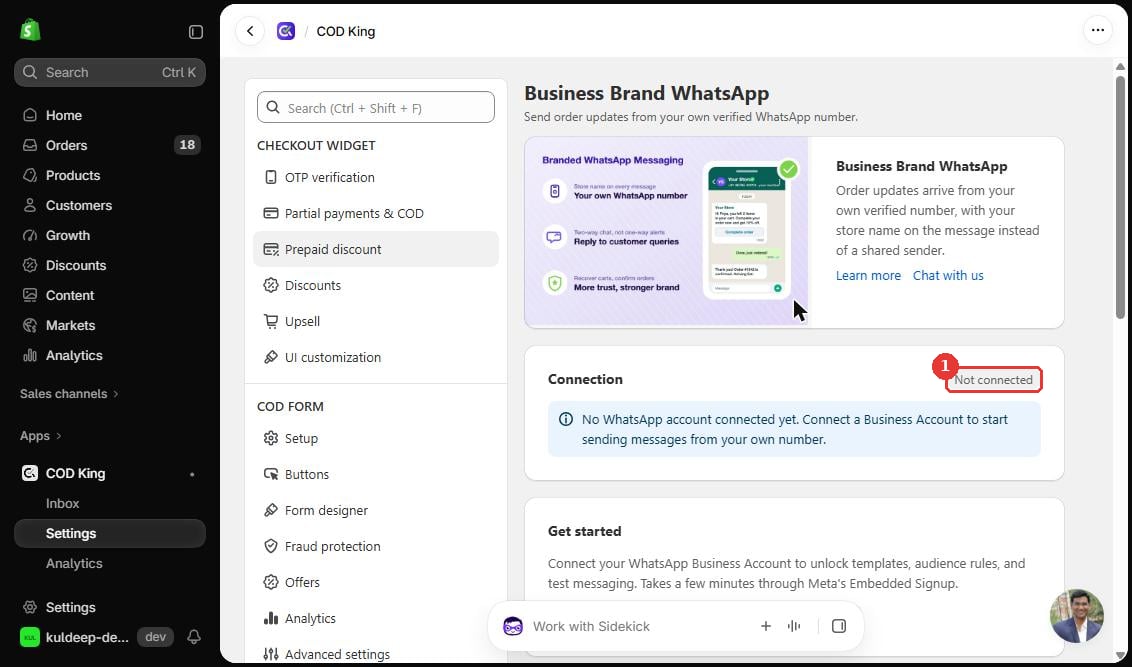
Step 2: Check the connection status
The Connection card shows Not connected until a number is linked. Under Get started, click Connect WhatsApp Account to start Meta’s Embedded Signup.Pricing and billing
COD King bills Branded WhatsApp and other messaging usage through your Shopify billing. The rates below are from the Billing page of the dev store on the Enterprise Plus plan.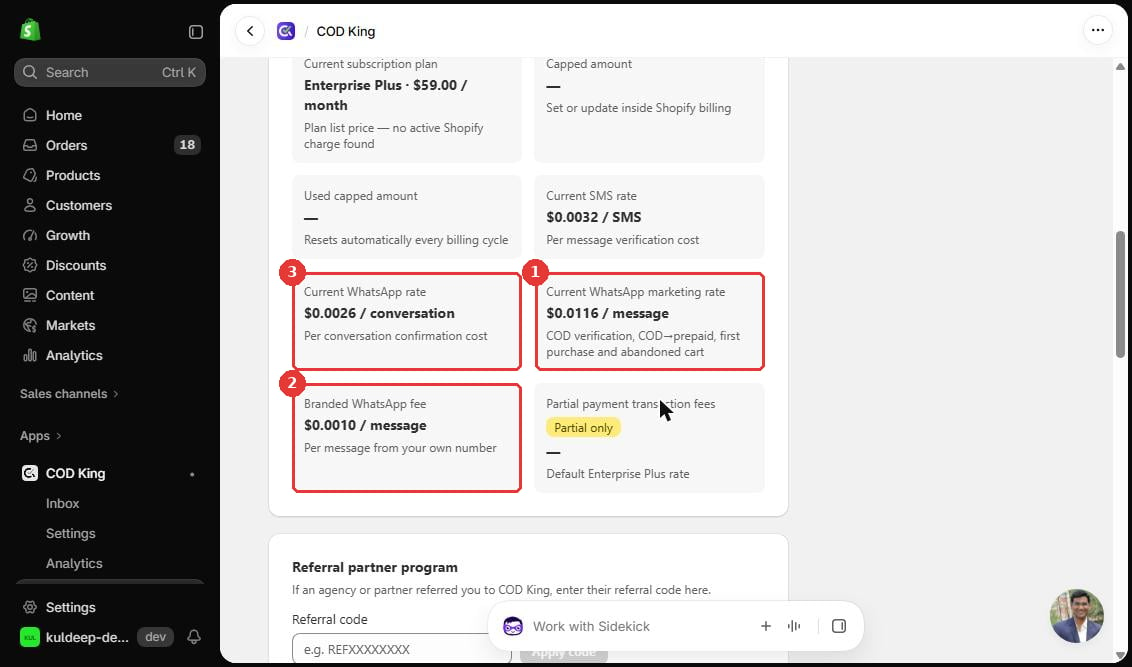
Rates depend on your plan and may change. Check your own Billing page for current rates.
- Capped amount is set or updated inside Shopify billing. The Used capped amount resets automatically every billing cycle.
- To check usage, open COD King → Billing, choose a date range under Select date range, and review the SMS, WhatsApp and transaction fee data.
- The View usage rates button on the Billing page shows rates for each country.
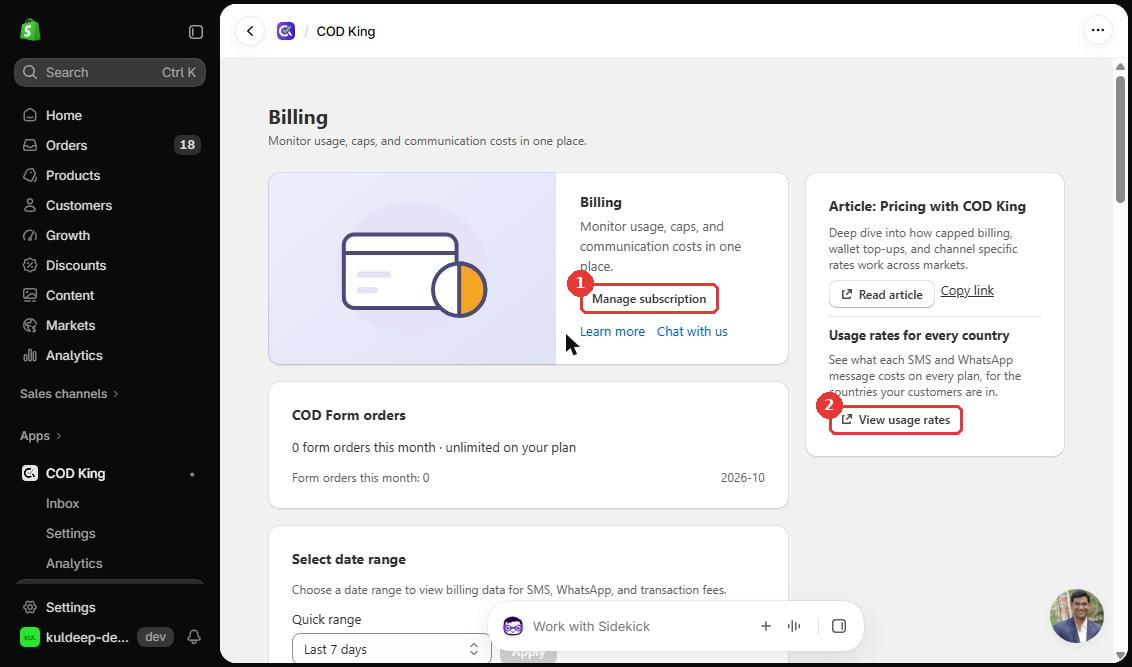
- Manage subscription opens your Shopify plan and billing settings.
- View usage rates shows the rates for each SMS and WhatsApp destination country.
Practical use cases
- Send order confirmations and shipping updates from your own brand number.
- Recover abandoned carts with a reminder from your number (see Abandoned Cart).
- Convert COD orders to prepaid (see COD to Prepaid).
- Run campaigns such as win-back and festive sales (see Campaign Management).
Limitations and things to know
- Campaign messages must use approved templates.
- Branded WhatsApp messages cost money per message, so check the rates before you enable a new message type.
- Connection, templates and campaigns depend on your WhatsApp Business Account being approved.