
Step-By-Step Guide for setting up Customer Notification
Benefits of Setting Up Customer Notification
Keep customers informed: Confirmation and fulfilment messages can help to keep customers informed of the status of their orders. This can help to reduce customer anxiety and improve the overall customer experience.
Improve customer satisfaction: Studies have shown customers appreciate receiving confirmation and fulfilment messages. These messages can help to build trust between the merchant and the customer and lead to improved customer satisfaction.
Reduce customer complaints: Confirmation and fulfilment messages can help to reduce customer complaints. By keeping customers informed of the status of their orders, merchants can reduce the likelihood of customers contacting them with questions or concerns.
Install and Launch the COD KING App In Your Shopify Store →
Install the ‘COD KING’ app from the Shopify App Store if you haven’t already. Once installed, navigate to your Shopify dashboard and select ‘Apps’. Click on the ‘COD KING’ app to launch it from there.
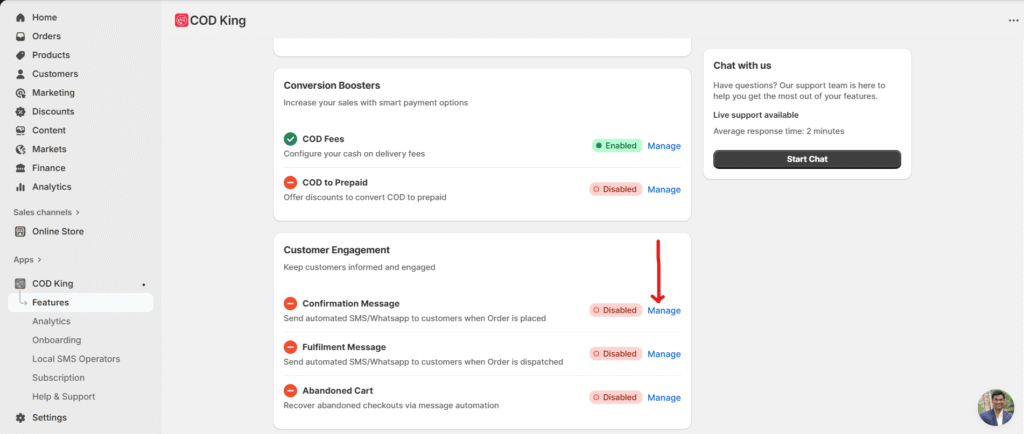
To enable the order confirmation go to the app dashboard then in Customer Engagement click on manage →
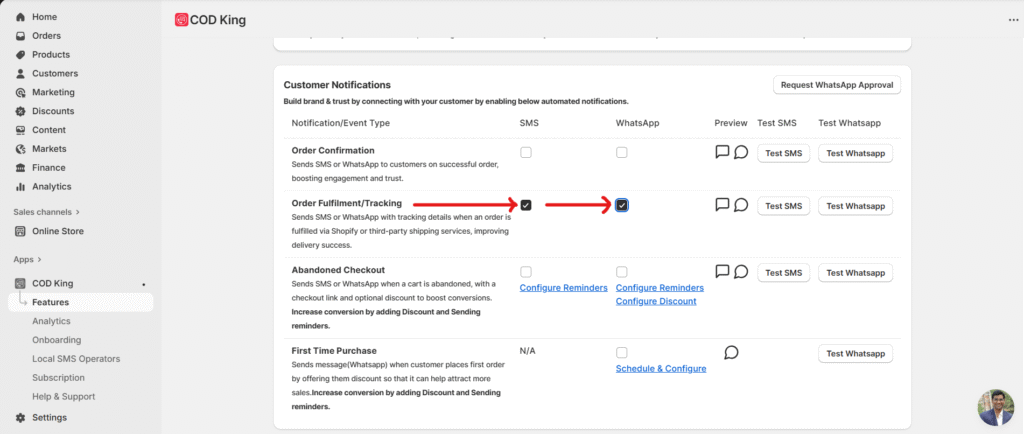
To activate the order fulfillment message enable the below checkbox and save the changes
In the world of eCommerce, few things are as frustrating as the abandoned checkout. It’s the online equivalent of a customer walking into a store, filling their cart with products, and then simply walking out without making a purchase. At the time of writing this article, we see COD King Abandoned Cart messages we see a boost and conversion of 7-8% in sales so it is really totally worth trying it.
This scenario is not uncommon in the Cod Kind App, a platform widely utilized by fish enthusiasts. This post will delve into three main aspects of abandoned checkout within the Cod Kind App: the causes, the implications, and potential solutions.
Solution for Abodoned Checkout 
We have developed a solution to address the issue of abandoned checkouts. This involves a series of strategic reminders and notifications to prompt customers to complete their purchases. The system is designed to send an initial reminder a few minutes after (You can choose the time) the checkout has been abandoned, followed by subsequent reminders at regular intervals.
Implementing this solution can significantly reduce the rate of abandoned checkouts, improving the overall sales and customer experience within the Cod Kind App.
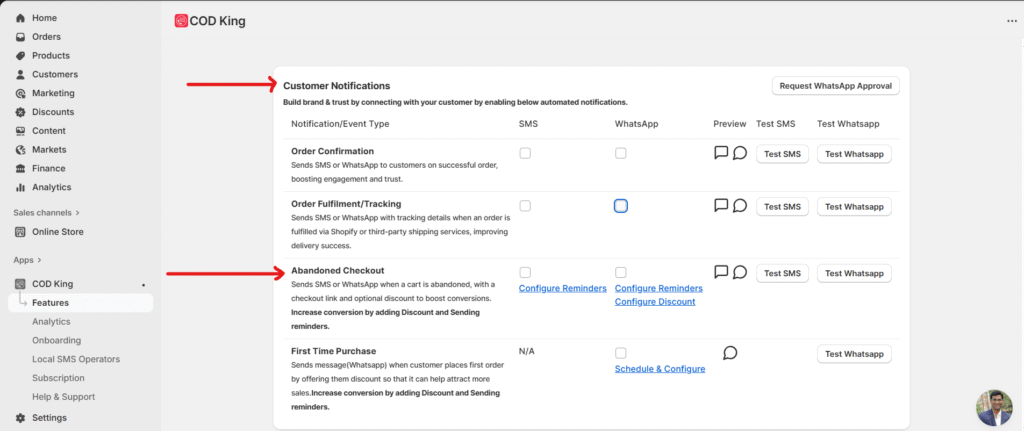
To configure this setting go to the “Customer notifications” tab and you can see the Abandoned checkout checkbox https://www.youtube.com/watch?v=XoTkeO4d2KU&t=7s
You can choose when you want to send your first SMS. You can send up to 3 SMS at the time you’ve set in the settings. Just enable the checkbox and click on “Configure reminders”
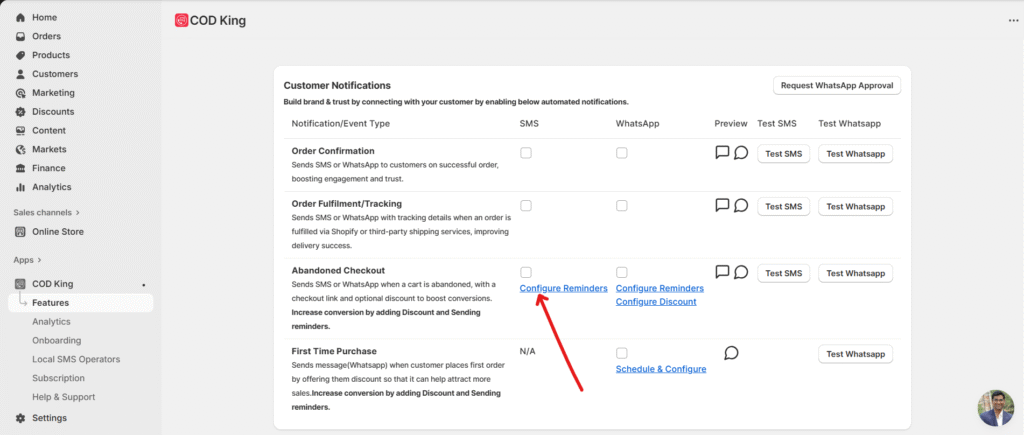
After clicking on “configure reminders” a pop will open. You can set 3 timings.
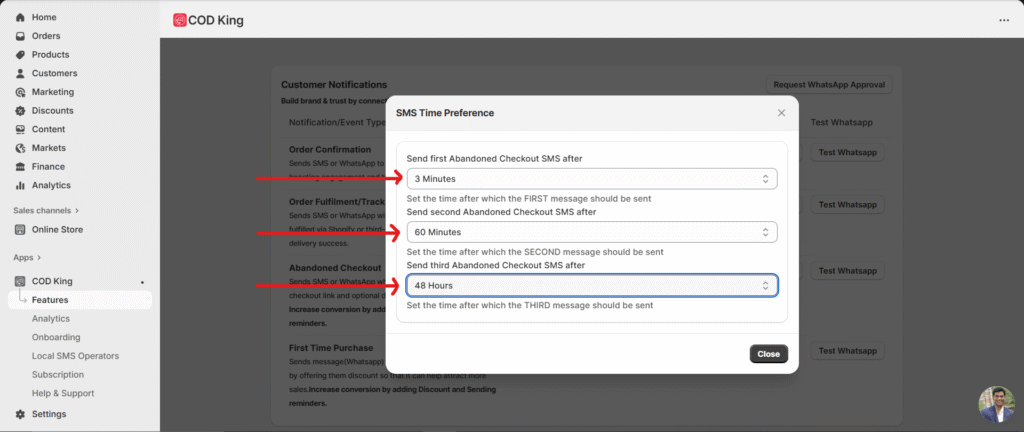
Your customer will get the SMS like this →

To enable notifications on WhatsApp, navigate to the ‘Abandoned Checkout’ tab and scroll down and you’ll see an option for WhatsApp notifications. Enable the checkbox below and set the time and number of reminders you want to send your first message. Save your settings to apply the changes.
Conclusion :
While abandoned checkouts are a common issue in e-commerce platforms, understanding their causes and implications can help devise effective strategies to mitigate them. It’s crucial for the business to continually optimize the checkout process, making it as seamless and trustworthy as possible to encourage users to complete their purchases, thereby boosting sales and enhancing customer satisfaction.
First time purchase
In COD King, we have a very interesting feature using which we can attract more sales. When a merchant enables this feature, our app automatically sends a message on WhatsApp to customers placing their first order, offering them a discount so that it attracts more sales and overall increases the revenue of the merchant.
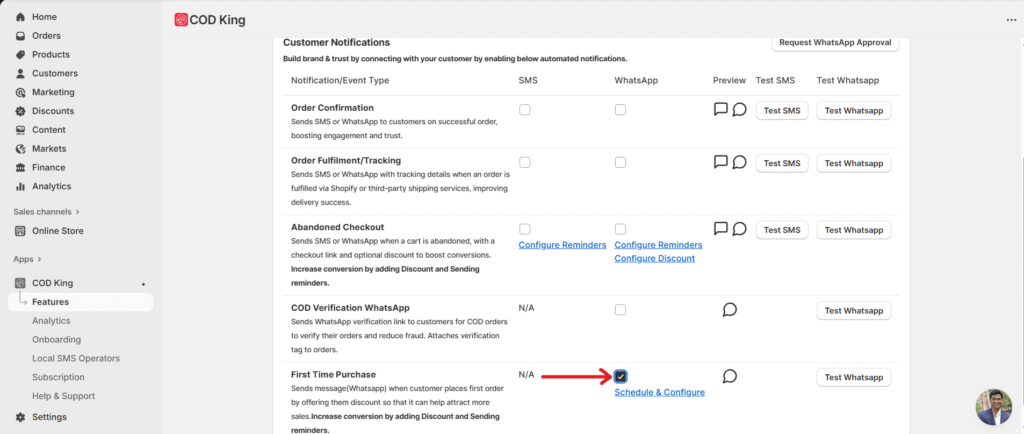
One can customize the schedule time, discount value, and discount code using the link (Schedule & Configure) shown in blue in the above image.
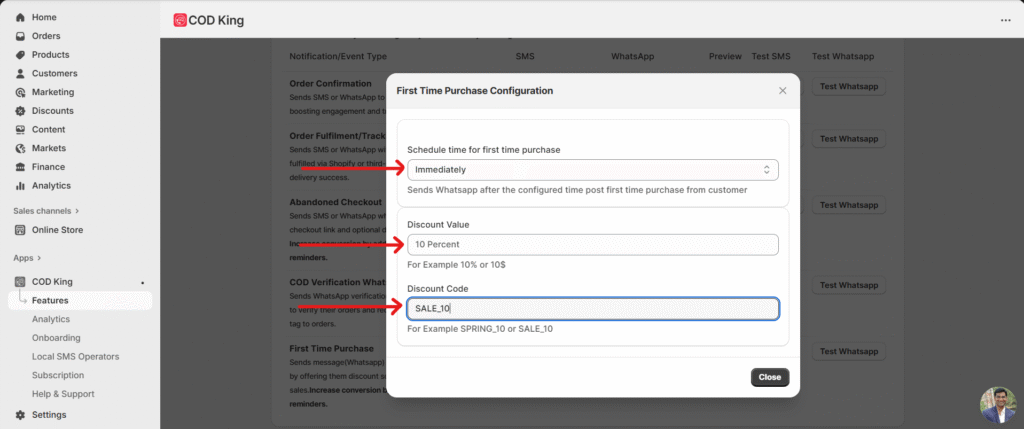
And don’t forget to save the changes That’s it. Thanks for letting us help you. If you have any questions, reach out to us at support@notifiktech.com, and we will be happy to assist you
or use the chat option in the app by directly using the chat bubble on the bottom right of the app or book a session with us for free.
