
Integrating Meta Pixel with COD King: A Step-by-Step Guide
Integrating Meta Pixel with COD King helps track customer actions accurately for Cash on Delivery and partial payment orders. It allows you to see important events such as purchases, successful checkouts, and conversions that may otherwise be missed due to COD or custom checkout flows.
This integration ensures better ad tracking, more accurate conversion data, and helps optimize your Meta (Facebook & Instagram) ads for higher-quality orders and better ROI.
Step-by-Step Guide
- Install the Facebook & Instagram app in Shopify
- Click on get started and connect your Facebook business account
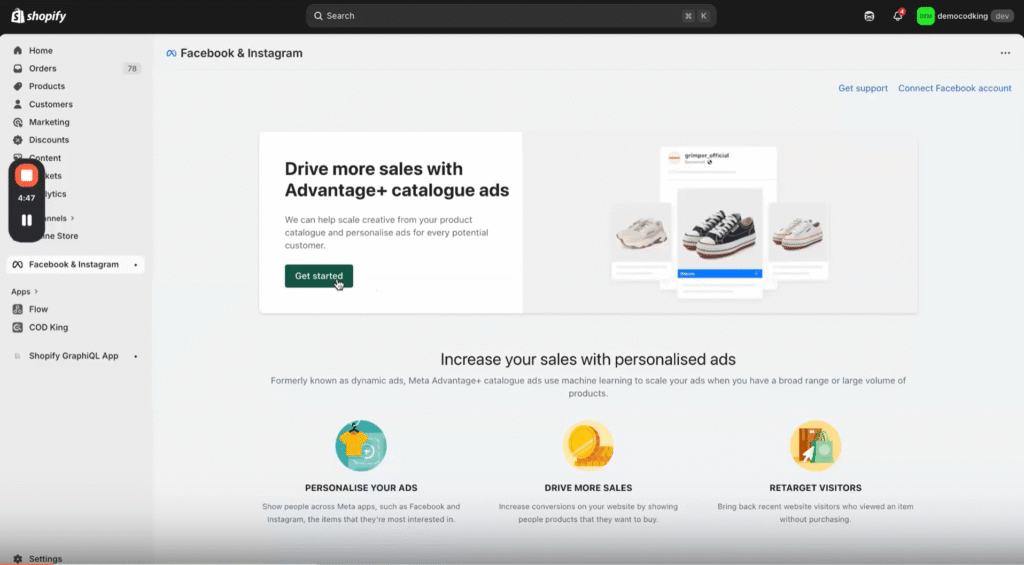
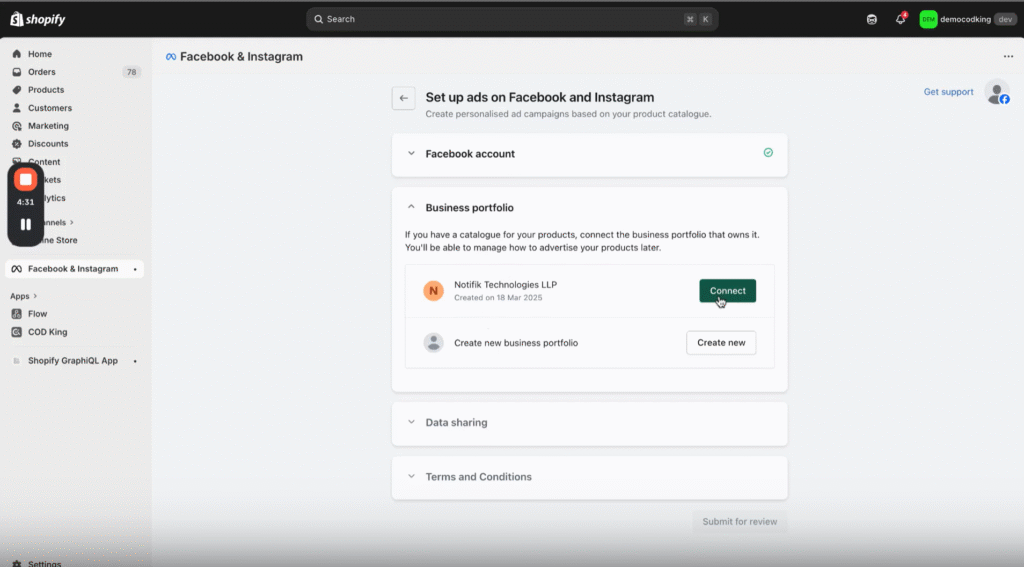
- Click on the Business Portfolio you will find your business portfolio and click on connect
- A popup appears, click on save
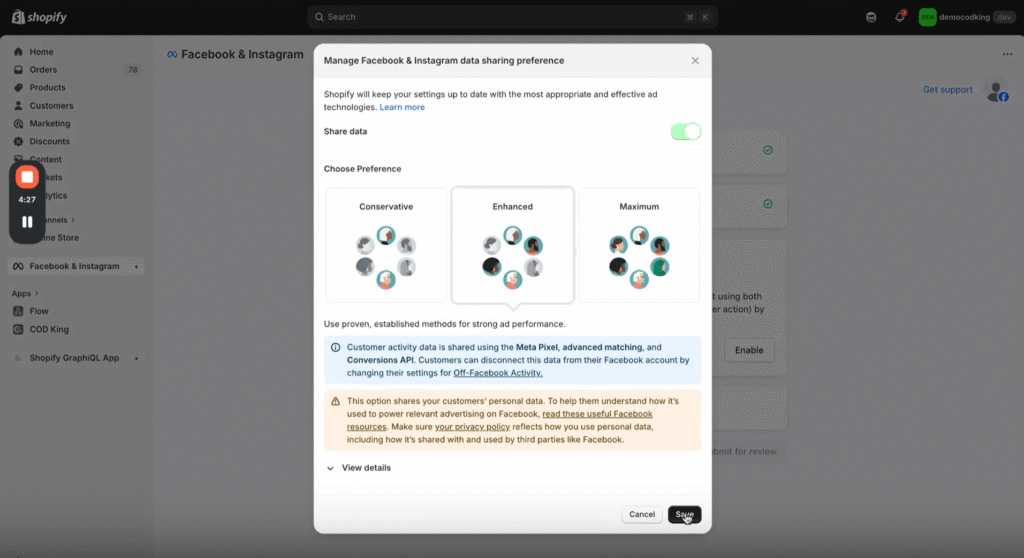
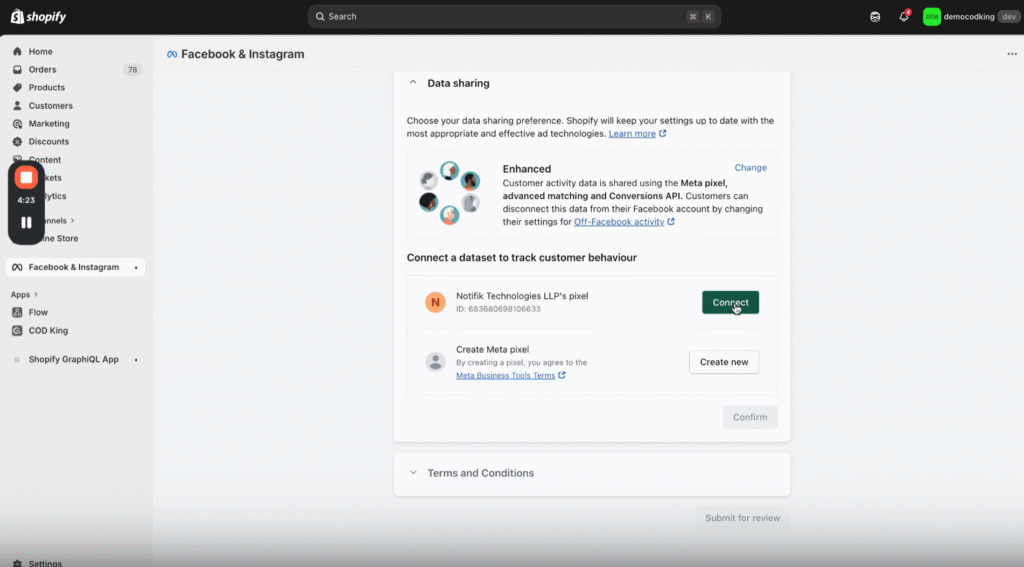
- Click on the Data Sharing and connect your business portfolio
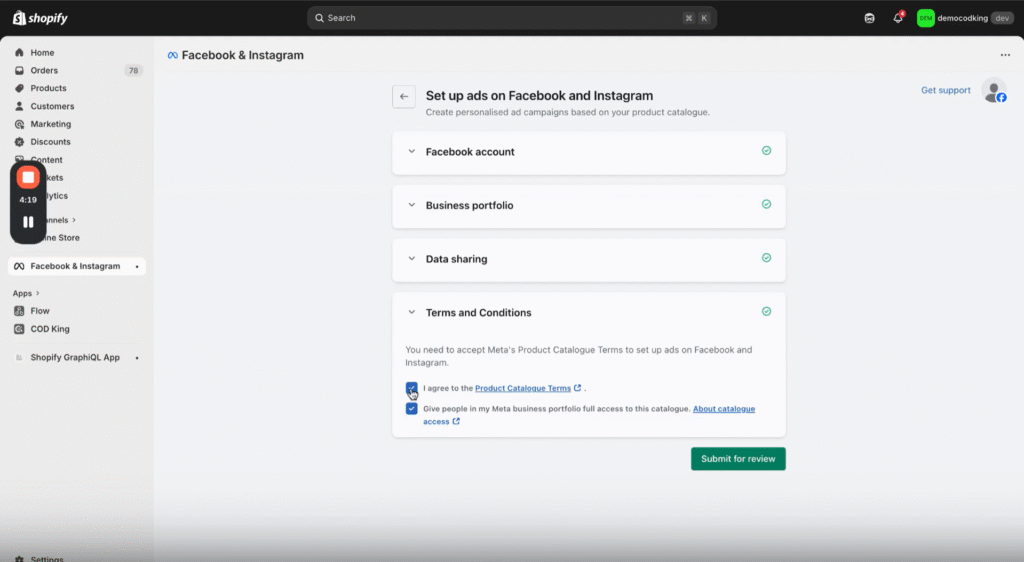
- Click on Terms & Conditions, check both the boxes and Submit for review.
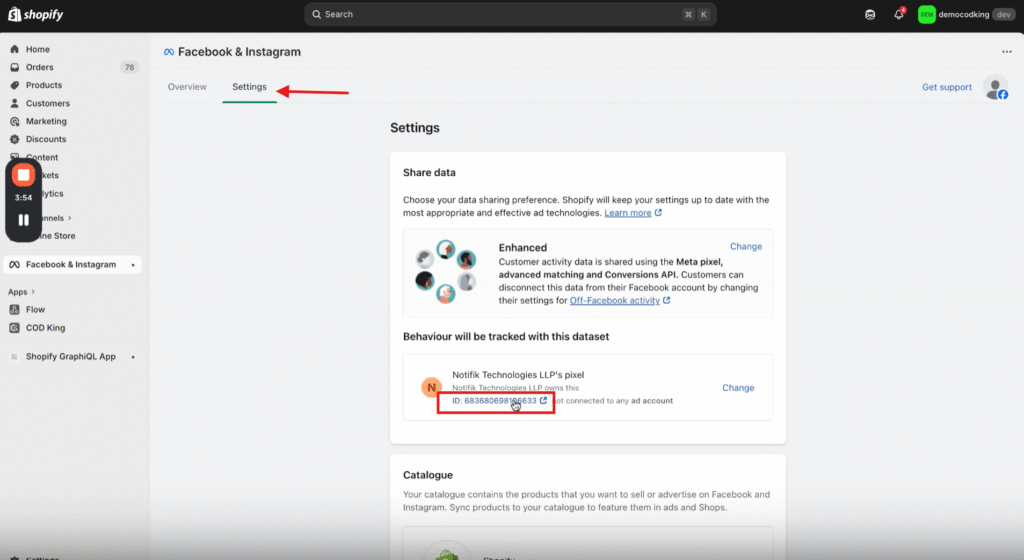
- Go to the Settings, you can see the ID (Meta Pixel which is integrated with that particular account)
- To integrate Meta Pixel we require 2 things
- Pixel ID
- Token
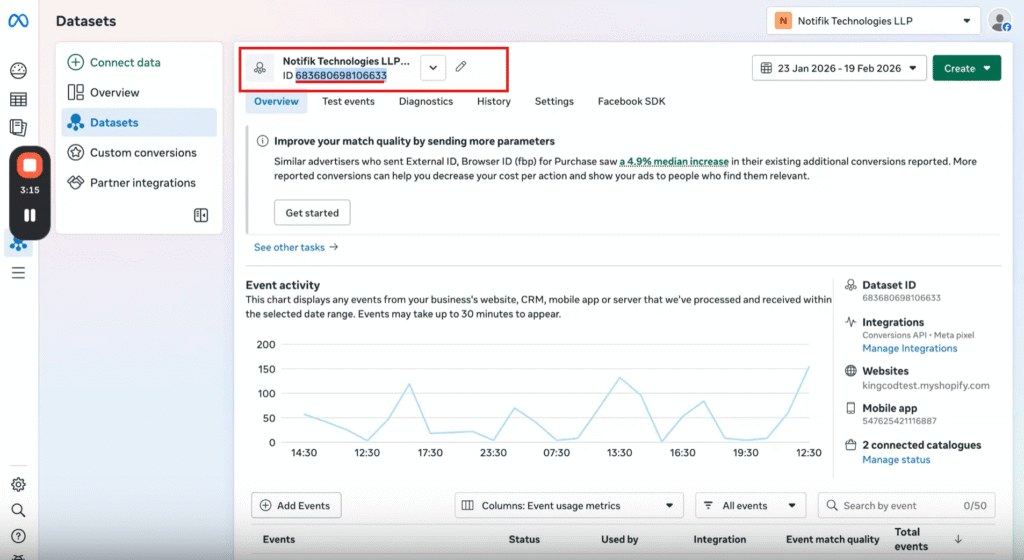
- Go to Meta (Facebook) Events Manager, copy the Pixel ID and make a note of it as we need it to integrate with COD king
- Next we require the Token (authorization key).
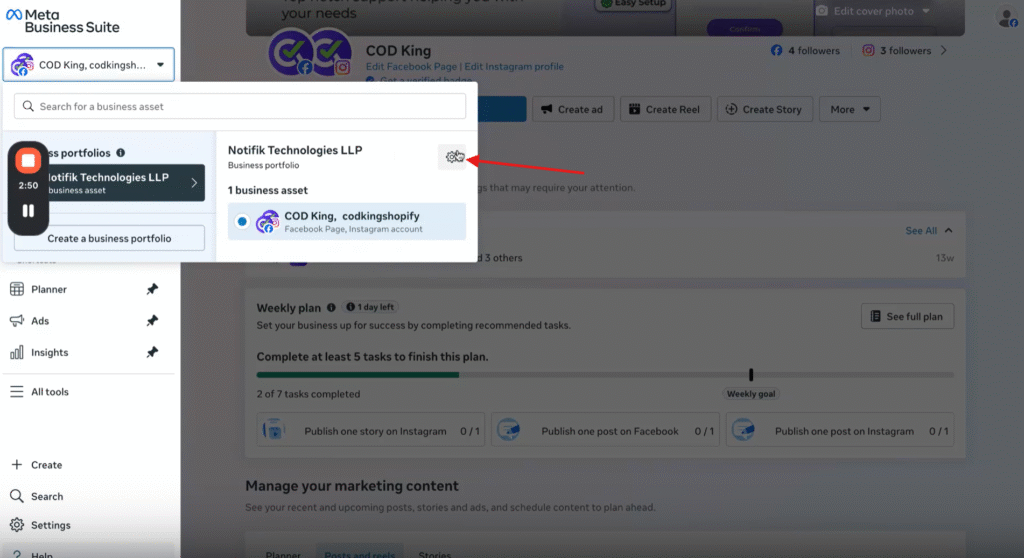
- Go to Meta Business Suite and open your account
- Click on business settings you will be redirected to authenticate
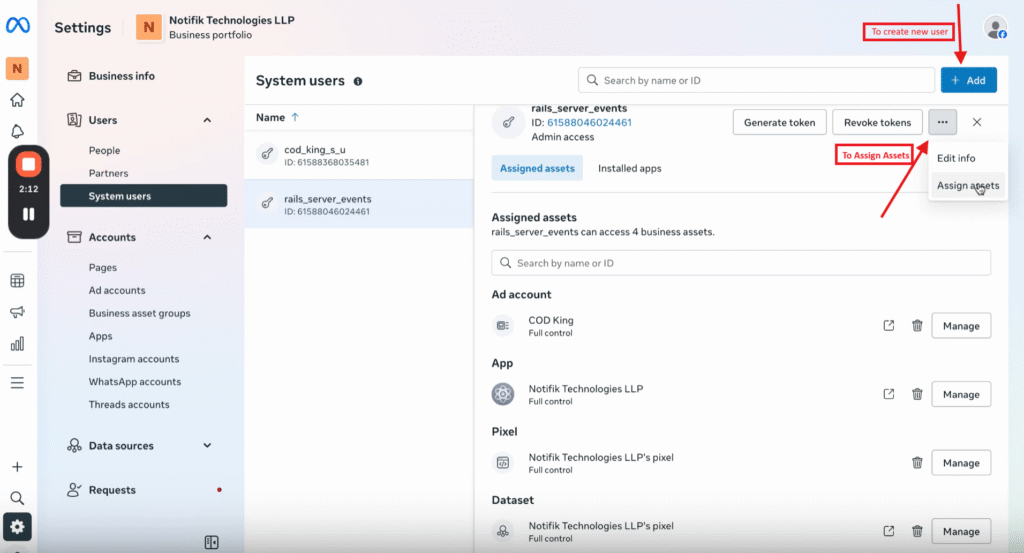
- Under System users you have create the new System user by clicking Add on the right corner
- Once you create the system accounts click on the three dots on the right corner and select Assign assets
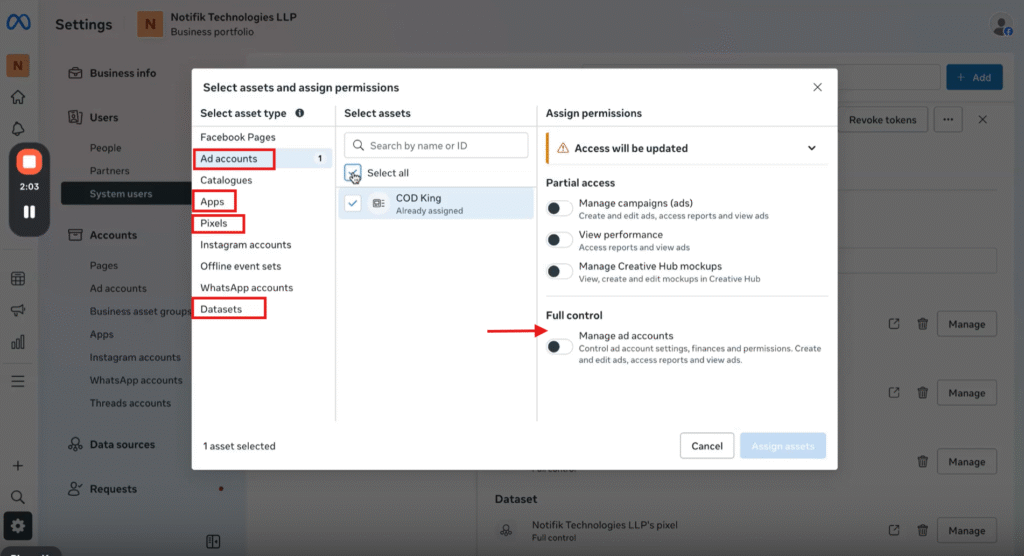
- Click on Ad Accounts then select the account and enable Full control
- Do the same for Apps, Pixels and Datasets and give Assign Assets
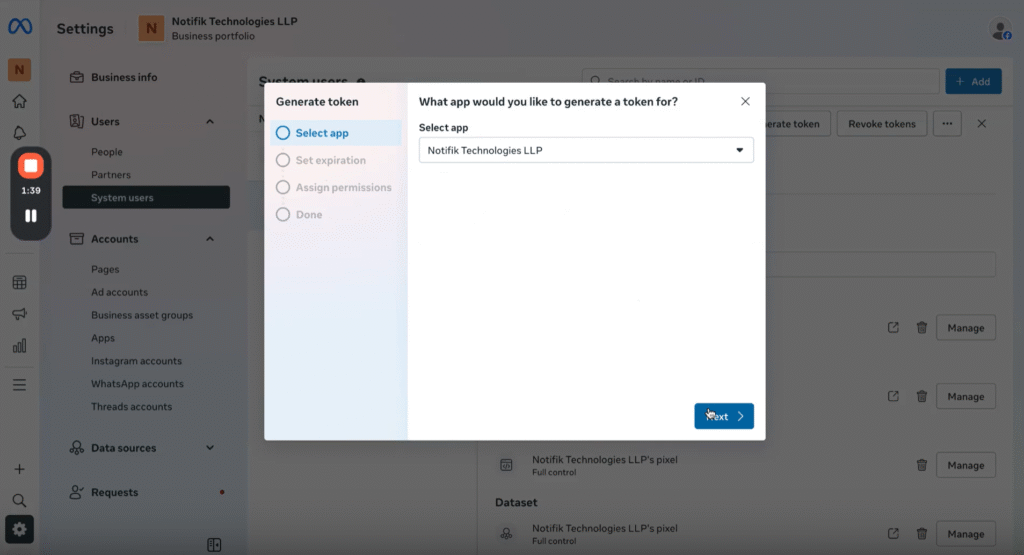
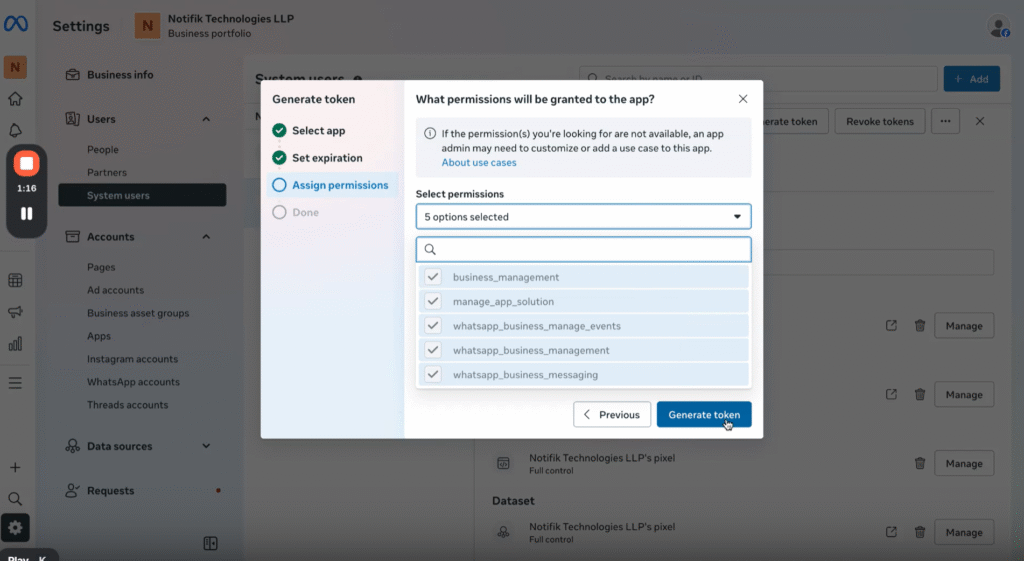
- Once Assets are assigned click on Generate Token
- Select App and click on next
- Set expiration as Never and click on next
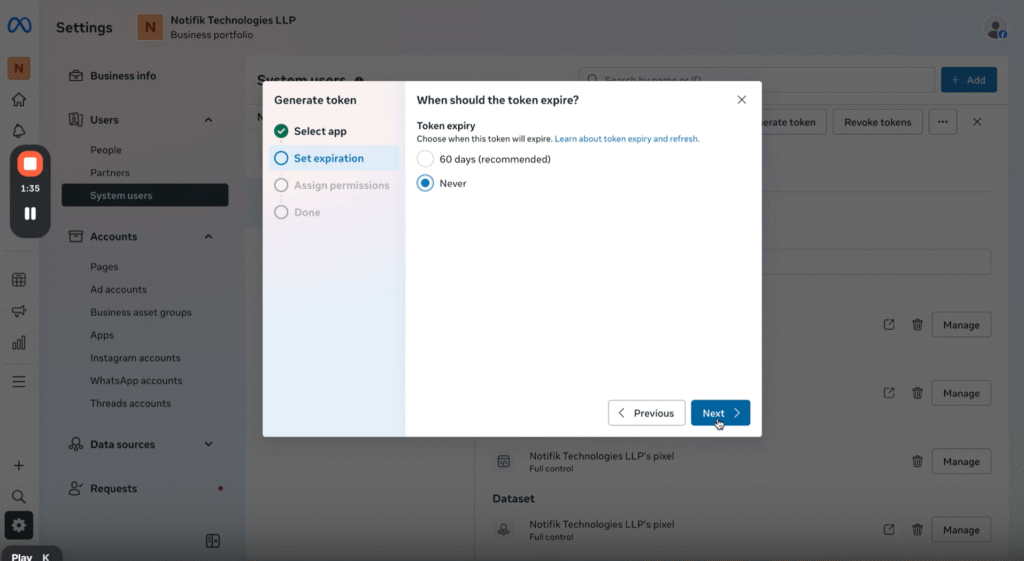
- Select all the options that are listed and click on Generate Tokens
- Now go back to COD King app → Enable Partial Payment → Advanced settings → Meta (Facebook) Pixel.
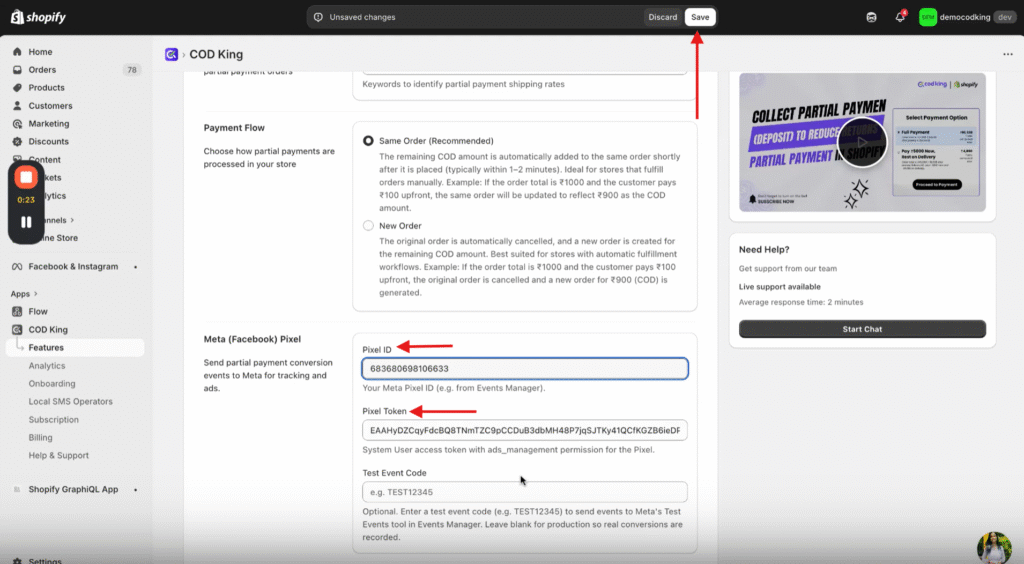
- Update the Pixel ID and Pixel Token and Save it.
If you need help choosing a plan or understanding your usage, our team is always here to assist.
For any inquiries or support, please email us at support@notifiktech.com. We’ll make sure to get back to you as soon as possible.
