
Understanding and Steps to set up Partial Payment
What Partial Payment Means
Partial payment means paying only a portion of the total amount owed, instead of settling the full balance at once. It’s a way to fulfill part of a financial obligation while leaving the remaining amount to be paid later.
Key Benefits for Merchants
1. Reduced Risk of Fake Orders
- Customers must pay a portion upfront, which filters out non-serious buyers.
- This lowers the rate of order cancellations and delivery refusals, saving merchants logistics costs.
2. Improved Cash Flow
- Merchants receive advance funds before dispatching products.
- This helps cover packaging, courier charges, or procurement costs without waiting for final delivery.
3. Higher Order Success Rate
- Since customers have already invested money, they are more likely to accept the product at delivery.
- This increases successful COD deliveries and reduces return-to-origin (RTO) losses.
4. Flexibility in Business Rules
- Merchants can configure:
- Minimum upfront percentage (e.g., 20–30%).
- Different rules for high-value items or specific categories.
- This customization ensures better control over risk management.
5. Customer Trust & Transparency
- Clear messaging like “Pay ₹X now, rest on delivery” builds confidence.
- Customers feel secure knowing they don’t have to pay the full amount upfront.
6. Better Resource Planning
- With fewer cancellations, merchants can plan inventory, shipping, and manpower more efficiently.
- Reduces wasted effort on packaging and dispatching orders that would otherwise be rejected.
7. Gateway Integration & Automation
- COD King integrates with payment gateways to automatically collect partial payments.
- Merchants don’t need manual tracking — the system ensures smooth reconciliation.
Demo Video
Step-by-Step Setup: Partial Payment in COD King
- Install and Launch COD King App using the below link
https://apps.shopify.com/cash-on-delivery-cod-order-confirmation
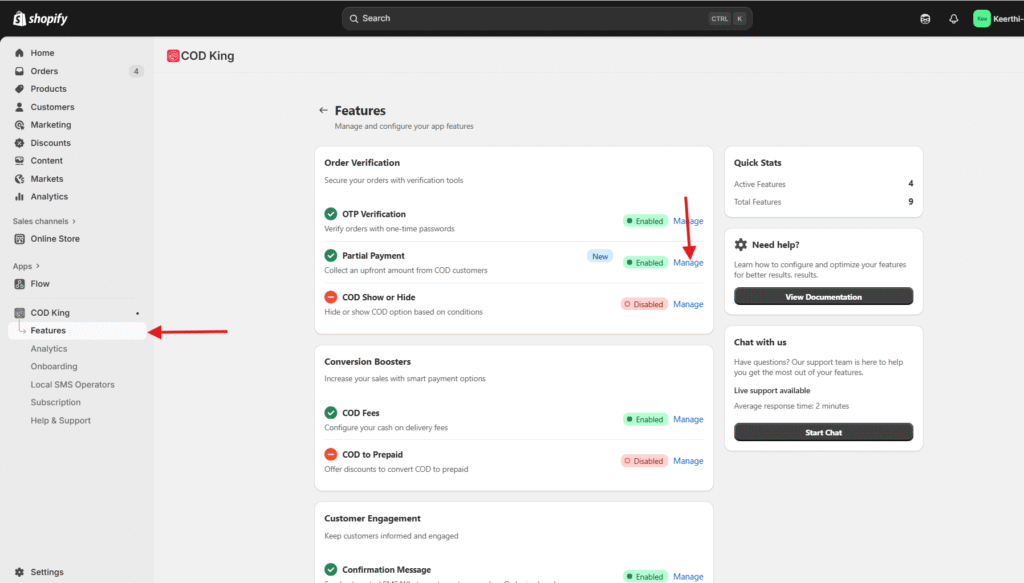
- Under COD King Features option click manage in Partial Payment option
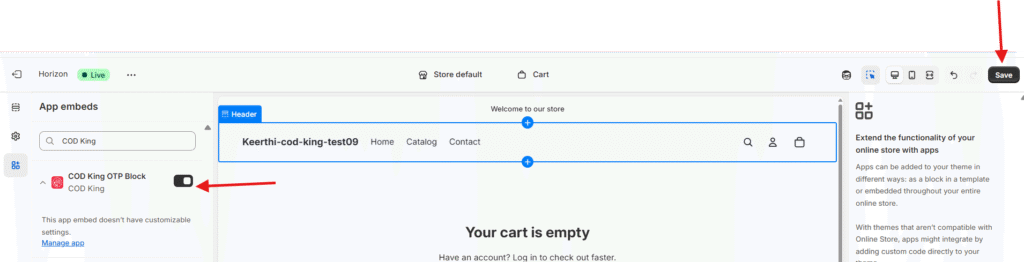
- Toggle the feature to Enable in Open theme editor and hit save.

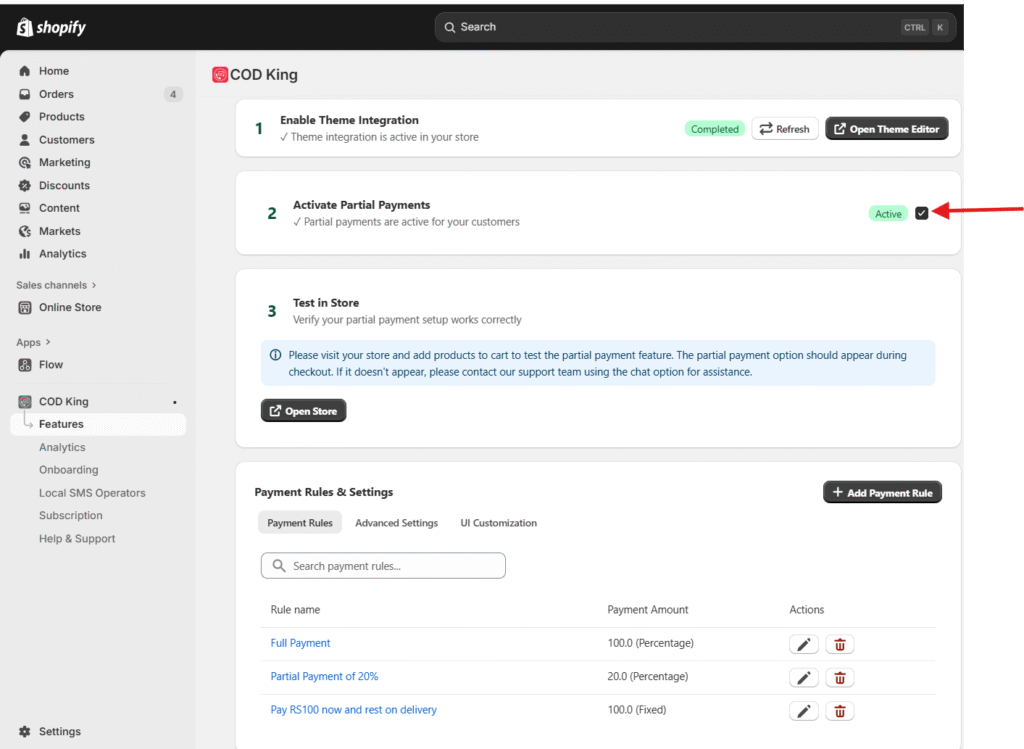
- Go back to previous tab and Activate Partial Payments
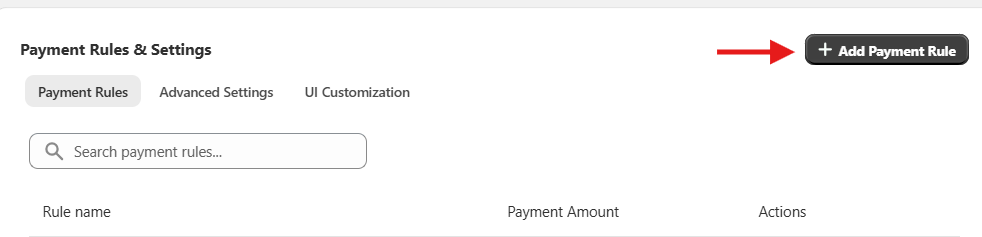
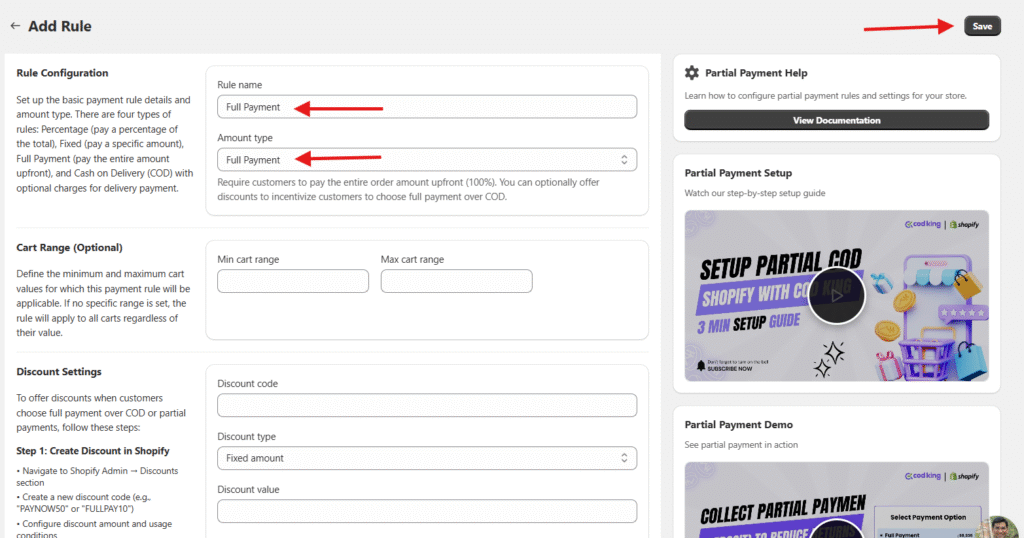
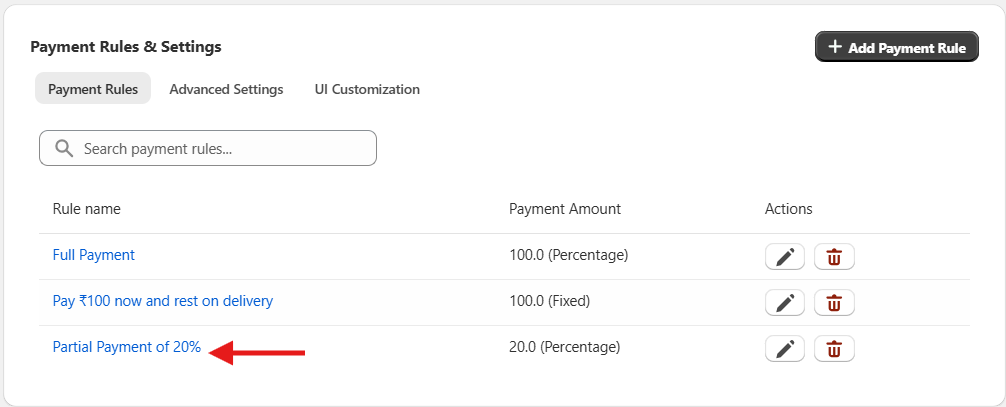
- Under Payment Rules and & Setting select +Add Payment Rule.
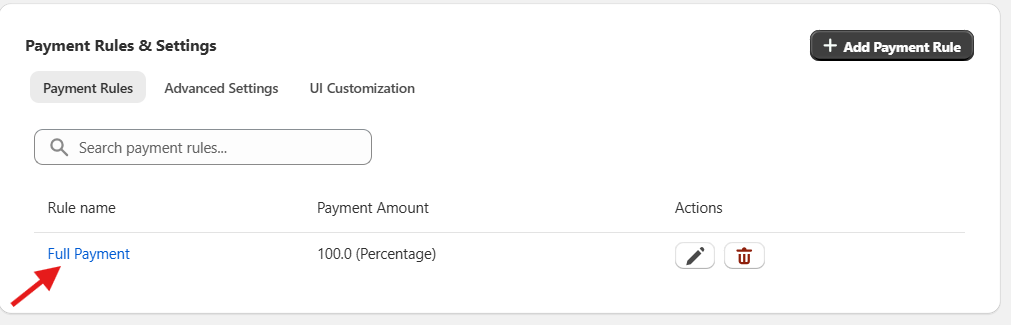
- Select Full Payment in Amount type and give Rule name as Full Payment since we will be collect the full payment through online and save, new rule is created for Full Payment
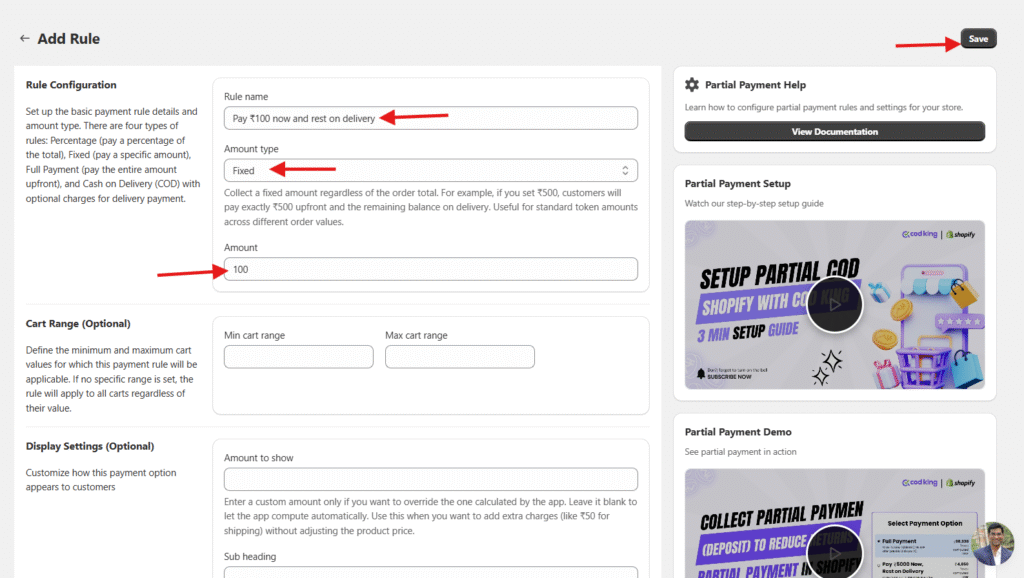
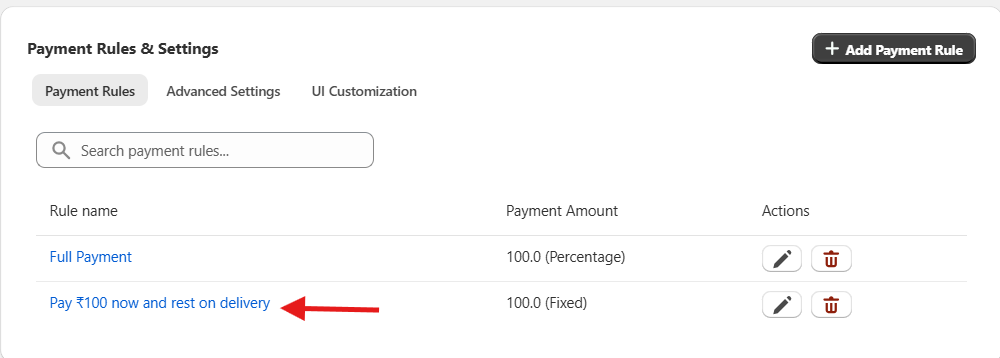
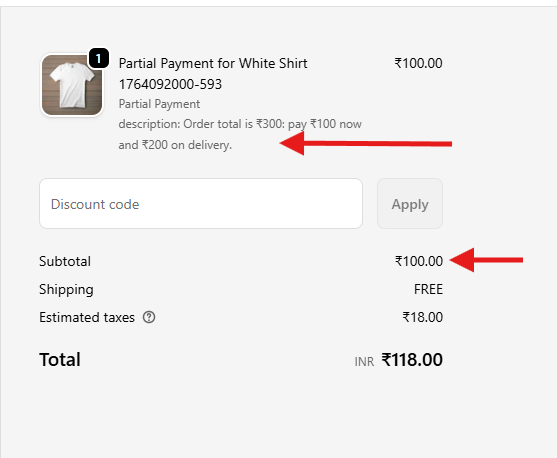
- Click Add payment rule again to set a Partial payment of ₹100 in advance and the remaining on delivery
- Select the Amount type as Fixed since we will be giving a fixed ₹100 as prepaid
- Give the Rule Name as Pay ₹100 now and rest on delivery and give amount 100
- We can also set the Min and Max cart value range to make this rule visible and save
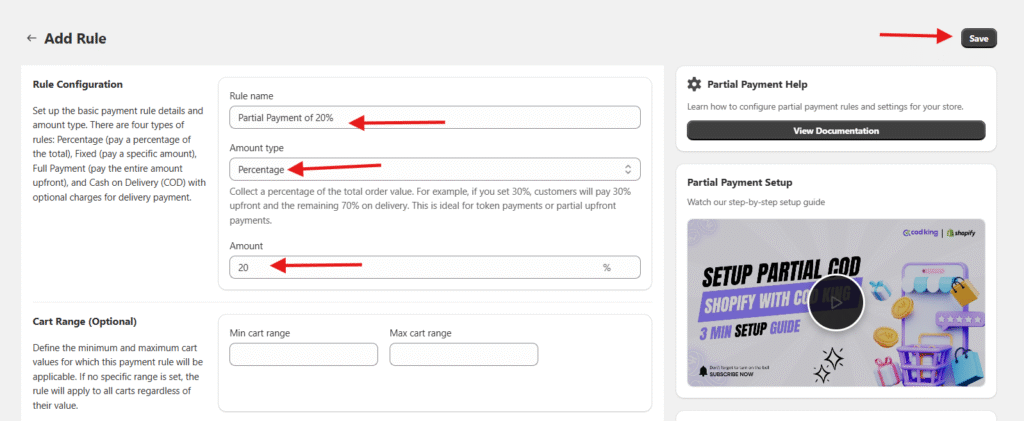
- Click Add payment rule again to set a Partial payment as percentage to pay in advance and the remaining on delivery
- Select the Amount type as Percentage since we will be collecting 20% as prepaid
- Give the Rule Name as Partial Payment of 20% and give the Amount percent as 20
- We can also set the Min and Max cart value range to make this rule visible and save
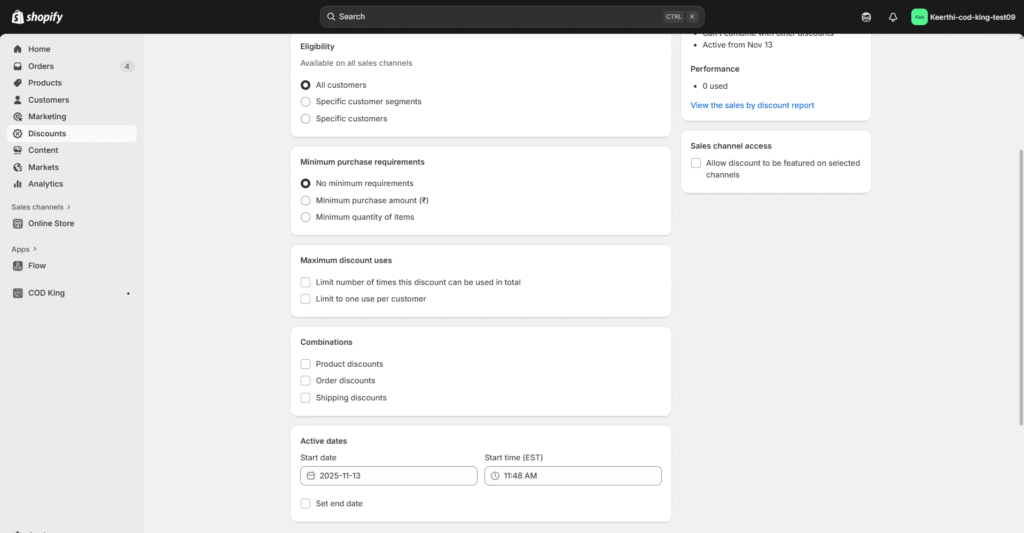
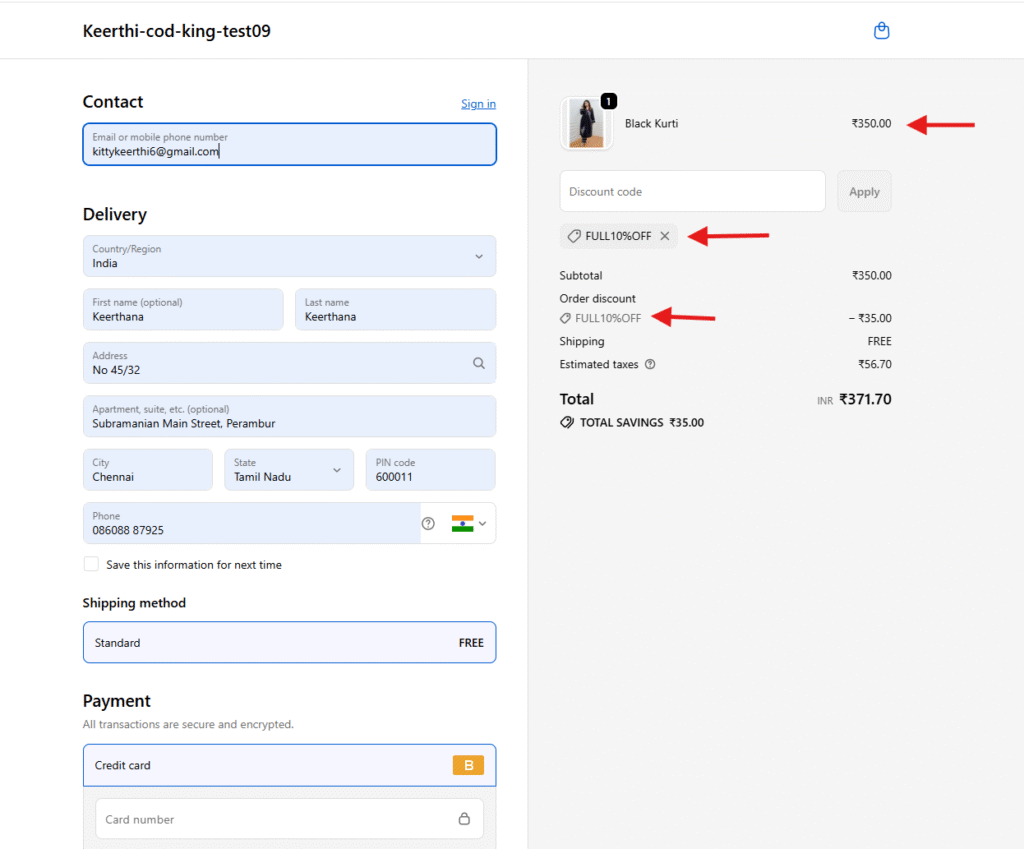
- After updating in features go to Discounts tab and click Create Discount to create a discount code if needed for Full Payment

- Give the Discount value as Percentage and give 10%
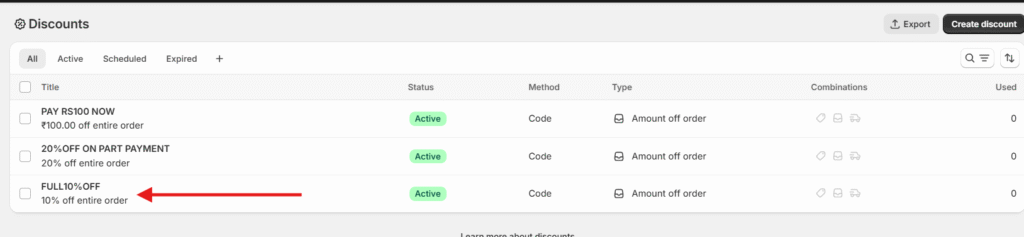
- Update the Discount code same as given in payment rule FULL10%OFF and save

- We can also set up the discounts to be shown based on eligibility, minimum purchase, maximum discount uses, etc.
- Now you will see the new Full Payment discount code created
Test the Flow
- Go to your online store and select a product to test the flow
- you can now see the rules that we set up when we click Buy Now button as shown below
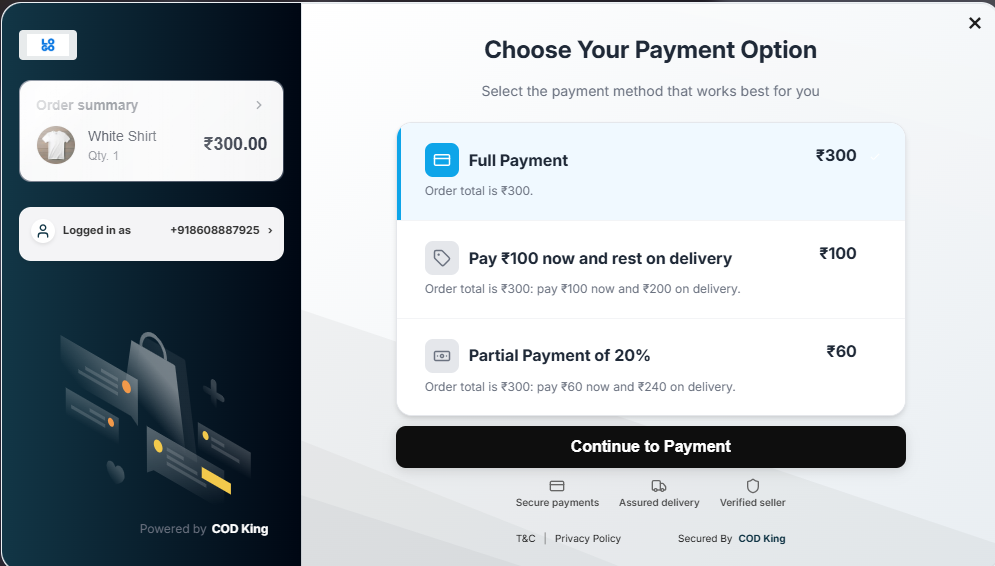
- Select the payment and click Continue to Payment to verify the Checkout page
- You can now see the Discount code applied to the total cart value as shown below
- When Pay ₹100 now and rest on delivery is selected
- When Partial Payment of 20% is selected
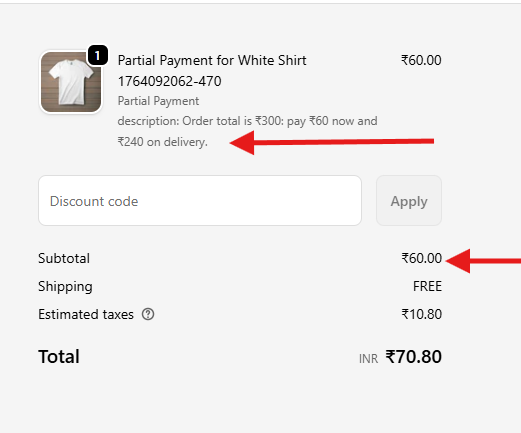
Discounts always apply first because Shopify applies discount logic before any apps can edit payment amounts. Partial payment is always calculated after discount so your customers always pay the correct discounted amount during checkout.
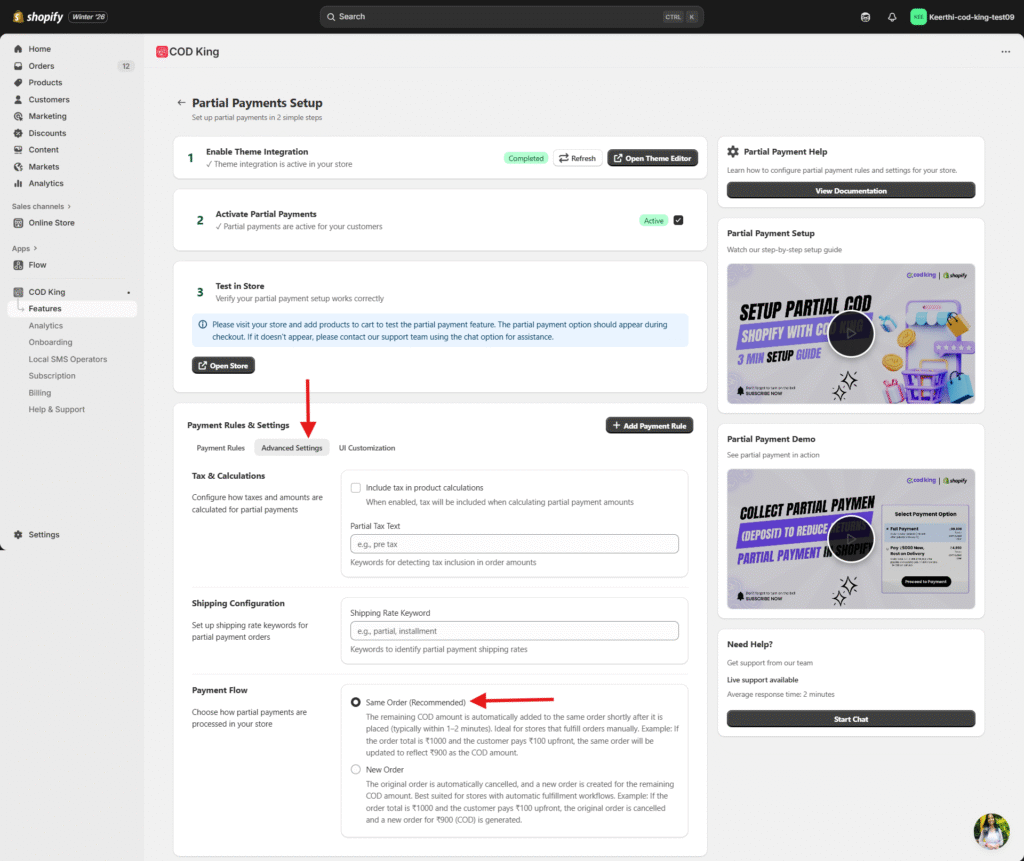
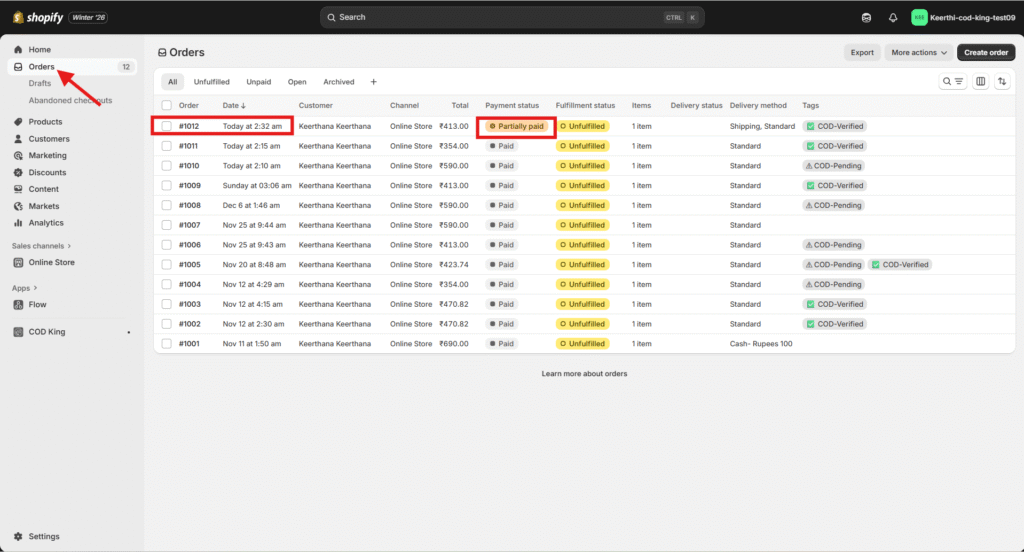
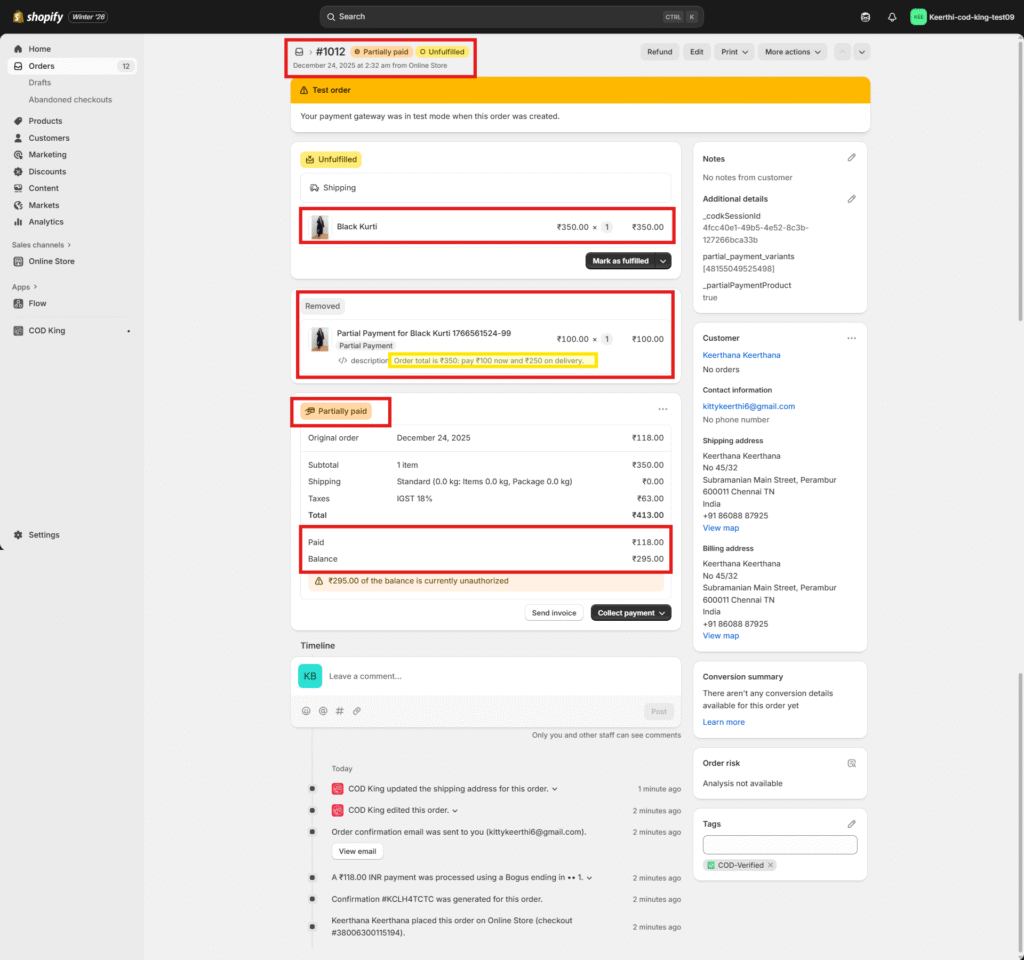
How the partial payment looks in Same Order flow:
The remaining COD amount is automatically added to the same order shortly after it is placed (typically within 1–2 minutes). Ideal for stores that fulfill orders manually.
Example: If the order total is ₹1000 and the customer pays ₹100 upfront, the same order will be updated to reflect ₹900 as the COD amount.
- Choose the flow from partial payment section as shown below,
- Check how the flow looks from the Orders section in Shopify,
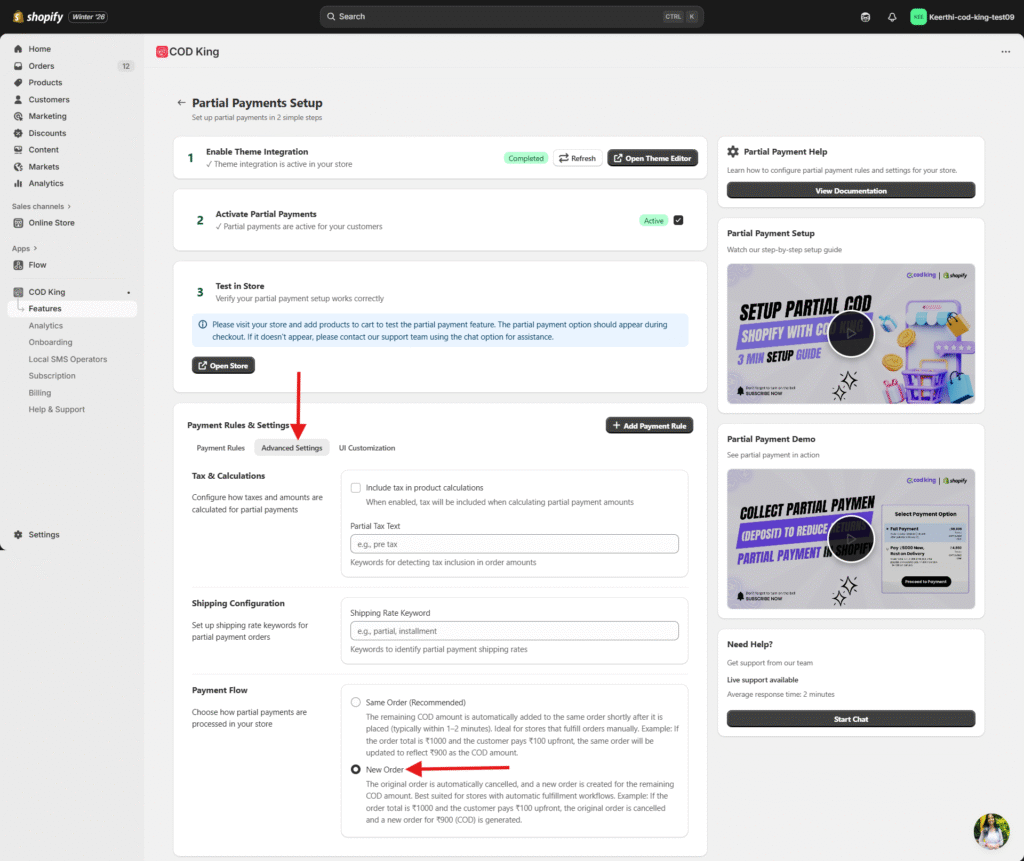
How the partial payment looks in New Order flow:
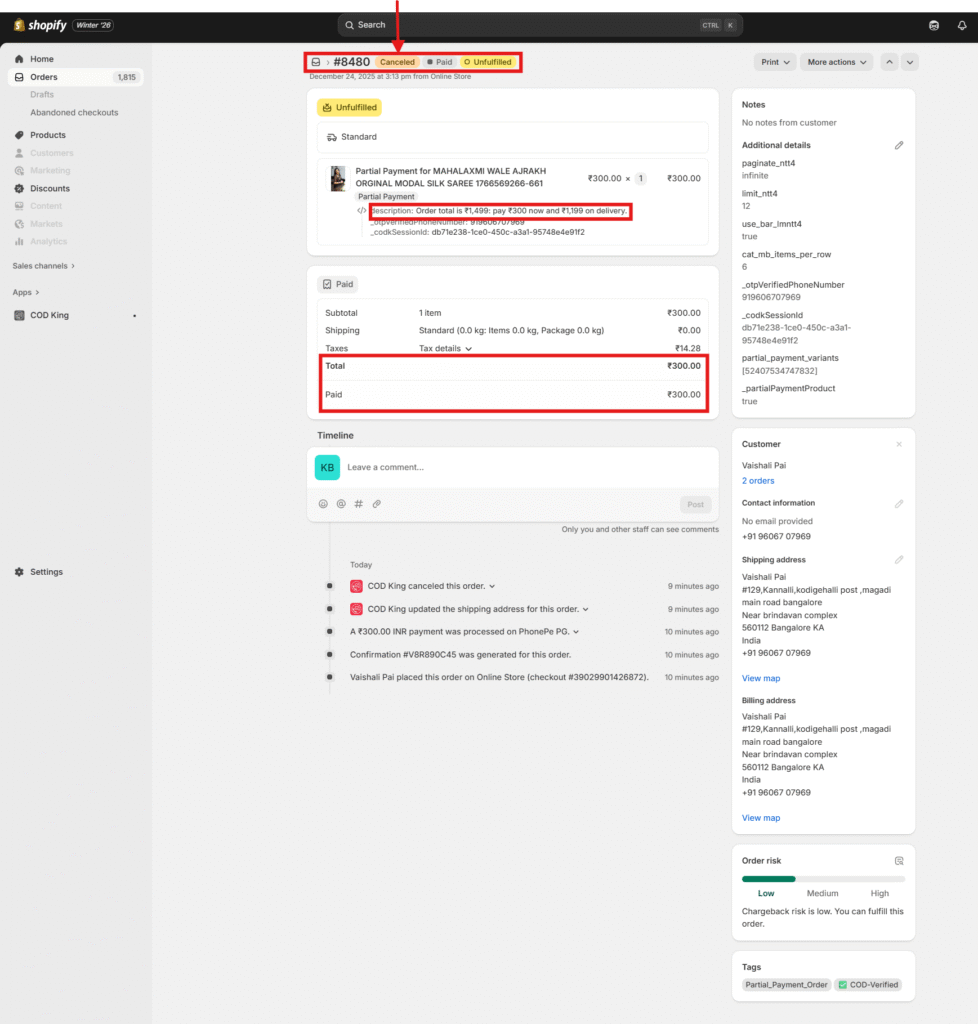
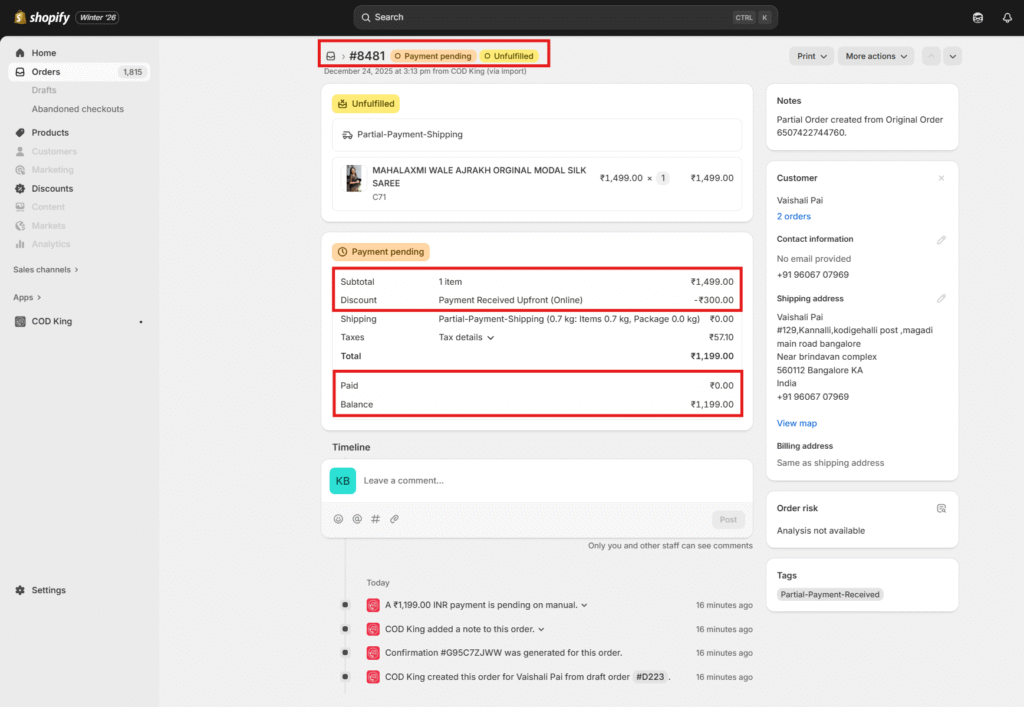
The original order is automatically cancelled, and a new order is created for the remaining COD amount. Best suited for stores with automatic fulfillment workflows.
Example: If the order total is ₹1000 and the customer pays ₹100 upfront, the original order is cancelled and a new order for ₹900 (COD) is generated.
- Choose the flow from partial payment section as shown below,
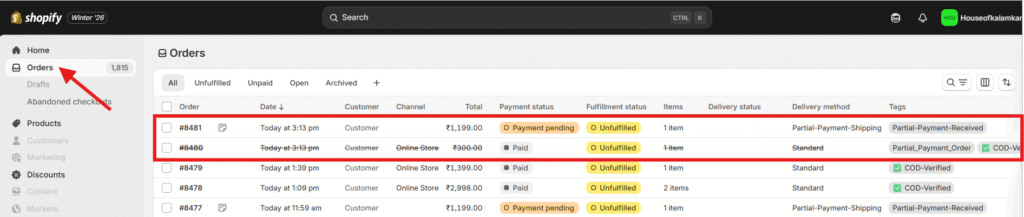
- Check how the flow looks from the Orders section in Shopify,
- There will be 2 order details for the same order placed.
- one will be cancelled for the partial amount collected and one will be payment pending for the delivery partner to collect at the time of delivery.
COD King will show:
- Prepaid amount
- Remaining COD amount
- Full discounted total
For any inquiries or support, please email us at support@notifiktech.com. We’ll make sure to get back to you as soon as possible.
