
COD Show/Hide – Complete Feature Explanation
The COD Show/Hide feature in the COD King app allows you to control when the Cash on Delivery (COD) payment option should be visible to customers. Instead of showing COD to everyone, you can create rules that automatically show or hide COD based on customer location, order value, products.
What the Feature Does & Why It’s Important:
What it does:-
COD Show/Hide allows you to:
- Show COD only for selected pincodes
- Hide COD for risky locations
- Allow COD only above/below specific order amounts
- Disable COD for specific products or collections
Why it’s important:-
- Prevents high RTO (return-to-origin) losses
- Ensures COD is offered only where your courier supports it
- Avoids misuse by customers with a history of cancellations
- Helps boost prepaid orders in low-margin scenarios
- Provides better control, flexibility, and automation for COD management.
Install and Launch the COD KING App in Your Shopify Store:
To get started, install the COD KING app from the Shopify App Store.
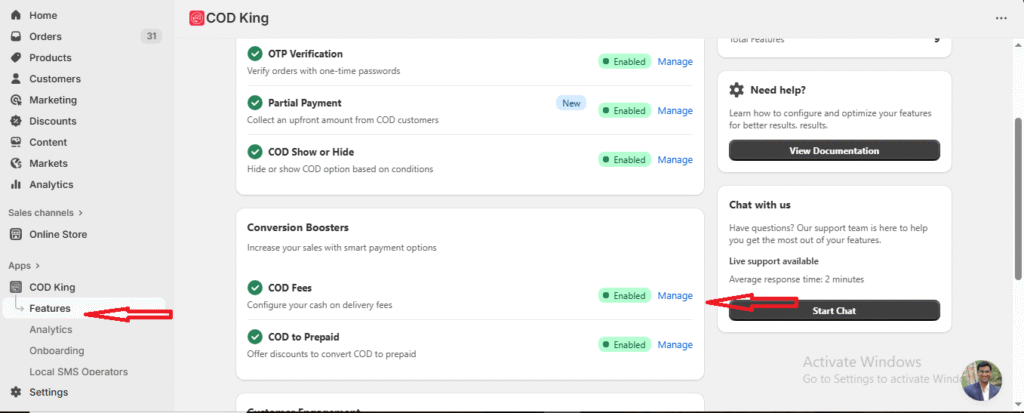
After the installation is complete, go to your Shopify Dashboard and open the Apps section.
From the list of installed apps, click on COD KING to launch and access the app settings.
https://apps.shopify.com/cash-on-delivery-cod-order-confirmation
Steps to Setup COD Show/Hide:-
- Go to the COD King app dashboard.
- Navigate to the COD Show/Hide tab.
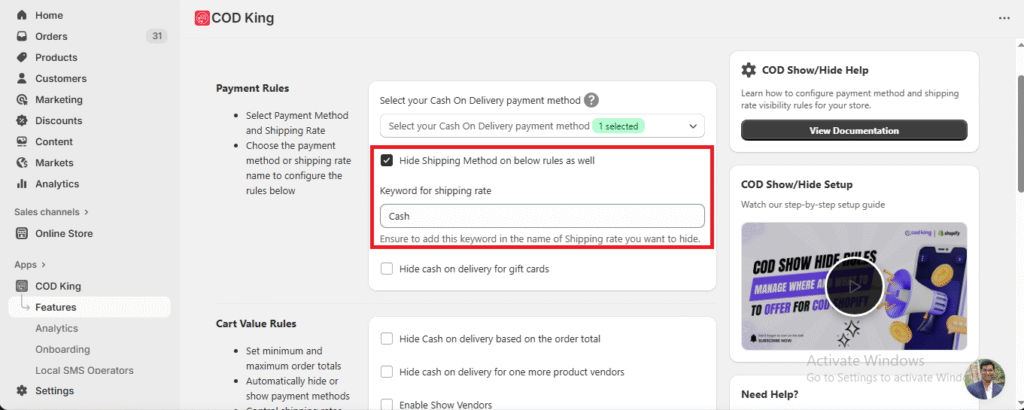
- Select “Cash on Delivery (COD)” from the drop-down menu.
- Enter the keyword “cash” in the field shown.
- If you want to hide the shipping method along with the payment method, tick “Hide Shipping Method”.
Hide Shipping Method based on Rule
If you want to hide a particular shipping method, simply include the keyword “Cash” in the name of that shipping rate.
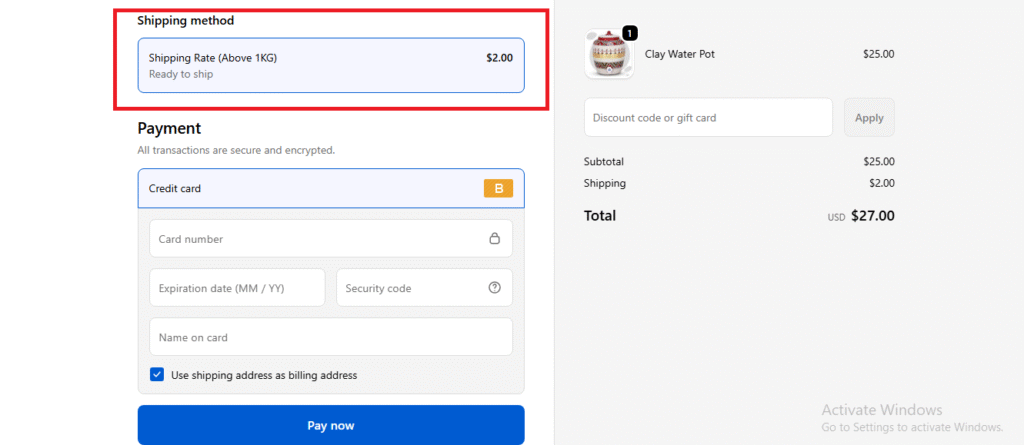
Once this keyword is detected, the system will automatically hide that shipping option at checkout.
Important Note
- Ensure that the keyword “Cash” is added exactly as written.
- Any shipping rate containing this keyword will not be visible to customers.
As you can see below, the Cash on Delivery shipping method has been successfully hidden.
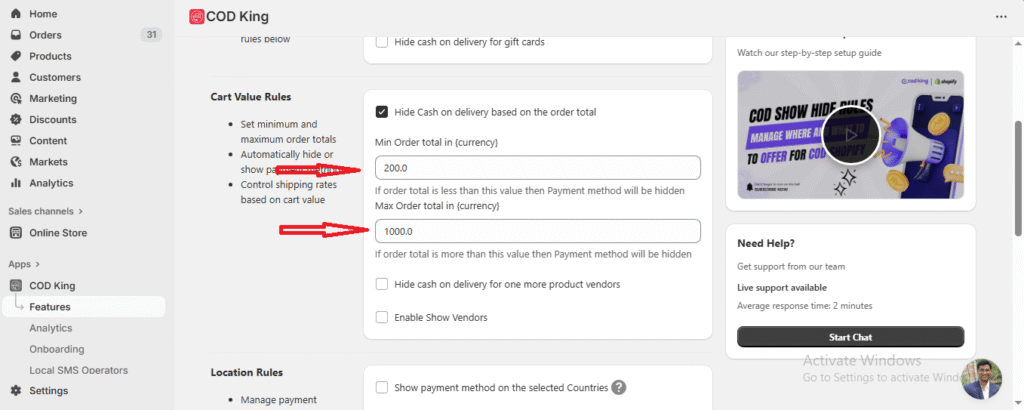
Hide Payment Method Based on Cart Value:
- Use this option to hide COD when the customer’s cart value is below or above a certain amount.
- Example:
- Minimum cart value: 500 INR
- Maximum cart value: 1000 INR
- If a customer’s cart value is below 500 INR or above 1000 INR, the COD payment option will not be shown
Show or Hide Payment Method Based on Location (Country):
Here, you can choose the countries where COD should be available.
Example:
If you select India, COD will be visible only for customers in India.
For all other countries, the COD option will be automatically hidden.
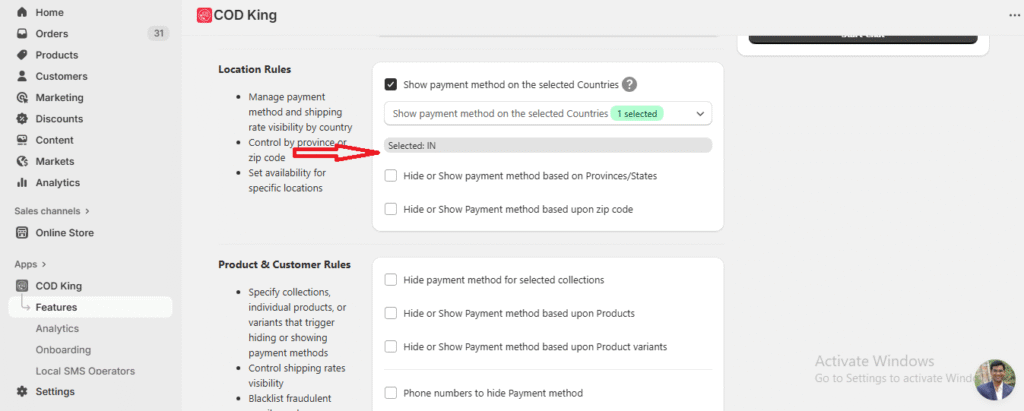
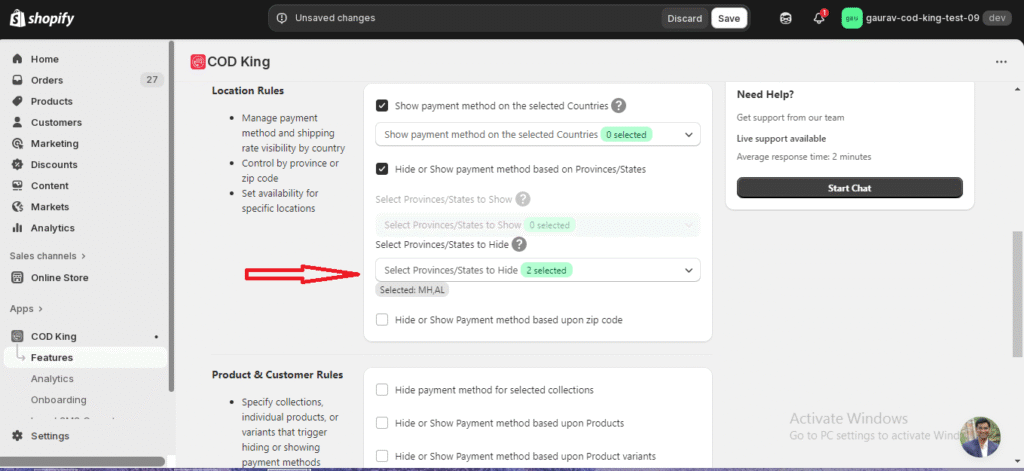
Show or Hide Payment Method for Selected Provinces/States:
You can show or hide COD for specific states/provinces.
Use cases:
- Show COD only in selected supported states
- Hide COD for states where you receive fake high-RTO orders
- Restrict COD availability for logistical or safety reasons
Select the province from the drop-down to enable or disable COD for that region.

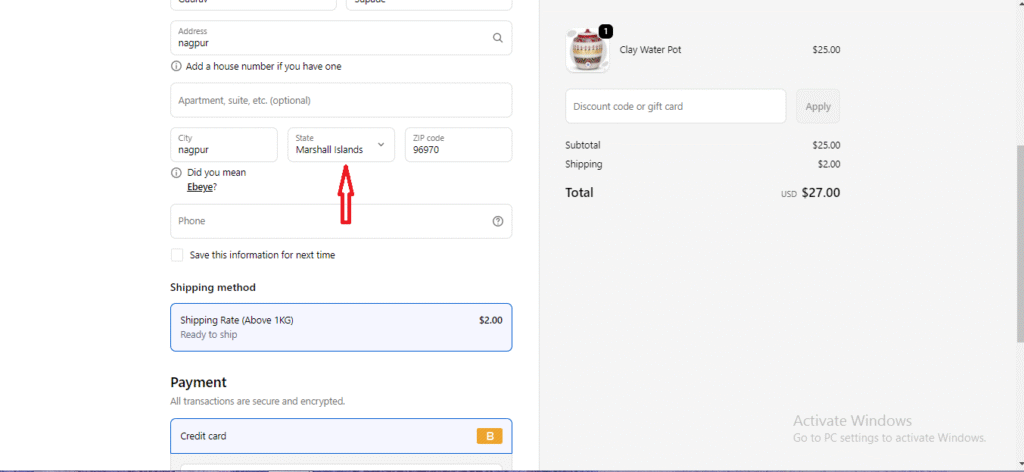
For Example:Hide or Show payment method based on Provinces/States- Marshall Island
I just hide the province that I had added in the shipping address.
Show Payment Method Only in Selected ZIP Codes:
If you want to show COD only in certain cities or areas, enter their ZIP codes.
Example:
If you add ZIP codes of specific cities, COD will only appear for those ZIP codes even if the state is the same.
This is useful when the courier supports COD in limited areas.
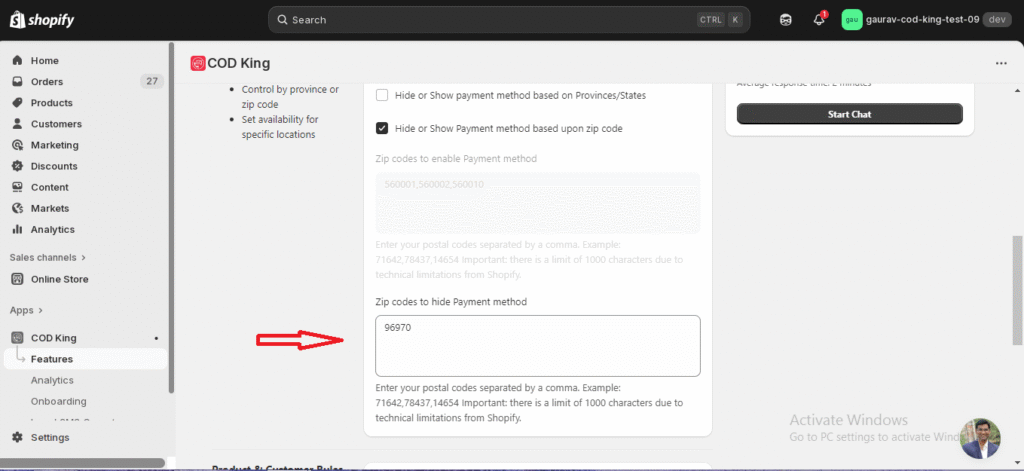
Similar to the above, you can hide COD for certain ZIP codes.
Use this if some areas are high-risk or not serviceable for COD delivery.
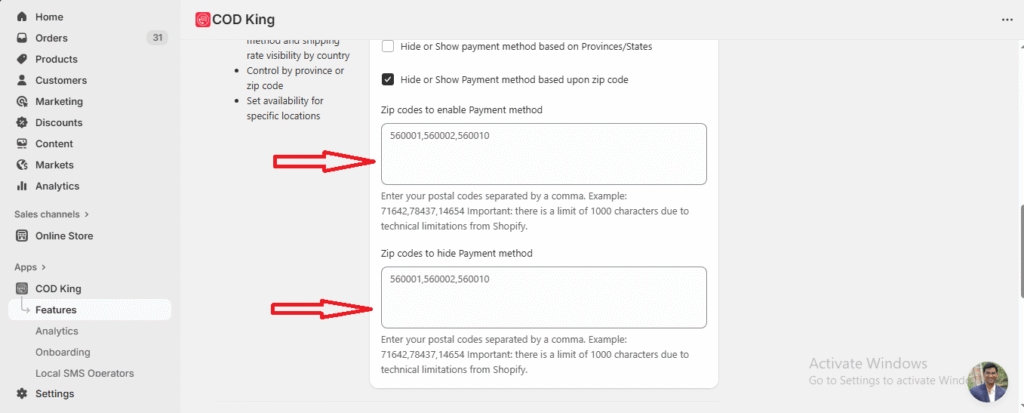
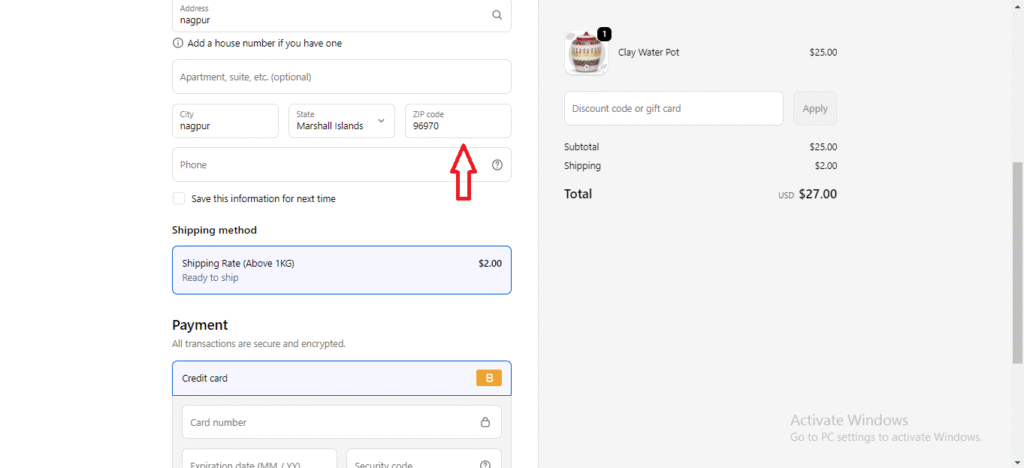
For Example: Zip codes to hide Payment method: State : Marshall Island : Pincode: 96970
Here, I have hidden the pin code of the state mentioned in the shipping address, and because of that the COD option is not showing up.
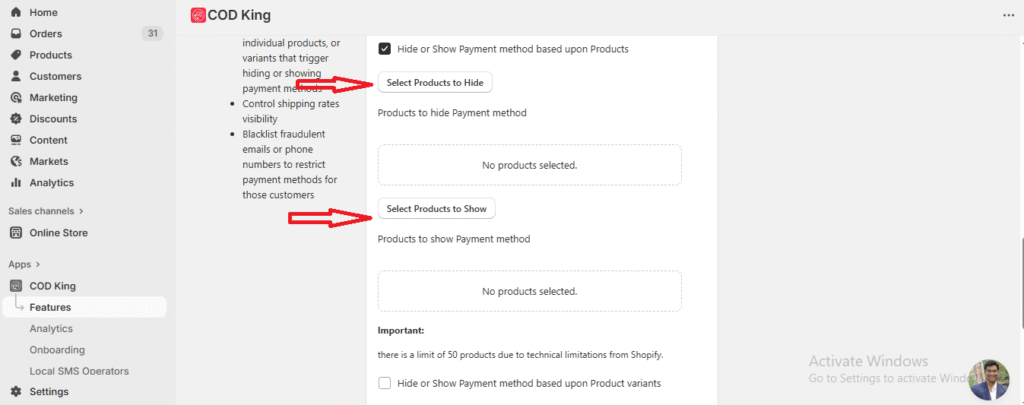
Hide Payment Method for Selected Product IDs
To disable COD for specific products:
- Add the Product IDs in the provided box.
- Save the settings.
Customers will not see COD as an option for these specific products.
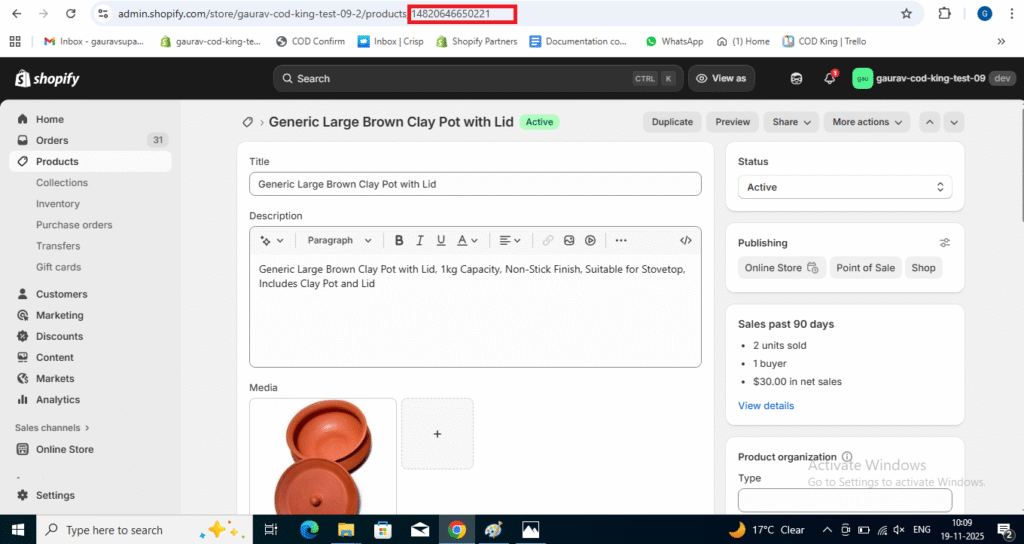
How to Find Product IDs
You can find the Product IDs by following these steps:
- Go to your Shopify Admin → Products
- Select the product you want to check
- Look at the URL in your browser — the number after /products/ is your Product ID
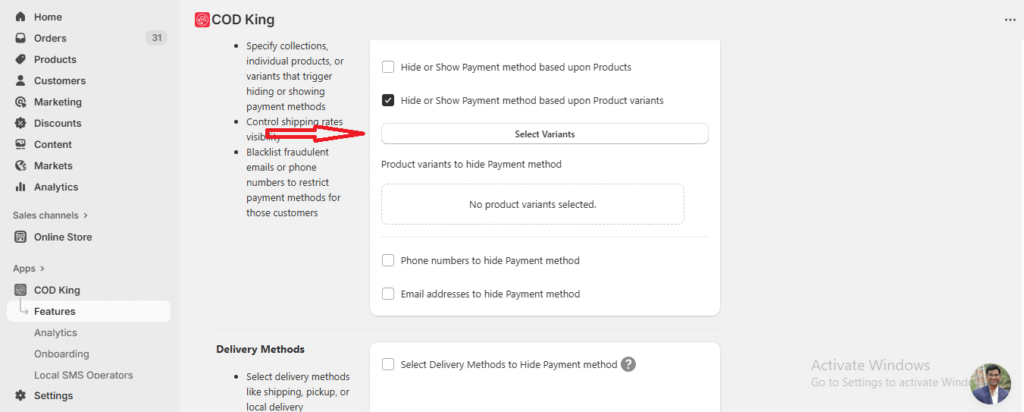
Hide Payment Method for Selected Product Variant IDs:
If you want to hide COD only for certain variants within a product:
- Add the Variant IDs in the given box
- Save the settings
COD will be hidden only for those specific variants.
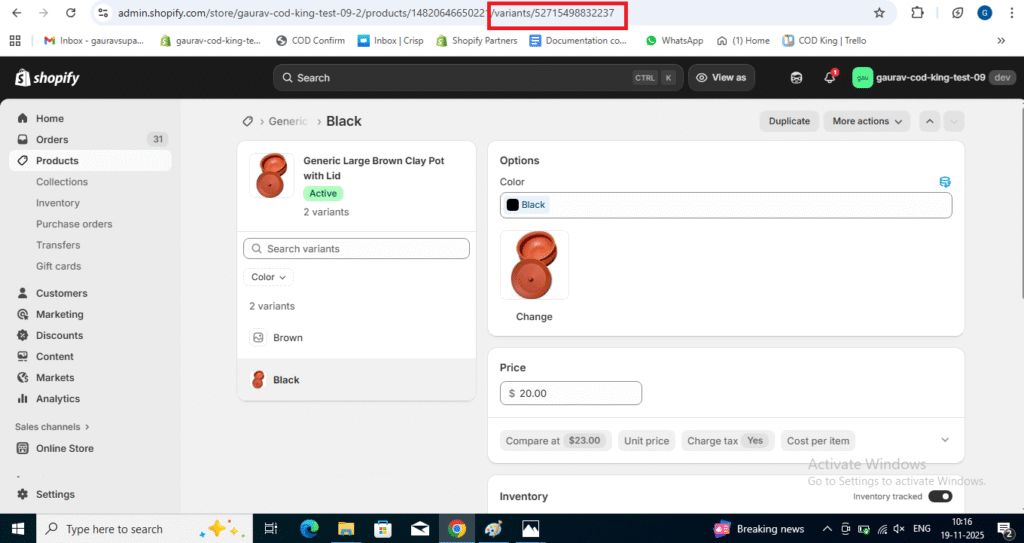
How to Find Variant IDs
To find the Variant ID of any product:
- Go to your Shopify Admin → Products
- Open the product you want to check
- Select the specific variant
- In your browser URL, the number after /variants/ is the Variant ID
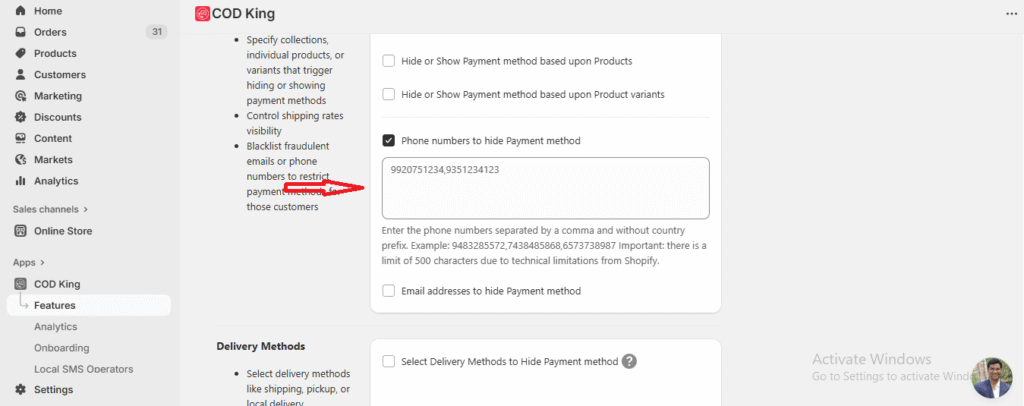
Hide Payment Method for Selected Phone Numbers:
You can hide COD for specific customer phone numbers.
If you notice repeated fake orders or cancellations from particular numbers:
- Enter those phone number
- Save the settings
Customers using those numbers will not be able to place COD orders.
Hide Payment Method for Selected Delivery Methods:
If your store has multiple delivery/shipping methods, you can hide COD for specific ones.
Example:
If you select a delivery method from the dropdown, COD will not appear when the customer chooses that specific delivery option on the checkout page.
If you need any assistance while setting up the COD Show/Hide feature or have questions about any option, feel free to reach out to us.
We’re always here to help!
mail to:support@notifiktech.com
