
Steps for setting up COD fees with COD King
COD Fees is a feature in the COD King app that allows merchants to charge an additional amount when customers choose Cash on Delivery as their payment method.
This helps reduce fake COD orders, covers extra logistics costs, and encourages customers to switch to prepaid payments.
Why COD Fees Is Important?
Reduces COD-related losses
Encourages prepaid payments
Covers additional courier handling charges
Keeps customers serious about their orders
Works automatically without manual work
How COD Fees Works?
Once you turn this feature on, the app automatically adds a small extra charge whenever a customer chooses Cash on Delivery (COD).
You can choose how the fee should be applied:
- A fixed amount (like ₹49)
You can also control when the fee should apply by setting conditions such as:
- Specific cart amount ranges
- Selected products or collections
- Certain pin code
- Minimum or maximum order value
Demo Video: How COD Fees Works (Demo Store)
Steps for setting up COD fees:
Step 1:
- Go to Setting -> Payments from your Shopify admin.
- In the Payment Providers section, select Manual Cash on Delivery
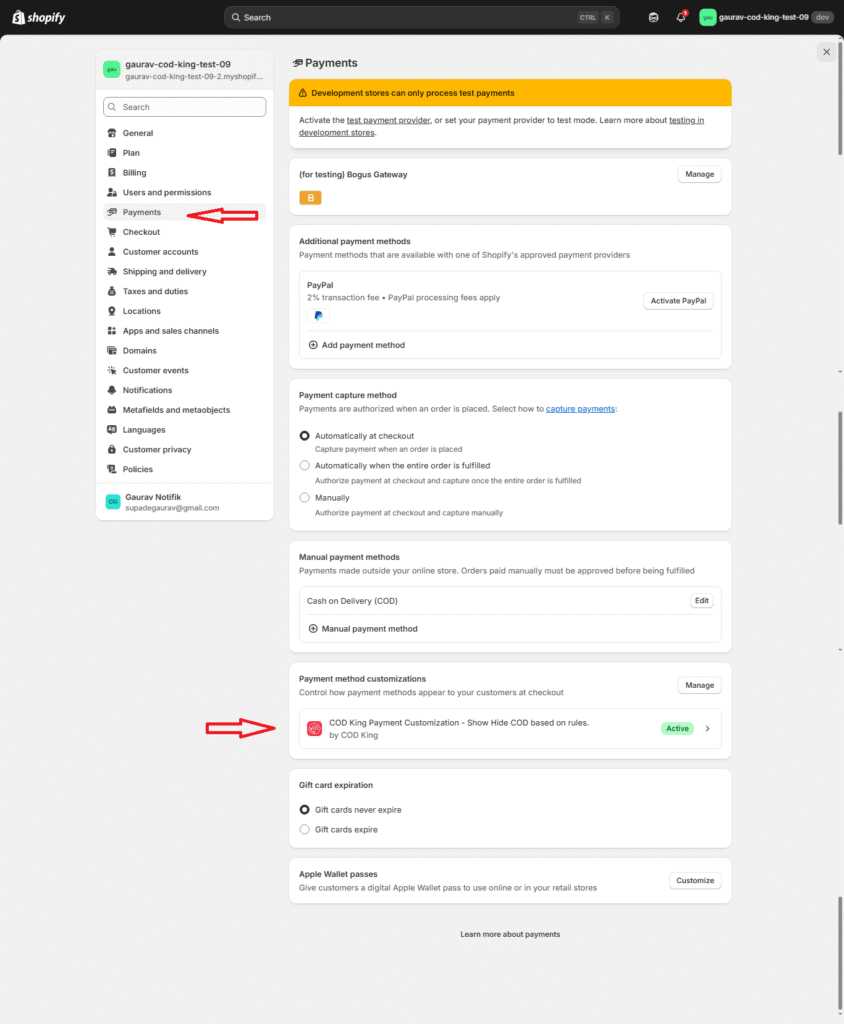
Step 2: Open COD King
- Go to your Shopify Admin.
- Open Apps, then click on COD King.
Step 3: Go to the COD Fees Option
- Inside the COD King app, click on Features.
- Under Features
- Find COD Fees and click Manage.
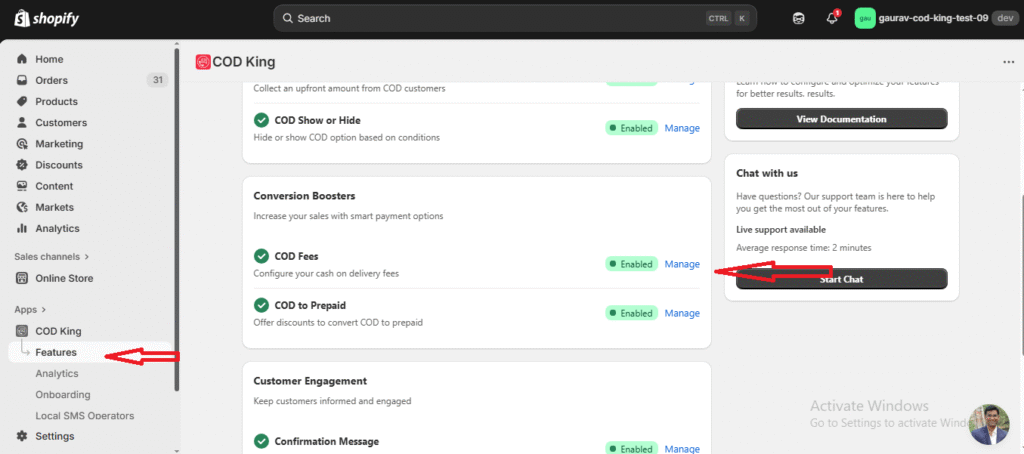
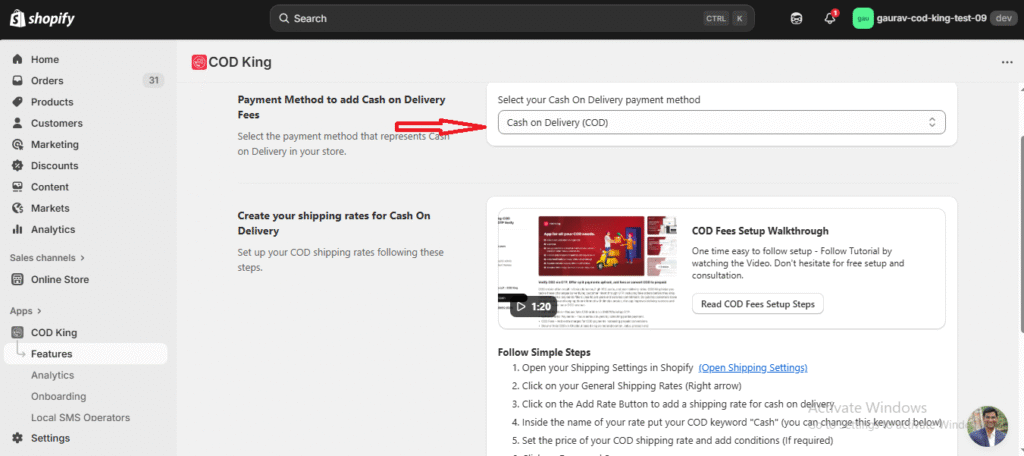
Step 4: Choose Your COD Payment Method
- Select the payment method that represents Cash on Delivery in your store.
- Add Keyword or tag which is used in the name of your shipping rate
- Then click on checkbox and enable Cash on Delivery and saved.
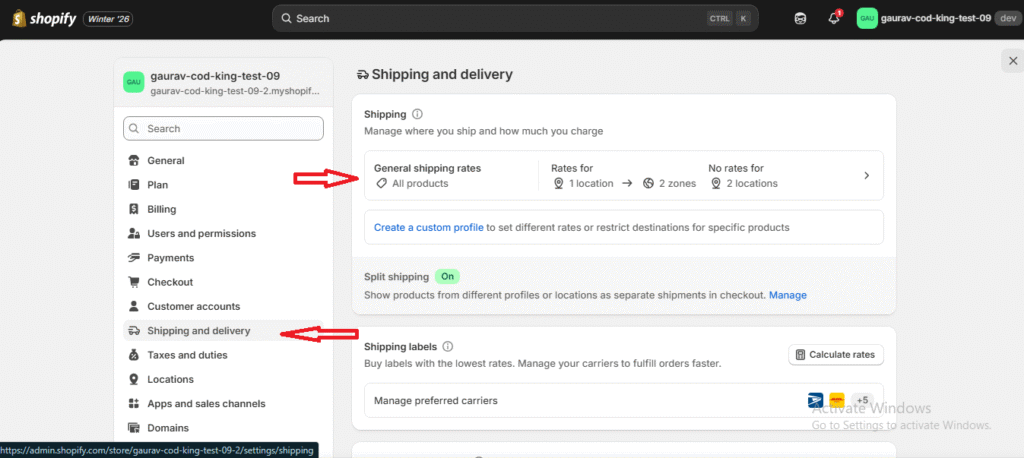
Step 5: Open Shopify Shipping Settings
- Go back to Shopify Admin.
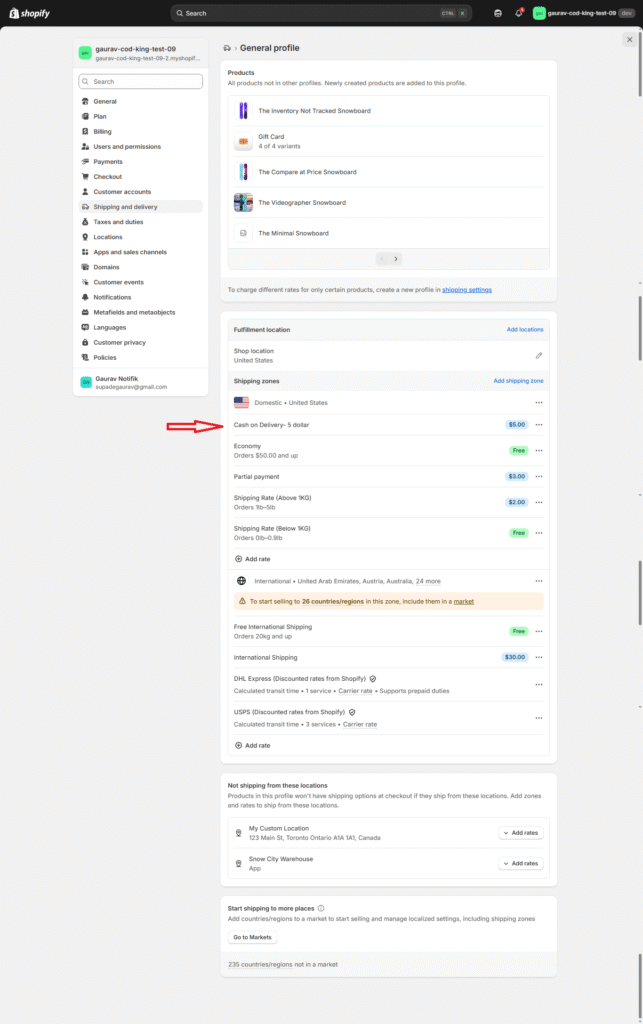
- Click Settings → Shipping and Delivery.
- Open General Shipping Rates.
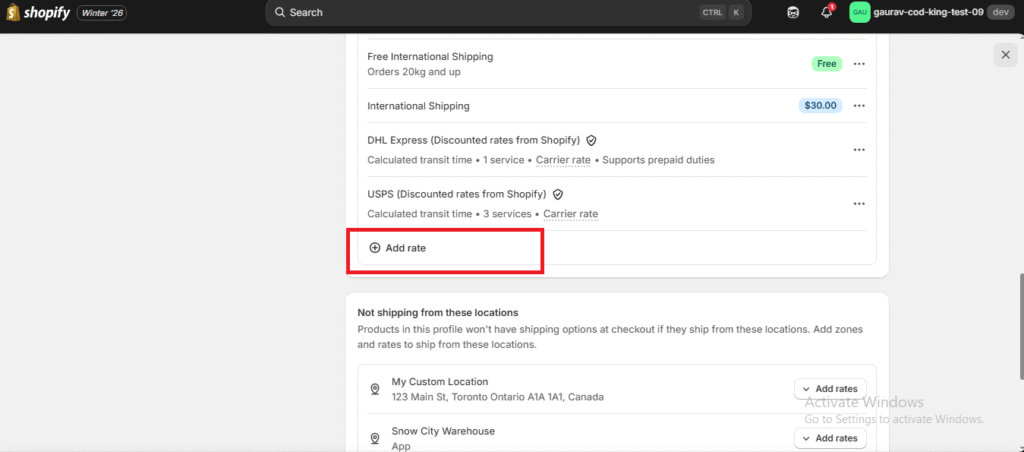
- Click Add Rate.
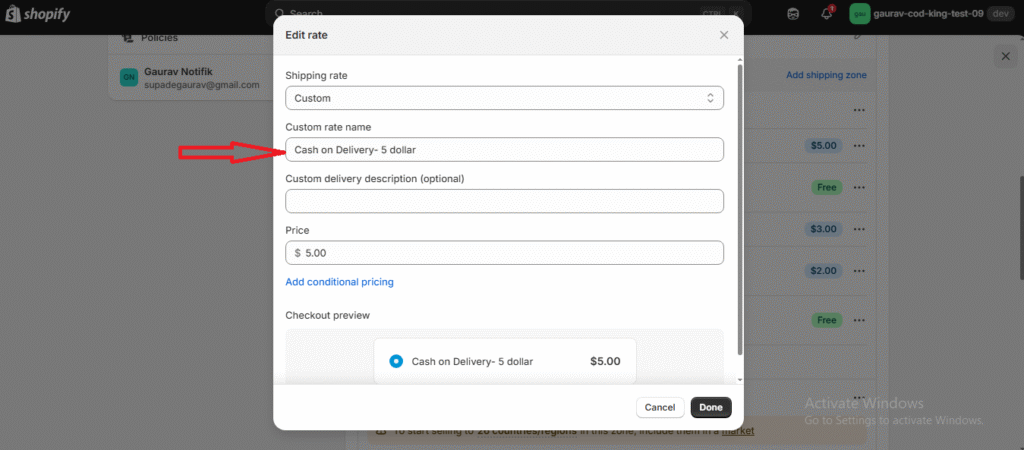
- Name the shipping option Cash On Delivery and add the COD fee to the price.
Step 6: Create a COD Shipping Rate
- In the rate name, type “Cash”.
(Use this exact word because COD King matches the keyword.) - Set the rate price,this amount will be charged as your COD fee.
- Add any conditions if you need them.
- Click Done, then Save.
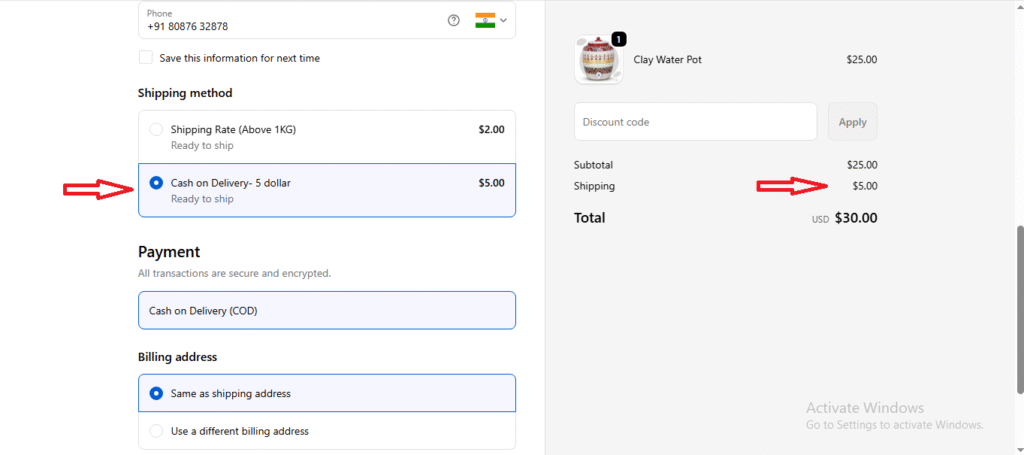
Step7 : Below is the screenshot of the checkout page where the COD fees are applied.
For any inquiries or support, please email us at support@notifiktech.com. We’ll make sure to get back to you as soon as possible
